





What Can You Adjust in DELEM DA-66T Settings Mode?
Table of Contents
• Introduction to the Settings Mode of the Control System
• Parameter Options
• Programming Materials with Their Properties
• Backup/Restore Functions
Product Backup
Product Restore
Tool Backup
Tool Restore
Backup and Restore for Tables and Settings
• Directory Navigation
• Program Settings
• Default Value Settings
• Computation Settings
• Production Settings
• Production Time Calculation
• Time Settings
• Frequently Asked Questions (FAQ)
• Conclusion
When operating the DELEM DA-66T control system, gaining an in-depth understanding of the various adjustable functions in its Settings Mode is crucial for enhancing the performance and operational efficiency of the press brake. If you are curious about the personalized configurations available in this Settings Mode, this article will detailedly break down the core adjustment items to help you accurately optimize the press brake parameters and maximize production efficiency.
Introduction to the Settings Mode of the Control System
Tapping the "Settings" button in the navigation bar switches the control system to Settings Mode. All functions in this mode are logically categorized into different tabs, and the specific settings of each tab will be elaborated on one by one later.
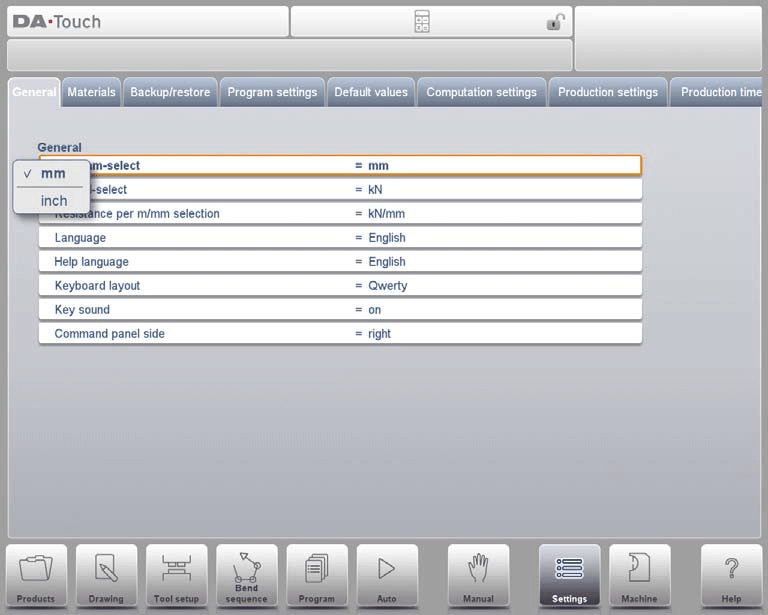
The DELEM DA-66T Settings Mode serves as a comprehensive control hub, allowing operators to flexibly configure various machine parameters to adapt to diverse operational requirements while ensuring that the bending accuracy is always maintained at an ideal level. It is a core functional module that guarantees production stability.
Parameter Options
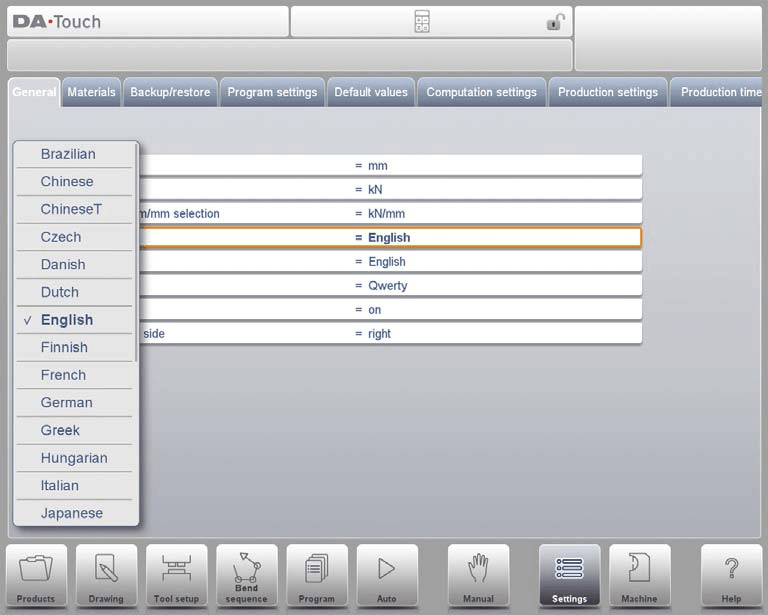
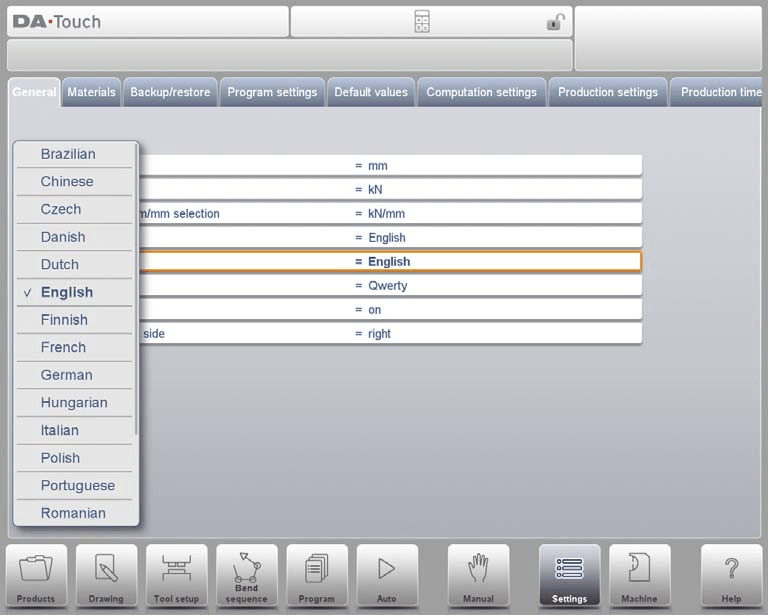
After selecting the required tab, click the parameter to be modified to make adjustments. If the parameter is a numerical or alphanumeric type, the system will automatically pop up a keyboard for you to enter the target value. The specific adjustable options are as follows:
• Inch/mm Select: Easily switch between measurement systems to meet project requirements.
• Ton/kN Select: Choose the force measurement unit that best matches the operational specifications to ensure data accuracy.
• Resistance per m/mm Selection: Customize resistance parameters according to the characteristics of processing materials and process requirements.
• Language: Select the preferred language for the operation interface to improve operational convenience.
• Help Language: Set the display language of the help documentation to support collaboration among international teams.
• Keyboard Layout: Personalize the keyboard layout to match operational habits and improve input efficiency.
• Key Sound: Enable or disable key sounds to provide auditory feedback during operation.
• Command Panel Side: Adjust display settings to optimize the accessibility of the control panel.
Programming Materials with Their Properties
In this tab, materials and their properties can be programmed. You can edit existing materials, add new materials, or delete redundant materials. The control system can preset parameters for up to 99 materials.
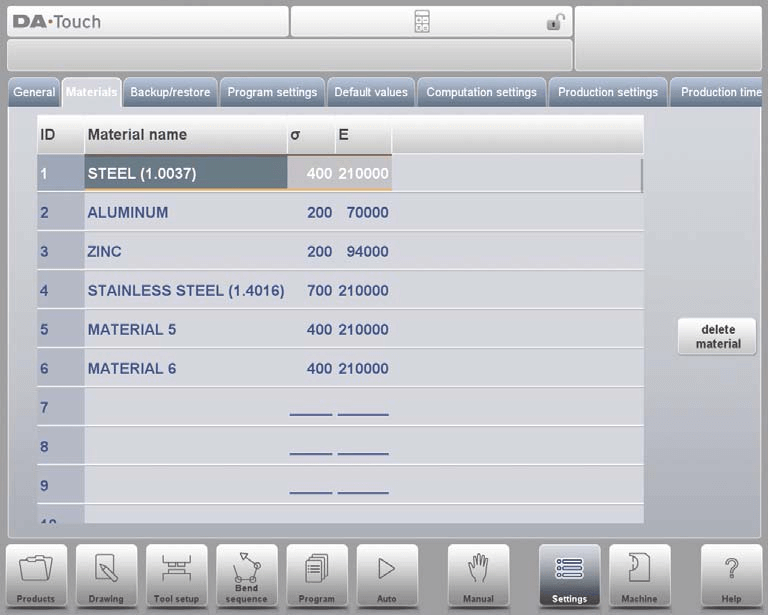
Each material includes three core properties, which can be viewed and modified:
• Material Name: Clearly identify the material type to provide a clear label for the processing flow.
• Tensile Strength: Enter accurate tensile strength values, which are key parameters for ensuring the accuracy of bending operations.
• Modulus of Elasticity (E Module): Specify the modulus of elasticity of the material to ensure that the machine's handling of the material complies with physical property requirements.
Materials are initially displayed sorted by material number (ID). Clicking the column header allows sorting by any property in ascending or descending order. To adjust an existing material, simply select the target material and modify the parameters directly; to delete a material, select the corresponding row and use the "Delete Material" function; to add a new material, select a blank row and enter the relevant property parameters to complete the programming.
Backup/Restore Functions
The DELEM DA-66T Settings Mode provides comprehensive backup and restore functions, supporting the backup and restoration of product, tool, setting, and table data. It is also compatible with importing product and tool data from older control models.
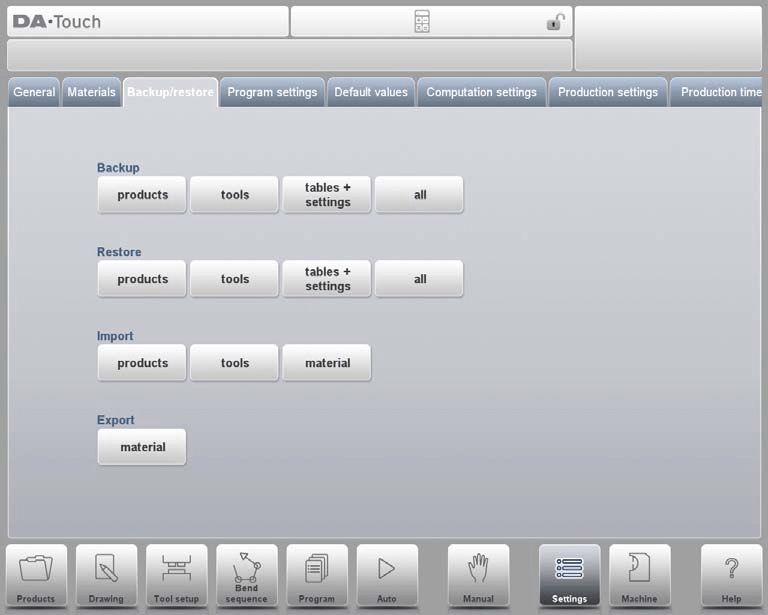
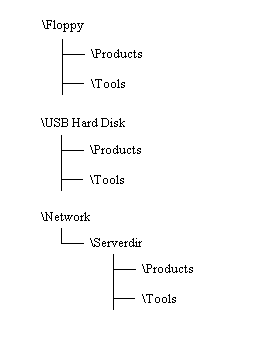
The backup and restore processes for tools and products are consistent and applicable to all backup media (such as network storage, USB flash drives, etc.). The backup directory consists of a storage device (USB flash drive, network) and a specific folder. You can flexibly select according to the connected devices. If necessary, you can create or specify a target folder, and the backup storage paths for products and tools can be set independently.
Product Backup
Select "Products" from the main menu "Backup" to start the product program backup process.

After setting the initial backup directory, you will enter the product backup interface. The core functions are as follows:
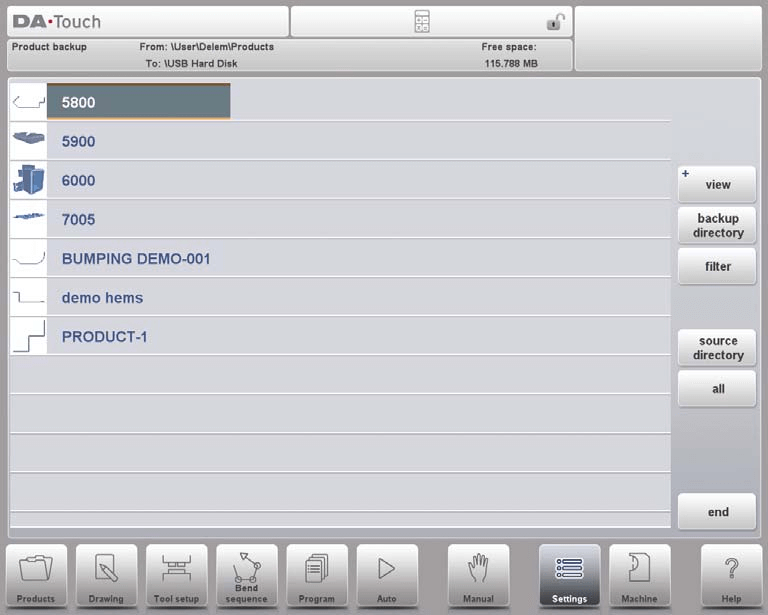
• Current Location Display: The current source file path and backup target path are clearly displayed at the top of the interface.
• Single Product Backup: Click to select the target product, and the system will display a backup marker to confirm the operation; if a file with the same name already exists in the backup path, a prompt will pop up asking whether to replace it.
• Batch Backup of All Products: Use the "All" option to complete the batch backup of all products with one click.
• Directory Modification: Adjust the source file path where the product is located through "Source Directory", and select the storage location of the backup file through "Backup Directory" to facilitate quick navigation to the target folder.
Product Restore
Select "Products" from the main menu "Restore".

After setting the initial restore directory, you will enter the product restore interface. The operation process is as follows:
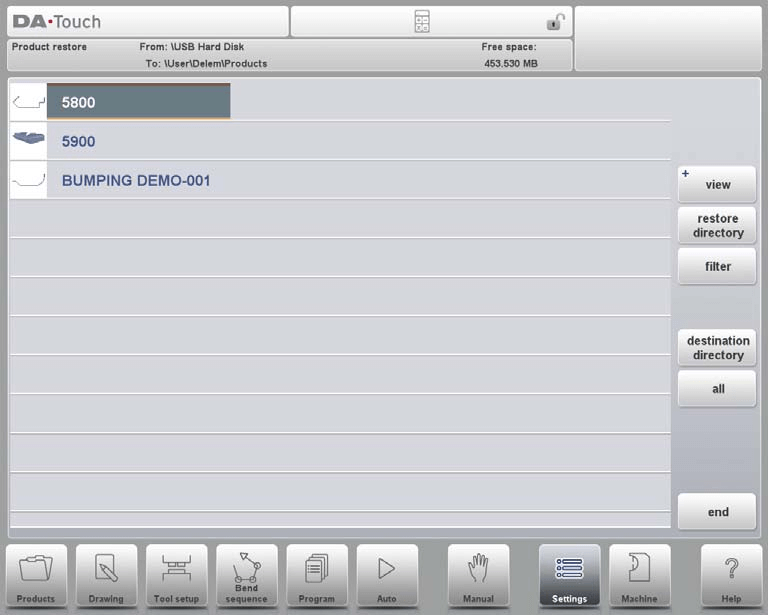
• Product Viewing and Selection: Consistent with the operation logic of the Product Mode, you can conveniently browse the products in the selected directory and select the files to be restored. The current source path and target path of the restore are displayed at the top of the interface.
• Restore Confirmation: Click to select the product to be restored. If a file with the same name already exists in the target path, the system will prompt to confirm whether to replace it.
• Directory Adjustment: Modify the source path of the restore file through "Restore Directory", and specify the storage location after the file is restored through "Destination Directory".
In short, the DELEM DA-66T Settings Mode provides efficient and convenient tools for product data management and restoration, ensuring the security of production data.
Tool Backup
Select "Tools" from the main menu "Backup".
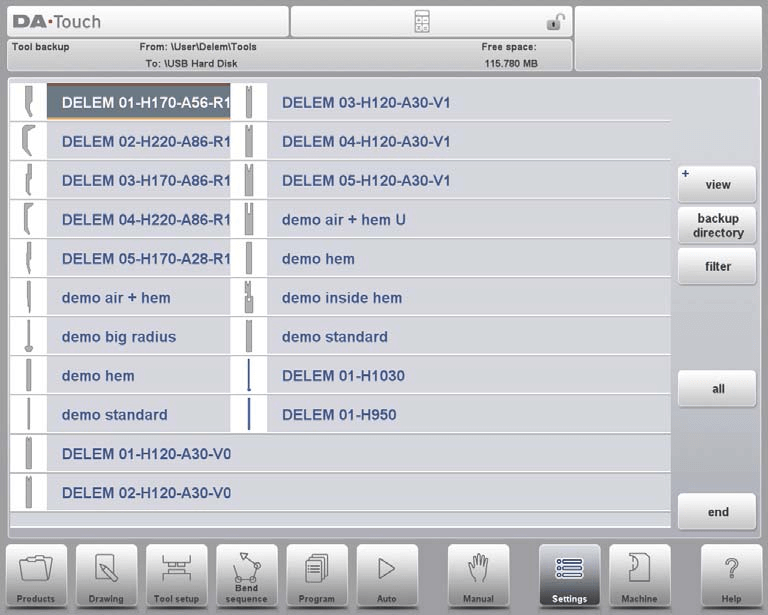
After setting the initial backup directory, you will enter the tool backup interface. This function can back up the tools in the control system (including punches, dies, or machine shape parameters), and the operation process is consistent with product backup.
Tool Restore
The operation process of tool restore is exactly the same as that of product restore, following the same directory setting, file selection, and confirmation logic to ensure the quick restoration of tool data.
Backup and Restore for Tables and Settings
Through the "Backup/Restore" tab, you can manage user-specific settings and table data, with the same operation logic as the backup/restore of products and tools. Among them, the "All" function can automatically complete the full set of backup or restore operations for products, tools, tables, and settings in sequence, simplifying the batch data management process.
Directory Navigation
When using the "Backup Directory" function, the system will pop up a list of available backup directories. In the directory navigation interface, the following operations can be performed:
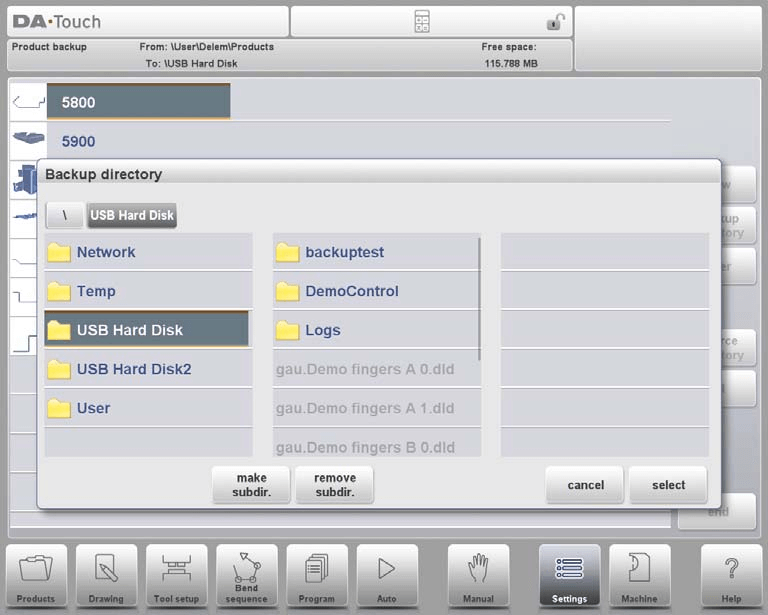
• Hierarchical Navigation: Click the dot icon to expand subdirectories, and return to the upper-level directory through the "PARENT" option; click "Select" to confirm the current directory.
• Device Switching: Continuously click "PARENT" until the top-level directory to select other storage devices and corresponding subdirectories; for network-connected devices, you need to select "Network" first, then select the target network volume, following the same operation logic as other devices.
• Directory Management: Create a new folder through "Make Subdir.", and delete redundant folders through "Remove Subdir."; click the subdirectory name to enter the directory, and finally confirm the target directory through "Select".
Program Settings
Reasonable configuration of various parameters in Program Settings can significantly improve bending accuracy. The specific adjustable options are as follows:
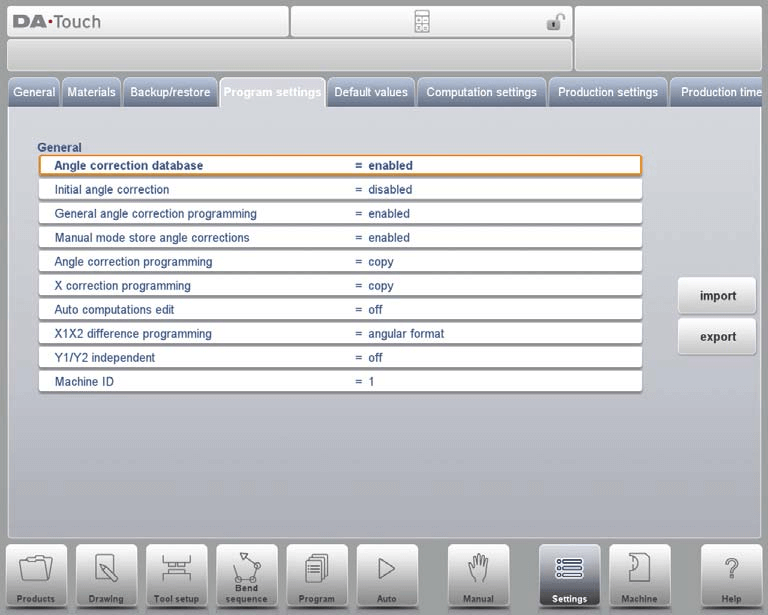
• Angle Correction Database: After enabling, a dedicated database for angle correction can be established to continuously optimize bending accuracy.
• Initial Angle Correction: Set initial angle correction parameters according to project requirements
Disabled: Initial angle correction cannot be programmed.
Enabled: Initial angle correction can be programmed in all correction overviews.
• General Angle Correction Programming: Customize global angle correction parameters to ensure operational consistency
Disabled: No general angle correction function.
Enabled: Only G-corr. α1 (default setting).
α1 and α2: Support dual-parameter correction of G-corr. α1 and G-corr. α2.
• Manual Mode Store Angle Corrections: Store angle correction data during manual operations for reference in subsequent operations.
• Angle Correction Programming: Program refined angle correction parameters for complex design requirements.
• X Correction Programming: Fine-tune X-axis correction parameters to ensure bending accuracy
Copy: Automatically synchronize to CX2 when modifying CX1 (default setting).
Delta: Keep the difference between CX1 and CX2 unchanged when modifying CX1.
Independent: CX1 and CX2 parameters can be modified independently.
• Auto Computations Edit: Automate the calculation process to reduce manual operation errors, which may also affect the values of other associated parameters.
• X1X2 Difference Programming: Define the programming difference between X1 and X2 as needed. If the machine is equipped with two independent X-axes (X1 and X2) and the OP-W-X@ option has been installed, the values of X1 and X2 can be programmed according to the angular relationship.
• Y1/Y2 Independent: Configure the independent operation parameters of the Y-axis to improve operational flexibility
Off: Single Y-axis programming mode (default setting).
On: Y1 and Y2 parameters can be programmed independently.
• Machine ID: The default value is 1, which can be adjusted according to the actual equipment configuration.
Default Value Settings
Default value settings ensure that the machine can quickly enter the operational state after startup, reducing repeated manual adjustments. The specific configurable parameters are as follows:
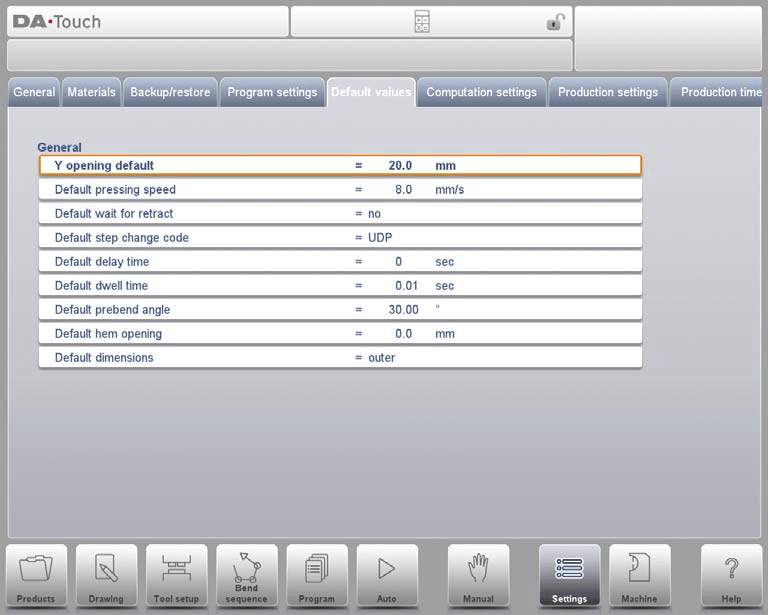
1. Y Opening Default: Set the Y-axis opening size during program initialization.
2. Default Pressing Speed: Preset the initial pressing speed for new programs.
3. Default Wait for Retract: Configure the initial state of the "Wait for Retract" parameter, which affects the operation logic of the bending program. The default setting is "Yes".
4. Default Step Change Code: Set the initial code for step changes in the bending program, using "UDP" by default.
5. Default Delay Time: Adjust the waiting time of the X-axis during step changes. The default value is 0, which can be extended according to material processing requirements.
6. Default Dwell Time: Preset the initial dwell time during the bending process.
7. Default Prebend Angle: Define the initial prebend angle of graphical products.
8. Default Hem Opening: Set the initial opening distance for beam positioning in hemming operations. The default value is 0.00mm (i.e., no gap between flanges).
9. Default Dimensions: Preset the dimension reference (external dimensions or internal dimensions) of the graphical product drawing, which directly affects the calculation logic of the "Dimensions (D1)" parameter.
By adjusting the above default parameters, the machine startup configuration can be customized according to specific production needs to improve operational efficiency.
Computation Settings
In the DELEM DA-66T Settings Mode, the following parameters can be adjusted to modify the calculation logic related to bend allowance, further ensuring bending accuracy:
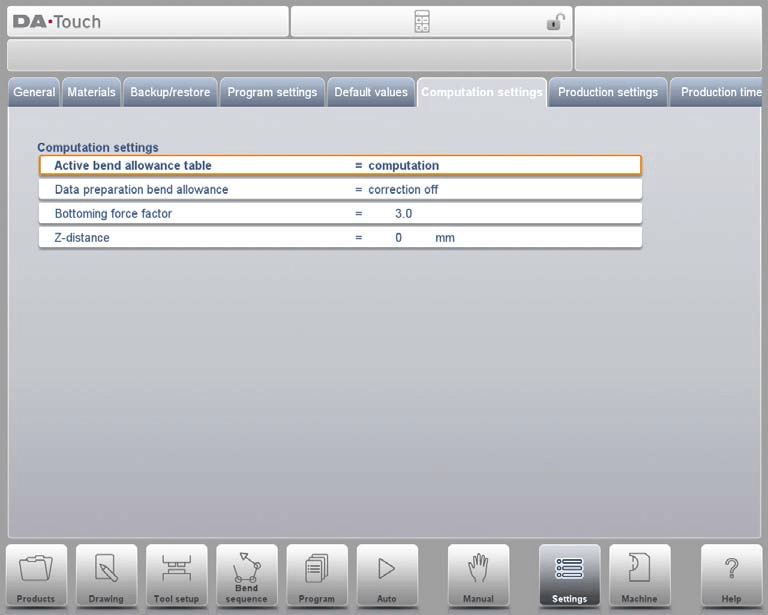
Active Bend Allowance Table
• Computation Mode: Use the standard formula of the control system to automatically calculate the bend allowance.
• Table Mode: If a bend allowance table has been imported, corrections can be made based on preset values.
Bend-Allowance Correction
• Correction Off: No bend allowance is added during numerical programming.
• Correction On: The bend allowance will be included in the calculation during product programming (in Program Mode). The system will automatically calculate and store axis correction parameters, which can be viewed and adjusted in Production Mode (Auto Mode).
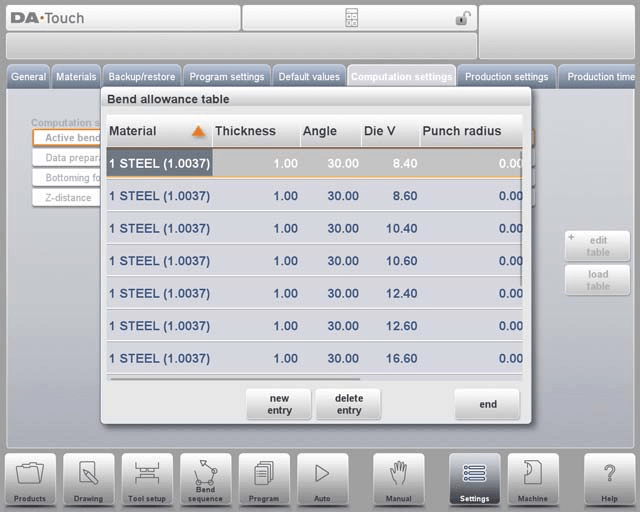
In the Computation Settings interface, various parameters can be adjusted in a tabular form: select the target field, enter the new value, and press the Enter key to complete the modification. It should be noted that the table can only be edited after it has been loaded into the control system, and new tables cannot be created through this menu temporarily.
To load an existing bend allowance table, you can navigate to the target file path through the "Load Table" function. For detailed descriptions of the bend allowance table, refer to the official DELEM manual.
Core Adjustable Parameters
1. Bottoming Force Factor: Adjust the multiplier of the force required for air bending to achieve the target bottoming force.
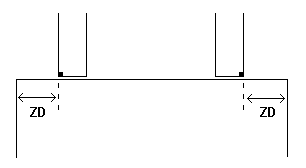
2. Z-distance: Set the distance between the edge of the finger and the corner of the sheet. If equipped with an automatic Z-axis, the system will automatically calculate the finger positioning according to the position of the sheet end.
Production Settings
In the DELEM DA-66T Settings Mode, operators can flexibly adjust the following parameters to optimize the bending process, balancing efficiency and safety:
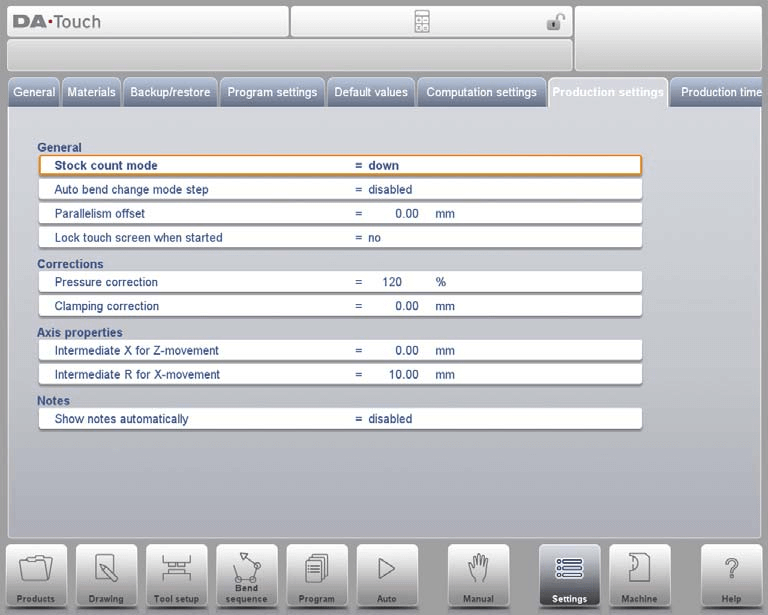
1. Stock Count Mode: Configure the counting direction of the stock counter (incremental or decremental). Decremental counting is suitable for completing preset production quotas, while incremental counting facilitates real-time monitoring of production progress.
2. Auto Bend Change Mode Step: After enabling the Step Mode, press the start button, and the system will automatically load the next set of bending parameters to achieve continuous operation.
3. Parallelism Offset: Set the parallelism value of the Y-axis stroke. This value takes effect below the clamping point and is added to the Y2 parameter to ensure bending parallelism.
4. Lock Touch Screen when Started: After enabling, the touch screen will be locked when the controller is running to prevent parameter changes caused by misoperation.
5. Pressure Correction: Adjust the percentage of the calculated pressure of the pressure valve to ensure accurate pressure application.
6. Clamping Correction: Calibrate the clamping position of the beam to ensure the sheet is firmly fixed. A positive value indicates deepening the clamping position, and a negative value indicates raising the clamping position.
7. Default Part Support Return Speed: Set the return speed of the part support after bending (expressed as a percentage of the maximum speed), which is only available when the machine is equipped with a part support function.
8. Part Support Extra Angle: Add an additional angle to the part support unit during decompression, applicable to systems equipped with a part support function.
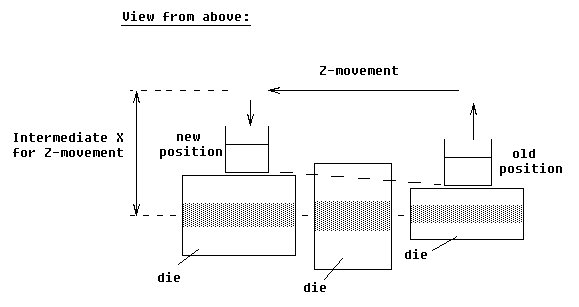
9. Intermediate X for Z-movement: Define the safe position of the X-axis during Z-axis movement to avoid collisions with molds of different sizes.
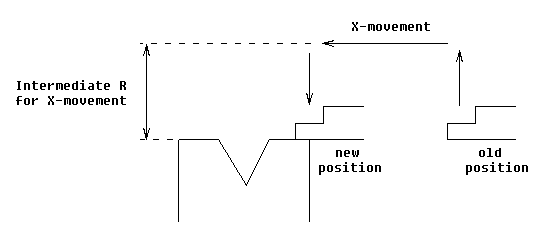
10. Intermediate R for X-movement: Set the intermediate position of the R-axis during X-axis movement to ensure movement within the safe zone of the mold and prevent collisions.
11. Show Notes Automatically: In Auto Mode, when a new bending step is selected, the system will automatically display the notes for that step, improving operator recognition and ensuring operational consistency.
Through the above settings, the DELEM DA-66T can be better adapted to specific production needs, achieving dual improvements in efficiency and safety.
Production Time Calculation
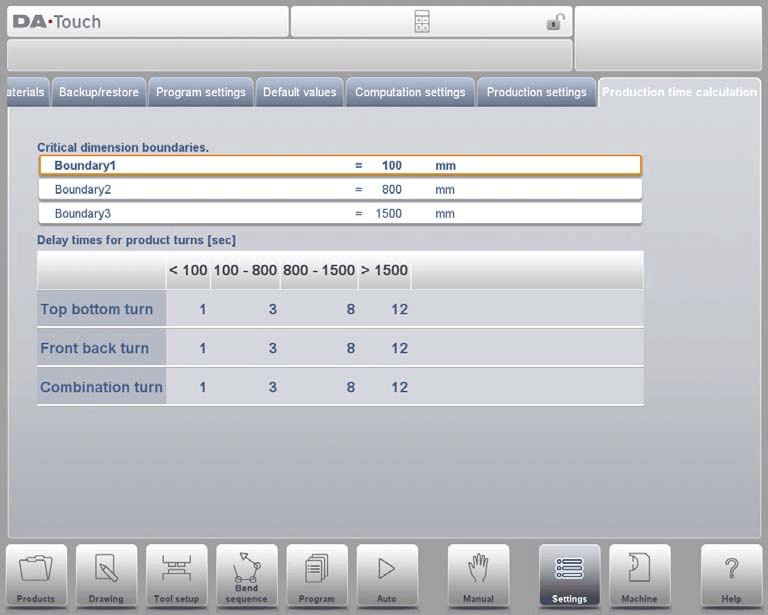
In the DELEM DA-66T Settings Mode, the following parameters can be configured to optimize the production time calculation of the bending sequence, ensuring that the time estimation accurately matches the actual operation process:
Production Time Calculation Logic
The calculation of production time mainly depends on the axis positioning speed and product handling time. Among them, the axis positioning speed is determined by the machine settings, and the handling time is directly related to the product size (especially length and width)—small products have higher handling efficiency, while the flipping operation of large strip-shaped products requires more time.
Turn Time Configuration
The flipping time of products of different sizes can be set through a table (unit: seconds). The table divides product lengths into four intervals, and each interval corresponds to preset times for different flipping types (top-bottom flip, front-back flip, combination flip). At the same time, three length boundary values (Boundary 1, Boundary 2, Boundary 3) can be customized to achieve accurate adaptation of flipping times for products of different sizes.
By adjusting these parameters, the production time calculation can be more in line with the actual operation scenario, providing a reliable basis for production plan formulation.
Time Settings
Configuring accurate system time can ensure the complete traceability of all machine operation records and keep them synchronized with the project timeline. The specific configurable options are as follows:

• Display Time: Select the time display form of the title bar (display date and time, display time only, no time display).
• Time Format: Select the time display format (24-hour format or 12-hour format).
• Date Format: Select the date display format (dd-mm-yyyy, mm-dd-yyyy, or yyyy-mm-dd).
• Adjust Time: Manually modify the system date and time. This operation will synchronously update the date and time of the Windows operating system.
Frequently Asked Questions (FAQ)
Can adjusting parameters in the DELEM DA-66T Settings Mode affect machine safety?
Yes. All parameter adjustments must strictly comply with safety standards and manufacturer's guidelines to avoid safety accidents caused by improper parameter settings and ensure that the machine is always in a safe operating state.
What is the best way to calibrate the press brake accurately?
To achieve accurate calibration of the press brake, first ensure that the machine is placed horizontally; then use a digital gauge to measure the angle of the bending die and adjust it according to the calibration standards provided by the manufacturer.
How often should maintenance be performed on the press brake?
Routine maintenance is recommended every 500 hours of machine operation, including inspecting the status of core components, cleaning the machine surface, and lubricating moving parts.
Conclusion
In summary, proficiently mastering the operation and parameter adjustment of the DELEM DA-66T Settings Mode is the core of optimizing the operational efficiency of the press brake. By reasonably configuring key settings such as axis parameters, tool parameters, and safety protocols, not only can bending accuracy and production efficiency be guaranteed, but the service life of the equipment can also be effectively extended.
To give full play to the performance potential of the DELEM DA-66T, it is recommended to regularly review and update relevant settings according to specific production needs. If you encounter any questions or need further assistance during operation, please feel free to contact our technical team. In addition, you can refer to our other technical documents to obtain more practical skills for equipment optimization.

