





Effective Strategies for ESA S860 Data Management Optimization
Optimizing data management for the ESA S860 system is essential for
maximizing operational efficiency and ensuring data integrity. If you are
looking to enhance your data handling processes within the ESA S860 environment,
this article offers actionable strategies and proven best practices to help you
succeed.
By applying the methods discussed here, you can significantly improve data accessibility, strengthen security, and boost overall system performance—enabling smoother and more reliable operations. Whether you are new to the ESA S860 platform or seeking to refine an established workflow, this guide delivers the key insights needed to unlock your system’s full potential.
Introduction
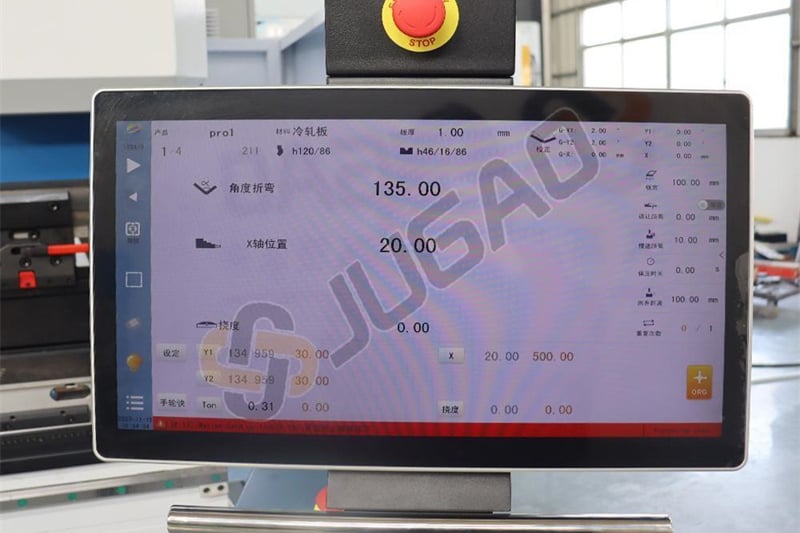
In the ESA S860 for the Esautomotion bender press, effective data management is crucial. Key data types include:
Machine Configuration Parameters: Accessible via option 2 in the Menu, these settings dictate overall machine functionality.
Axis Parameters: Found under option 1 in the Menu, these parameters control the axes for precise operations.
Work Programs: Available in both graphic and numeric formats, these programs guide the bending process.
Equipment Data: Information on essential tools like punches and dies.
Mastering ESA S860 data management ensures optimal performance and efficiency for your bending operations.
Understanding Memory Devices
Managing your machine’s data with the ESA S860 involves using various memory devices, including:
Flash: This internal device on the MULTIFUNCTION board stores the machine’s management software and operating system.
Buffered RAM: This internal memory device holds all machine data even when the control is off, thanks to its battery backup.
SSD (Solid State Disk) Flash Hard Disk: This device stores a copy of the operating system, application programs, and backups, encompassing machine data and configurations.
USB Device: A standard USB 1.1 or 2.0 device is used to save configuration parameters, axis parameters, and security copies of programs, punches, and dies. The contents are easily viewable from any compatible PC.
Efficient ESA S860 data management ensures smooth operations and reliable performance. For expert guidance on effectively managing data, contact our support team or explore our additional resources online.
Logic Location of the Data
The logical location of data refers to where the data is stored in the memory device when the machine is operational. During use, all data is housed in the internal memory, ensuring seamless access and processing.
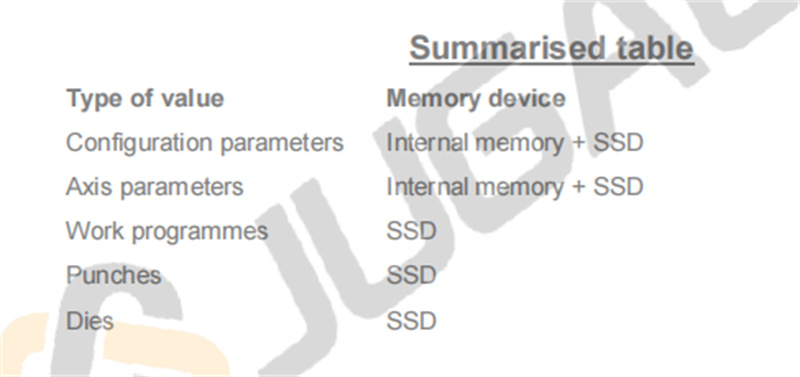
To safeguard against incorrect entries or memory loss, all machine data, including configurations and axes settings, are stored in files. This approach enables efficient data recovery and management, forming a critical part of ESA S860 data management.
Exchanging Data Between Memory Devices
In the realm of ESA S860 Data Management, data exchanging is a crucial process. It involves the transferral of data from internal memory devices to a USB device (SAVING), or conversely, from a USB device to internal memory devices (UPLOADING). Refer to the detailed block diagrams for a comprehensive understanding of how ESA S860 Data Management facilitates this essential data exchange.
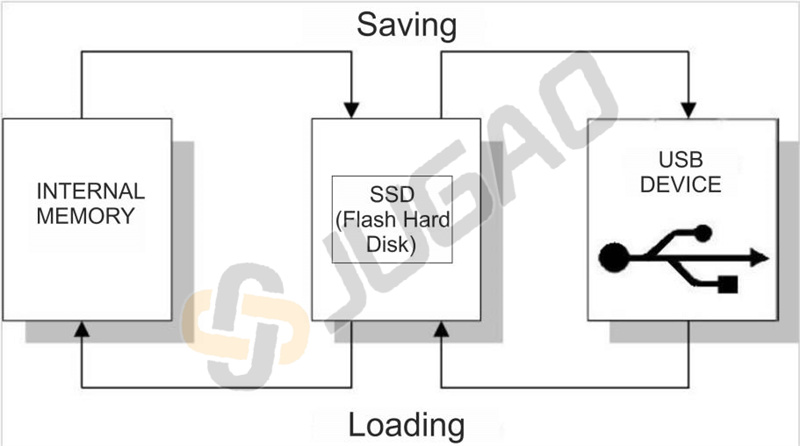
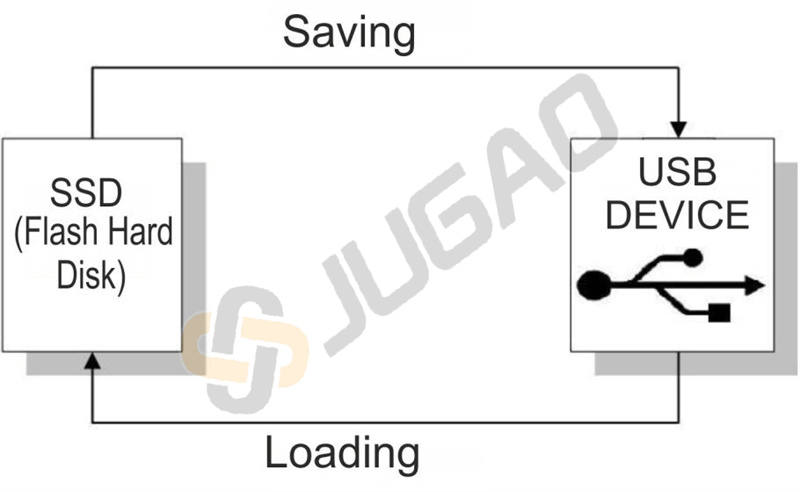
The process for managing configuration and axis parameter data involves initially saving files to an SSD before moving them to the recipient device. This ensures that if a memory device fails (like a USB or internal memory), an SSD backup of the most recent data, managed efficiently by ESA S860 Data Management, will always be available.
It is possible to simultaneously save and/or upload the machine parameters and the configuration parameters in automatic mode; this special function is described in the paragraph “Saving/Uploading all the parameters”. Following are descriptions of the uploading and saving operations for every category of data.
Save / Uploading the Configuration Parameters
The configuration parameters consist of the following data:
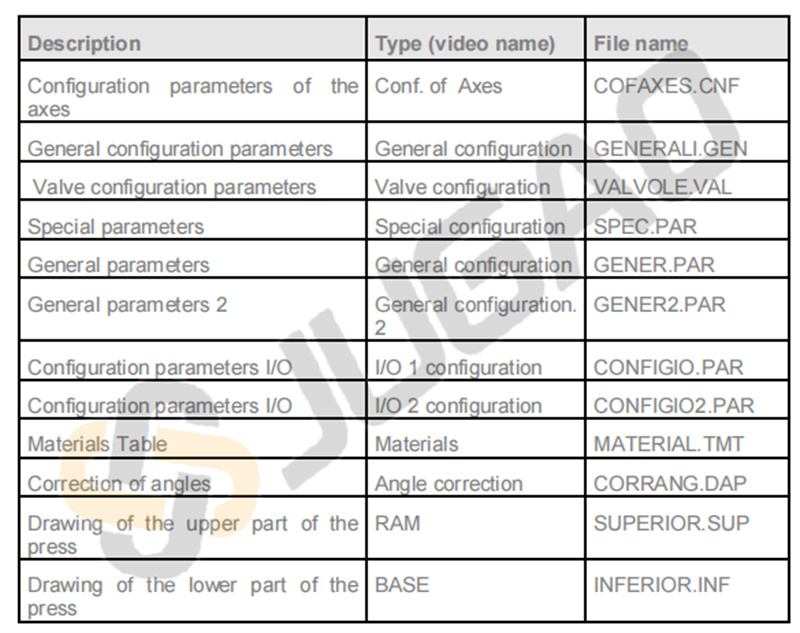
The uploading and/or saving can be carried out in one of the following ways:
SINGLE saving/uploading: the operation is performed on the type of parameters selected.
GLOBAL saving/uploading: the operation is performed for all the types of configuration parameters.
Saving/Uploading the Axis parameters
The machine parameters consist of the following data:
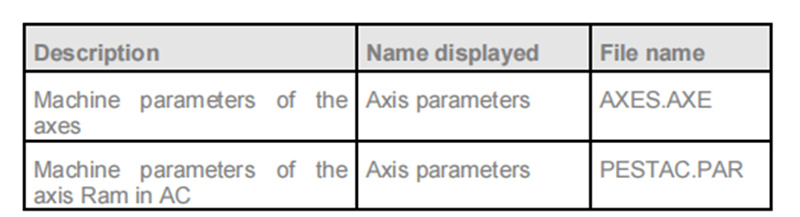
The uploading and/or saving can be carried out in one of the following manners:
Single saving/uploading: the operation is carried out by entering the mask Menu Axis Parameters (1);
Global saving/uploading: the operation is carried out together with the Configuration Parameters in the global saving/uploading procedure described in the previous paragraph.
Saving/Uploading the punches
The punches consist of the following data:

The punch data reside in the SSD and do not require any specific uploading or of saving procedure for being changed. After having selected the punch from the list of punches and pressed the key ENTER to access the drawing:
- press this key to memorise the changed data.

– move into another mask in order to ignore the changes made.
Saving/Uploading the dies the data of the die reside in the SSD and do not require any specific uploading or of saving procedure for being changed; after having selected the die from the list dies and pressed the key ENTER to access the drawing:

- press this key to memorise the changed data.
– move into another mask in order to ignore the changes made.
Saving/Uploading all the tools
l Saving Tools on a USB Device:
1. Access the punches or dies list by pressing the appropriate key.
2. Open the menu, select [Save tools], and save everything to the USB device.
Uploading Tools from a USB Device:
1. Access the punches or dies list by pressing the appropriate key.
2. View the tools list on the USB.
3. Open the menu, select [Save tools], and upload everything from the USB device.
Saving/Uploading programmes
The programmes may consist of several files:
– file name.PRG containing the data of the drawing of the piece.
– file name.PRN containing the heights of the axes and the bend data.
The files that are saved will depend on the way in which a programme has been set up.
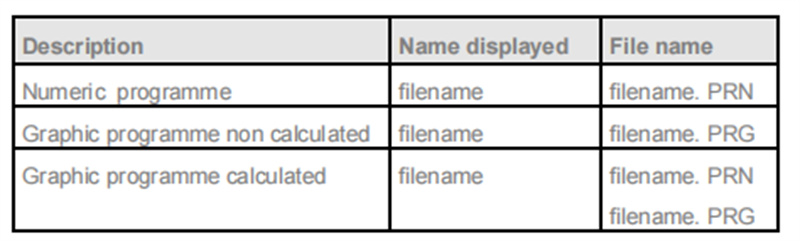
The data programmes reside in the SSD and do not require any specific uploading or of saving procedure for being changed.
Saving/Uploading all the programmes
l Saving Programs on a USB Device
1. Select the program list by pressing the designated button.
2. Open the menu and choose [Save Programs]. This action saves all programs onto your USB device.
Uploading Programs from a USB Device
1. Begin by selecting the program list.
2. Access the program list on the USB device by pressing the relevant button.
3. Open the menu and select [Save Programs] to upload all programs from the USB device.
Recommended Security Saving
Foreword
Security saving refers to storing data on a USB device to ensure the proper operation of your press bender.
Parameters
Save the machine parameters on the USB device at the time of shipping. Make sure to update and save any changes immediately.
Programs
Regularly save your programs based on their number and importance to ensure seamless operation.
Equipment
After adding new tools like punches or dies to your setup, save the data promptly to maintain up-to-date equipment records.
For Manufacturers
Keep a USB device with machine parameters for each sold bender press (duplicate copies or a backup on a computer hard drive).
Provide a USB device with equipment data alongside the bender press.
For End Users
Maintain a USB device containing all essential machine parameters, equipment data, and frequently used programs.
Keep a backup copy on a computer hard drive.
For large numbers of programs, use a dedicated USB device to keep memory free and facilitate faster searches.
These simplified guidelines for ESA S860 Data Management ensure comprehensive data security and efficient press bender operations.
Conclusion
In summary, achieving optimal data management with the ESA S860 requires deliberate planning and the systematic implementation of processes designed to strengthen data security, improve accessibility, and maximize system performance. By consistently applying the best practices outlined—including conducting regular data audits, establishing reliable backup protocols, and adopting efficient data organization and retrieval techniques—you can maintain your ESA S860 system at peak operational effectiveness.
Should you wish to delve deeper into these approaches or have specific technical inquiries, our support team is ready to provide the expert guidance and tailored assistance necessary for superior system management. We also encourage you to consult our extended technical library for further insights into fully leveraging the capabilities of your ESA S860.

