





DELEM DA-69T Ayarlar Modunun Temel Özellikleri
İçindekiler Tablosu
1. DELEM DA-69T Ayar Arayüzünde Gezinme
2. Genel Ayarlar
3. Malzemeleri Yönetme
4. Yedekleme ve Geri Yükleme İşlevleri
a. Ürün Yedeği
b. Ürün Geri Yükleme
c. Takım Yedeği
d. Takım Geri Yükleme
e. Tablolar ve Ayarlar İçin Yedekleme ve Geri Yükleme
f. Otomatik Zamanlanmış Yedeklemeler
g. Dizin Gezintisi
5. Program Ayarları
6. Varsayılan Değerler
7. Hesaplama Ayarları
8. Üretim Ayarları
9. Üretim Süresi Hesaplaması
10. Zaman Ayarları
11. Sıkça Sorulan Sorular (SSS)
12. Sonuç
DELEM DA-69T Ayarlar Modu, pres bükme işlemlerinin kritik bir bileşenidir ve makine performansı üzerinde hassas kontrol sağlayabilen gelişmiş yapılandırma özelliklerine sahiptir. Bu kılavuz, DELEM DA-69T Ayarlar Modu’nun temel işlevlerini ele alır ve her bir özelliğin pres bükme işlemlerini nasıl optimize ettiğini ve genel üretim verimliliğini nasıl artıracağını açıklar. Sisteme yeni başlayan bir kullanıcı olursanız ya da uzman bir operatör olarak bilginizi derinleştirmek istiyorsanız, bu kaynak, DELEM DA-69T’nin tam potansiyelini ortaya çıkarmak için gerekli tüm temel bilgileri sunar.
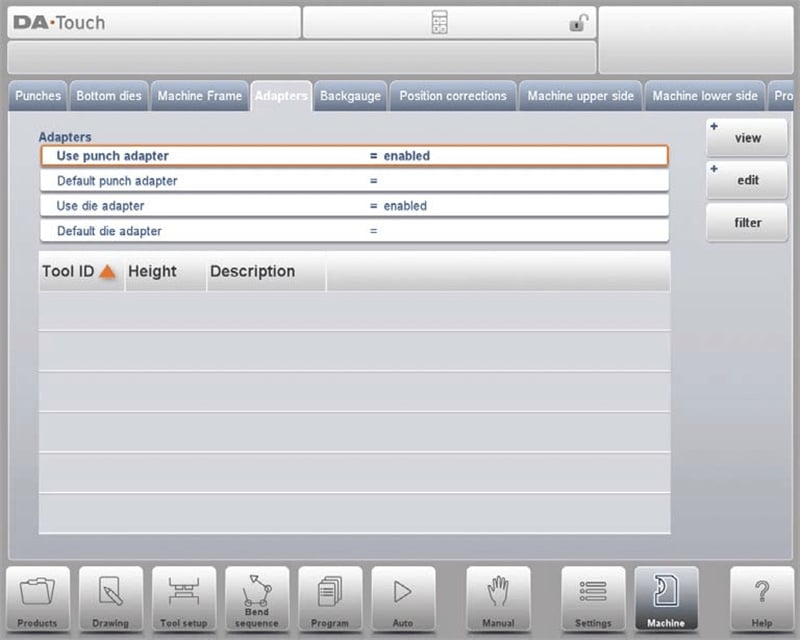
DELEM DA-69T Ayarlar Arayüzüne Yönlendirme
Ayarlar Moduna geçmek için Ayarlar gezinme düğmesine dokunun. Arayüz, kullanıcı dostu bir şekilde tasarlanmıştır; tüm yapılandırma seçenekleri mantıklı sekmelere göre düzenlenmiştir. Ekranın görüntüleme kapasitesini aşan sekme sayısı için, mevcut tüm ayarlara erişmek üzere sekme çubuğunu yatay olarak sürükleyebilirsiniz.
Genel Ayarlar
Genel Ayarlar sekmesi, esnek ve kullanıcı dostu ayarlama seçenekleri aracılığıyla pres bıçağı performansını doğrudan artırarak temel işlevsel parametrelerin hassas ayarlanmasını sağlar:
Parametreler ayarlanıyor
Parametreleri değiştirmek için ilgili sekme seçin ve hedef ayara dokunun. Sayısal veya alfasayısal değerler girmek üzere sanal bir klavye açılacak; açılır listeler ise hızlı seçim imkânı sunar—uzun listelerde dikey kaydırma özelliği mevcuttur.
Birim seçimi
İşletimsel ihtiyaçlarınıza uygun olarak ölçüm birimlerini özelleştirin:
• İnç/mm Seçimi: Doğrusal ölçümler için milimetre ile inç arasında geçiş yapın
• Ton/kN Seçimi: Kuvvet ölçümleri için ton ya da kilonewton seçin
• Metre başına direnç/mm: Direnç birimlerini metre veya milimetre başına seçin
Arayüz Özelleştirme
• Dil: Desteklenen arayüz dilleri listesinden bir dil seçin. Not: Standart olmayan karakterler içeren dillere geçiş yapıldığında arayüz yeniden başlatılabilir.
• Yardım Dili: Varsayılan olarak seçilen arayüz dilidir; yedek seçenek olarak İngilizce kullanılır. Ek yardım dilleri, bir ağ bağlantısı veya USB sürücü üzerinden yüklenebilir.
Giriş Tercihleri
• Klavye Düzeni: Kullanıcının alışkın olduğu Qwerty, Qwertz veya Azerty düzenlerinden birini seçin
• Tuş Sesleri: Giriş panelinin sesli geri bildirimini açıp kapatabilirsiniz
• Komut Paneli Yeri: Komut panelinin ekranın sol veya sağ tarafında yer almasını ayarlayabilirsiniz (varsayılan: sağ taraf)
Bu özelleştirilebilir özellikler, DELEM DA-69T Ayarlar Modu’nu bireysel işlevsel gereksinimlere göre makine kurulumunu uyarlamak için çok yönlü bir araç haline getirir.
Malzemeleri Yönetme
DELEM DA-69T Ayarlar Modu, malzeme verilerinin etkin programlanmasını, düzenlenmesini ve silinmesini sağlar; maksimum depolama kapasitesi 99 malzeme girdisidir. Her malzeme için kullanıcılar üç temel özelliği tanımlayabilirler:
1. Malzeme adı: Programlama ekranlarında görüntülenir; 25 karakterle sınırlıdır ve bir harfle başlamalıdır
2. Çekme mukavemeti: Malzemenin çekme direnci performansını gösterir
3. E modülü: Malzemenin elastik modülünü belirtir
Şekil değiştirme sertleşmesi üssü
Şekil değiştirme sertleşmesi üssü (n ile gösterilir), bükme hesaplamalarının doğruluğunu doğrudan etkileyen kritik bir malzeme özelliğidir. Bu parametre, çekme mukavemeti ve E modülüyle birlikte malzeme tedarikçileri tarafından sağlanır. n değerinin doğru girilmesi, iç yarıçap hesaplamalarını iyileştirir ve bu da bükme derinliği ile bükme payı değerlerinin kesinliğini sağlar; sonuç olarak geri ölçüm (back gauge) konumları ile bükülmüş parçanın açılmış uzunluğu (developed length) optimize edilir.
Varsayılan olarak n değeri devre dışıdır (_.__ olarak ayarlanmıştır) ve 0,01 ile 1,00 arasında yapılandırılabilir (yumuşak çelik için tipik değer 0,21’dir). Değerin 0’a sıfırlanması parametreyi tamamen devre dışı bırakır.
Şekil Değiştirme Sertleşmesi Üssünün Hesaplanması
N değeri, bir bükme payı tablosu mevcut olup olmadığına bağlı olarak iki farklı yöntemle hesaplanabilir:
1. Bükme Payı Tablosu Olmadan
Manuel Modda bir test bükme gerçekleştirin, ardından malzeme tablosundaki 'n değerini hesapla' düğmesini seçin. Sistem, X ekseni konumu ile ölçülen kenar uzunluğu arasındaki farka dayalı olarak n değerini hesaplar. Hesaplama doğruluğu, sac kalınlığının, takımların parametrelerinin ve kenar uzunluğu ölçümlerinin doğru girilmesine bağlıdır.
bükme İzin Tablosuyla
N değeri, önceden yapılandırılmış tablodan doğrudan elde edilebilir. İlgili malzemeyi seçin ve 'n değerini hesapla' seçeneğine dokunarak otomatik olarak hesaplanan sonucu görüntüleyin.
Malzeme Verisi Yönetimi
Malzemeler başlangıçta benzersiz malzeme numaralarına (ID) göre listelenir ve akıcı bir gezinme için herhangi bir özelliğe göre sıralanabilir. Bir malzemeyi değiştirmek veya silmek için ilgili giriş satırını seçmeniz yeterlidir. Yeni malzemeler, boş bir satır seçerek ve gerekli özellik değerlerini girerek eklenebilir.
DELEM DA-69T ile hassas ve tutarlı metal işleme operasyonları gerçekleştirmek için şekil değiştirme sertleşmesi üssünün ve malzeme verisi yönetiminin tam olarak kavranması esastır.
Yedekleme ve Geri Yükleme İşlevleri
DELEM DA-69T Ayarlar Modu, veri bütünlüğünü korumak ve pres bükme işlemlerinin kesintisiz devam etmesini sağlamak için güçlü yedekleme ve geri yükleme yeteneklerine sahiptir. Sistem, ürün ve takım verilerinin DLC dosya formatında yedeklenmesini ve geri yüklenmesini destekler; bu format, daha eski DELEM kontrol modelleriyle uyumludur ve kritik işletme verilerini kolayca koruma imkânı sağlar.
Yedekleme ve geri yükleme işlemleri, makinenin mevcut bağlantılarına bağlı olarak çeşitli depolama ortamları (örn. USB bellekler, ağ depolama) kullanılarak gerçekleştirilebilir. Kullanıcılar ihtiyaç duydukları şekilde özel dizinler oluşturabilir ve seçebilir; ürün ve takım verileri için ayrı depolama konumları belirlenerek düzenli bir dosya yönetimi sağlanır.
4.1 Ürün Yedeği
Üretim programlarını harici bir depolama cihazına yedeklemek için:
1. Yedekleme/Geri Yükleme sekmesine gidin ve Yedekleme bölümünde ürünler seçeneğini belirleyin.
2. Başlangıç yedekleme dizini ayarlandıktan sonra ürün yedekleme ekranı yüklenir; bu ekranda aşağıdaki temel işlevler yer alır:
○ Ürün Gösterimi: Seçilen kaynak dizinindeki tüm ürünler, sezgisel gezinme için Ürünler Modu'ndaki görünüm seçeneklerini yansıtarak listelenir.
○ Konum Görünürlüğü: Ekranın üst kısmında geçerli kaynak dizini ve belirlenen yedekleme konumu görüntülenir; bu, dosya yönetiminde tam şeffaflık sağlar.
○ Seçmeli Yedekleme: Yedeklemek istediğiniz ürünü dokunarak işaretleyin (yedekleme işareti seçiminizi onaylar). Eğer yedekleme konumunda aynı ada sahip bir ürün zaten varsa, sistem kullanıcıdan üzerine yazma işlemini onaylamasını ister.
○ Toplu Yedekleme: Tüm işlevi, listelenen tüm ürünleri tek tıkla yedeklemeyi sağlayarak çoklu dosyalar için veri korumasını kolaylaştırır.
○ Kaynak Dizin Gezintisi: Ürünler için farklı bir kaynak konumu seçmek üzere bir dizin tarayıcısı açmak için Kaynak Dizini kullanın.
○ Yedekleme Dizin Gezintisi: Yedeklenen ürünlerin hedef depolama konumunu ayarlamak için Yedekleme Dizini'ni kullanın.
4.2 Ürün Geri Yükleme
Üretim programlarını kontrol ünitesine geri yüklemek için:
1. Yedekleme/geri yükleme sekmesine gidin ve Geri yükleme bölümüne ürünler seçin.
2. Başlangıç geri yükleme dizini ayarlandıktan sonra ürün geri yükleme ekranı, temel özelliklerle birlikte yüklenir:
○ Kullanışlı Görüntüleme: Seçilen geri yükleme dizinindeki ürünler, kolay tanımlama amacıyla Ürünler Modu ile aynı biçimde görüntülenir.
○ Kaynak/Hedef Görünürlüğü: Ekranın üst kısmında geçerli geri yükleme kaynağı ile hedef kontrol ünitesi konumu gösterilir.
○ Dizin Özelleştirme: Farklı bir kaynak seçmek için Geri Yükleme Dizini'ni, kontrol ünitesindeki hedef konumu belirlemek için ise Hedef Dizini'ni kullanın.
○ Seçmeli Geri Yükleme: Geri yüklemek istediğiniz ürünü dokunarak işaretleyin (onay işareti görünür). Kontrol ünitesinde çakışan bir dosya varsa sistem, üzerine yazma işlemini onaylamanızı ister.
4.3 Araç Yedeği
Araç verilerini (delici uçlar, kalıplar, makine şekilleri) harici bir depolama cihazına yedeklemek için:
1. Yedekleme/geri yükleme sekmesine gidin ve Yedekleme bölümüne araçlar seçin.
2. Başlangıç yedekleme dizini ayarlandıktan sonra araç yedekleme ekranı yüklenir. Yedekleme işlemi, ürün yedeklemesi için izlenen adımları aynen takip eder; aynı seçmeli/toplu yedekleme ve dizin gezintisi özellikleri mevcuttur.
4.4 Araç Geri Yükleme
Araç geri yükleme işlemi, ürün geri yükleme işlemiyle tamamen aynı prosedürleri izler; aynı arayüz düzeni, dizin özelleştirme seçenekleri ve çakışan dosya uyarı işlevi sağlanır.
4.5 Tablolar ve Ayarlar İçin Yedekleme ve Geri Yükleme
Yedekleme/Geri Yükleme sekmesi, kullanıcıya özel ayarları ve sistem tablolarını yedeklemek için özel bir işlevsellik sunar; bu işlem, ürün ve araç yedekleme/geri yükleme ile aynı prosedürü izler. 'Tümü' işlevi, tüm süreci otomatik olarak sırayla gerçekleştirir: Ürünler + Araçlar + Tablolar + Ayarlar bir adımda yedeklenir veya geri yüklenir; böylece maksimum verimlilik sağlanır.
4.6 Otomatik Zamanlanmış Yedeklemeler
Tutarlı ve elle müdahale gerektirmeyen veri korumasını sağlamak için DELEM DA-69T Ayarlar Modu’nda otomatik zamanlanmış yedekleme özelliği bulunur:
1. Yedekleme/geri yükleme sekmesindeki yedekleme zamanlaması seçeneğine gidin.
2. Otomatik yedekleme tüm işlemi için yedekleme aralığını (1 ila 31 gün) ayarlayın.
3. Belirlenen zaman geldiğinde ve makine boşta olduğunda sistem, kullanıcıya yedeklemeyi hemen gerçekleştirmesini veya ertelemesini (1 ila 24 saatlik bir hatırlatma ile) önerir.
4. Kullanıcılar, tüm zamanlanmış yedeklemeler için tercih edilen varsayılan yedekleme konumunu belirleyebilir.
Bu otomatik özellik, veri yönetimini kolaylaştırır ve kritik işletme verilerinin elle müdahale olmadan sürekli olarak korunmasını sağlar.
4.7 Dizin Gezintisi
Yedekleme Dizini Seç seçeneği, kullanılabilir tüm yedekleme dizinlerini listeleyen özel bir pencere açar; depolama yapısını yönetmek için sezgisel gezinti araçları sunar:
• Alt Dizinleri Gözat: Alt dizin içeriğini açmak ve görüntülemek için nokta simgesine dokunun.
• Üst Düzeye Gezin: Bir dizin seviyesi yukarı çıkmak için (EBEVEYN) simgesine dokunun; cihaz değiştirme amacıyla en üst düzeye ulaşmak için bu işlemi tekrarlayabilirsiniz.
• Cihaz Seçimi: En üst düzeyde, istenen depolama cihazını (örn. USB, ağ) seçin ve ardından ilgili alt dizini belirleyin.
• Ağ Depolaması: Etkin bir ağ bağlantısıyla Ağ seçeneğini seçin ve kullanılabilir bir ağ birimini belirleyin (gezinme, yerel cihaz işlemini yansıtır).
• Alt Dizin Yönetimi: Alt dizinleri Oluştur ve Alt Dizini Kaldır seçenekleriyle oluşturun veya silin; yedekleme konumu olarak kullanmak üzere herhangi bir alt dizine dokunun.
Verimli dizin gezintisi, yedekleme verilerinin düzenli ve kolay erişilebilir kalmasını sağlar; bu, pres freni operasyonları için etkili veri yönetiminin temel taşlarından biridir.
Program ayarları
DELEM DA-69T Ayarlar Modu, bükme hassasiyetini ve operasyon tutarlılığını artıran kapsamlı bir açı düzeltme veritabanı ile gelişmiş programlama parametrelerine sahiptir. Temel özellikler şunlardır:
Açı Düzeltme Veritabanı Etkinleştirme
Bu ayarı etkinleştirmek, üretim sırasında (Otomatik Mod) girilen tüm açı düzeltmelerini özel bir veritabanında saklar. Belirli bükümler için yapılan düzeltmeler gelecekteki kullanımlar için korunur; bu da aynı veya benzer projeler arasında tutarlılığı sağlar ve kurulum süresini azaltır.
Otomatik Düzeltme Önerileri
Üretim sırasında kontrol ünitesi, benzer bükümler için mevcut düzeltmeleri veritabanında arar:
• Tam eşleşmeler otomatik bir düzeltme önerisi tetikler.
• Kayıtlı girişlerden açı farkı ≤10° olan bükümler için ara değerlemeye dayalı düzeltme önerileri sağlanır.
• Komşu bükümler için yapılan düzeltmeler 5°'den fazla farklılık gösteriyorsa hiçbir öneri verilmez (yanlış ayarlamaları önlemek amacıyla).
İlk Açı Düzeltme Programı ming
Bu parametre, Otomatik Mod'da yalnızca Düzeltmeler Sayfasında görülebilen küçük başlangıç açısı düzeltmelerine izin verir. Örneğin, -8°'lik bir temel düzeltme, -6°'lik bir başlangıç düzeltmesiyle ayarlanarak görüntülenen düzeltme değerini toplam etkili düzeltme değerini değiştirmeden -2°'ye düşürebilir.
Genel Açı Düzeltmesi Programlaması
Bir programdaki tüm bükümlere genel düzeltmeler uygular (açı düzeltmesi veritabanında saklanmaz). Tek eksenli (G-düz. α1) veya çift eksenli (G-düz. α1 ve α2) düzeltme için etkinleştirilebilir (varsayılan yapılandırma).
Manuel Mod Açı Düzeltmesi Depolama
Manuel Mod'da belirlenen açı düzeltmelerinin kaydedilmesini sağlar; bu düzeltmeler daha sonra üretim doğruluğunu artırmak amacıyla Otomatik Mod programlamasına uygulanabilir.
Düzeltme Programlama Parametreleri
• Açı Düzeltmesi: Üretim sırasında açı düzeltmeleri için delta değerlerinin kopyalanması, sabit delta değerlerinin korunması veya bağımsız ayarlamalar yapılması seçenekleri arasından seçim yapılabilir (varsayılan: düzeltmelerin kopyalanması).
• X Düzeltmesi: CX1 ve CX2 eksenleri için düzeltme değerlerini kopyalama, delta değerini koruma veya bağımsız ayarlamalar seçeneklerinden birini seçin (açı düzeltmesi seçeneklerini yansıtır).
Y1/Y2 Bağımsız Programlama
Y1 ve Y2 eksenlerinin ultra-kesin kontrol için bağımsız olarak programlanmasını sağlar (varsayılan: basitleştirilmiş işlem için tek eksenli programlama).
Makine Kimliği ve Açıklaması
Bir tesis içindeki her makineye benzersiz bir kimlik ve tanımlayıcı ad atayarak:
• Yedeklerden veri yüklenirken programlama hatalarını önlemek.
• Birden fazla DELEM kontrollü makine arasında işlemi ve profilleri düzenleme sürecini kolaylaştırmak.
Bu hedefe yönelik programlama özellikleri, DELEM DA-69T’nin çok yönlülüğünü vurgular ve karmaşık metal imalat işlemlerinde pres bükme makinesinin doğruluğunu ve üretkenliğini doğrudan artırır.
Varsayılan Değerler
Varsayılan değerler, tüm pres bükme fonksiyonları için başlangıç parametrelerini tanımlar; bu da programlamayı kolaylaştırır ve operasyonel tutarlılığı sağlar—makine verimliliğini optimize etmek için temel bir özelliktir. Önemli varsayılan ayarlar şunlardır:
Varsayılan Y Ekseni Açılışı
Program Modu'nda başlangıçtaki Y ekseni açılış değerini ayarlar; bu, yeni programlar için manuel parametre girişi ihtiyacını azaltır ve kurulum süresini kısaltır.
Varsayılan Basma Hızı
Tüm yeni programlar için standart bir başlangıç basma hızı belirler; böylece üretim partileri boyunca tutarlı işlem yürütülmesini sağlar.
Varsayılan Geri Çekme Bekleme Süresi
Eğme programlarında kontrol ünitesinin geri çekme davranışını tanımlar (varsayılan: Evet; postişlem ve programlama sırasında yapılandırılır); bu, geri çekme zamanlamasının tutarlılığı ile operasyon akışını kolaylaştırır.
Varsayılan Adım Değişimi Kodu
Eğme programında adım değişikliklerinin ne zaman gerçekleşeceğini belirtir (varsayılan: UDP; ayrıntılı açıklamalar Program Modu’ndaki İsteğe Bağlı Veri sayfasında bulunabilir); bu, eğme adımları boyunca yapısal ve hassas ilerlemeyi sağlar.
Varsayılan Gecikme Süresi
Adım değişimleri sırasında X ekseni için ürün işleme ihtiyaçlarını karşılamak üzere bekleme süresini önceden ayarlar; böylece doğruluğu artırmak ve malzeme işleme süreçlerini iyileştirmek amacıyla gerekli duraklamaların eklenmesine esneklik sağlar.
Varsayılan Bekleme Süresi
Eğme programları için standart bir bekleme süresi belirler; böylece eğme işleminin kritik aşamalarında makinenin duraklatılmasıyla kontrollü eğme sağlanır.
Varsayılan Ön Eğme Açısı
Grafiksel ürünler için başlangıç ön eğme açısını ayarlar; bu da doğru ön eğme hesaplamalarını ve hassas eğme oluşumunu kolaylaştırır.
Varsayılan Kenar Katlama Açıklığı
Kenar katlama (hem) eğmelerinde flanş konumlandırması için başlangıç açıklık değerini sağlar (başlangıç değeri: 0,00 mm); bu sayede flanşlar arasında boşluk oluşmaz ve kesin kenar katlama sağlanır.
Varsayılan Ölçüler
Grafiksel ürün çizimlerinin dış ölçüler mi yoksa iç ölçüler mi kullanacağını (D1) belirler; böylece boyut tercihleri baştan tanımlanarak çizim doğruluğu artırılır.
Bu varsayılan değerleri anlayarak ve belirli üretim ihtiyaçlarına göre özelleştirerek kullanıcılar, makine kurulumunu optimize edebilir ve daha verimli, tutarlı pres freni operasyonları elde edebilir.
Hesaplama Ayarları
Bükme payı yönetimi, hassas bükme işlemlerine ulaşmak için kritik bir özellik olan Hesaplama Ayarları sekmesinin temelidir. Bükme payı, bükmeden sonra sacın kısalmasını hesaba katarak X ekseni konumunu düzeltir ve DELEM DA-69T, esnek hesaplama ve düzeltme seçenekleri sunar.
Bükme Payı Hesaplaması
Bükme payı hesaplamak için iki temel yöntem mevcuttur:
• Hesaplama: Kontrol ünitesi, tüm bükme işlemlerinde güvenilir bir varsayılan değer sağlayan standart yerleşik formülünü kullanarak bükme payını otomatik olarak hesaplar.
• Tablo: Belirli malzemeler ve bükme parametreleri için artırılmış doğruluk sağlayan önceden yapılandırılmış bükme payı tablolarını kontrol ünitesinde kullanın.
Veri Hazırlama ve Bükme Payı Düzeltmesi
Programlama verilerini hazırlarken bükme payı düzeltmelerini açıp kapatabilirsiniz; bu işlem net operasyonel etkilere sahiptir:
• Düzeltme Kapalı: Sayısal programlama sırasında büküm payı uygulanmaz—varsayılan parametrelerin doğruluk gereksinimlerini karşıladığı projeler için idealdir.
• Düzeltme Açık: Büküm payı düzeltmeleri sayısal programlamaya entegre edilir; böylece eksen ayarları, hesaplanan değerlere uygun olarak kesinlikle sağlanır. Tüm düzeltmeler Üretim Modu’nda saklanır ve gözden geçirilebilir.
Not: Bu ayar yalnızca ürün programlamasını etkiler; Çizim Modu’ndaki post-proses işlemi, sıralı çizim için CNC programı hesaplamalarına otomatik olarak büküm payını dahil eder.
Büküm Payı Tablolarının Düzenlenmesi
Mevcut büküm payı tabloları için, özel bir düzenleme penceresini açmak üzere Aktif Büküm Payı Tablosu parametresini seçin. Tablo yönetim özellikleri şunları içerir:
• Alan Düzenlemesi: Bir tablo girdisindeki alanları seçmek için Tab tuşunu kullanın, yeni değerleri girin ve değişiklikleri kaydetmek için ENTER tuşuna basın.
• Tablo Kısıtlaması: Tablolar Ayarlar Modu’nda doğrudan oluşturulamaz—yalnızca önceden yüklenmiş tablolar düzenlenebilir.
• Yükleme Tabloları: Mevcut bir bükme izin tablosunu yüklemek için Dosya konumuna gitmek üzere Yükle Tablosu seçeneğini seçin.
• Referans: Detaylı tablo bilgileri için DELEM özel bükme izin tablosu kılavuzuna başvurun.
Ek Hesaplama Parametreleri
• Altta Durdurma Kuvveti Faktörü: Alta durdurma kuvveti, hava bükme kuvveti bu faktörle çarpılarak hesaplanır; böylece alta durdurma bükme işlemlerinde doğru kuvvet uygulanması sağlanır.
• Z-Mesafesi Ayarı: Parmak kenarından sac köşesine kadar ölçülen mesafeyi tanımlar. Otomatik Z-eksenli makinelerde, maksimum doğruluk ve verimlilik için parmak konumları, sac ucuna göre otomatik olarak hesaplanır.
Bu hesaplama özellikleri, metal imalatına özel ihtiyaçlar doğrultusunda bükme hesaplamalarının kapsamlı özelleştirilmesini sağlar ve DELEM DA-69T’nin doğruluğunu doğrudan artırır.
Üretim Ayarları
Üretim Ayarları sekmesi, pres bükme makinesinin üretim yeteneklerini hassasiyet, güvenlik ve işletme verimliliği odaklı olarak optimize eden gelişmiş bir yapılandırma paketi sunar. Temel özellikler şunlardır:
Stok Sayım Modu
Yapılandırılabilir bir stok sayacı (artan veya azalan sayım) aracılığıyla üretim döngüsünü yönetir:
• Azalan Sayım: Belirli bir üretim hedefine ulaşmak için uygundur; hedef miktar ulaşıldığında makine otomatik olarak durur.
• Artan Sayım: Üretim ilerlemesini takip etmek için kullanılır; her tamamlanan ürün döngüsüyle birlikte artar.
Otomatik Büküm Değiştirme Modu
Büküm işlemlerinde otomatik adım yükleme işlemini kontrol eder:
• Etkinleştirildi: Bir sonraki büküm parametreleri seti otomatik olarak yüklenir; üretim devamı için yalnızca başlatma düğmesine basılması gerekir.
• Devre Dışı Bırakıldı: Karmaşık bükümler için operatörün daha fazla kontrol sahibi olması amacıyla bir sonraki adımın manuel olarak seçilmesi ve etkinleştirilmesi gerekir.
Paralellik Ofseti
Y ekseni stroku için küresel bir paralellik değeri ayarlar; bu, üretim sırasında tutarlı paralellik sağlar—özellikle büküm kalitesinin eşit olmasını sağlamak için sıkma noktasının altında kritik öneme sahiptir.
Başlatıldığında Dokunmatik Ekranı Kilitle
Makine çalışırken dokunmatik ekranı kilitler; böylece yanlışlıkla parametre ayarlarının yapılması engellenir ve operasyonel güvenlik önemli ölçüde artırılırken maliyetli üretim hataları azaltılır.
Basınç ve Sıkma Düzeltmeleri
• Basınç Düzeltmesi: Bükme sırasında hassas kuvvet kontrolü için basınç valfinin uyguladığı kuvveti ayarlar.
• Sıkma Düzeltmesi: Levhanın sağlamca sıkılmasını sağlamak amacıyla kirişin konumunu ayarlar; bu, doğru ve tutarlı bükümler için temel bir gereksinimdir.
Parça Destek Ayarları
• Varsayılan Geri Dönüş Hızı: Bir büküm tamamlandıktan sonra parça desteğinin geri çekilme hızını belirler.
• Ekstra Açı: Malzemenin hassas şekilde işlenmesini ve konumlandırılmasını sağlamak amacıyla dekompresyon sırasında ek açı ayarlamaları sunar.
X ve Z Eksenleri Güvenlik Önlemleri
Takım ve makine çarpışmalarını önlemek için kritik öneme sahiptir:
• X-Güvenlik Ofseti: Delikler, kalıplar ve diğer takımlarla çarpışmaları önlemek için X-ekseni için özel bir güvenlik bölgesi oluşturur.
• Z-Hareketi İçin Ara X Konumu: Çoklu kalıp boyutları kullanıldığında sorunsuz Z-ekseni hareketleri için güvenli geçici bir X-ekseni konumu tanımlar.
• X-Hareketi İçin Ara R Konumu: X-ekseni hareketleri sırasında kalıp çakışmalarını önlemek amacıyla geçici bir R-ekseni konumu ayarlar.
Notlar Görünümü
Makinenin Otomatik Mod’da bükme adımı notlarını otomatik olarak göstermesini sağlar; böylece operatörler her bükme adımıyla ilgili kritik talimatlara gerçek zamanlı erişim sağlar.
Bu sağlam üretim ayarları, pres freni performansını dönüştürür ve DELEM DA-69T’yi yüksek hassasiyetli ve yüksek verimli metal imalatı için değerli bir araç haline getirir.
Üretim Süresi Hesaplama
Üretim süresi hesaplaması, büküm sırası hesaplamasının temel bir bileşenidir; bir ürünün toplam üretim süresi, eksen konumlandırma hızı ve ürün işleme sürelerine göre belirlenir—bu sürelerin her ikisi de ürünün fiziksel boyutlarından etkilenir.
Küçük ürünler (Z yönünde) hızlı üst-alt dönüşlerine olanak tanırken, uzun ürünler (X yönünde) malzemenin yeniden konumlandırılması için ek süre gerektirir. DELEM DA-69T Ayarlar Modu, bu durumu üç kullanıcı tanımlanabilir sınır değeri kullanarak dört uzunluk aralığına göre dönüş sürelerini kategorize eden özel bir tablo ile özelleştirilebilir dönüş süresi yapılandırmasını sağlayarak bu sorunu çözer.
Farklı ürün boyut aralıkları için dönüş sürelerini özelleştirerek kullanıcılar, her üretim çalışması için makine ayarlarını optimize edebilir—böylece genel verimlilik artırılır ve büküm sırasının zamanlaması doğruluğu sağlanır.
Zaman ayarları
Zaman Ayarları sekmesi, DELEM DA-69T kontrol ünitesinde tarih ve saatin görüntülenmesini ve ayarlanmasını yapılandırır; bu işlem altta yatan Windows işletim sistemiyle tam olarak senkronize edilir:
• Saat görüntüleme: Başlık panelinde tarih ve saat, yalnızca saat veya hiçbir zaman/tarih görüntülemeyi seçin.
• Saat biçimi: 24 saatlik ve 12 saatlik saat görüntüleme arasında geçiş yapın.
• Tarih biçimi: Gün-ay-yıl, ay-gün-yıl veya yıl-ay-gün tarih görüntüleme biçimlerinden birini seçin.
• Saati ayarla: Sistem tarihini ve saatini manuel olarak güncelleyin—yapılan değişiklikler, kontrol ünitesinde çalışan Windows işletim sistemine otomatik olarak uygulanır.
Sık Sorulan Sorular (SSS)
DELEM DA-69T Ayarlar Modu’nda özel ayar profillerini kaydedebilir miyim?
Evet. DELEM DA-69T Ayarlar Modu, özel ayar profillerinin oluşturulmasını ve saklanmasını destekler. Bu özellik, belirli üretim ihtiyaçlarına uygun farklı yapılandırmalar arasında hızlı geçiş yapılmasını sağlar ve bu sayede işletme verimliliği önemli ölçüde artırılırken makine kurulum süresi azaltılır.
DELEM DA-69T Ayarlar Modu'ndayken bir hata ile karşılaşırsam ne yapmalıyım?
Bir hata oluşursa, öncelikle sorunu tanımlamak ve gidermek için ayarlar menüsünde yer alan tanılama araçlarını kullanın. Sorun devam ederse, resmi DELEM kullanıcı kılavuzuna başvurun veya daha fazla yardım almak için JUGAO destek ekibiyle iletişime geçin.
DELEM DA-69T Ayarlar Modu'nda yazılım güncellemeleri yapılabilir mi?
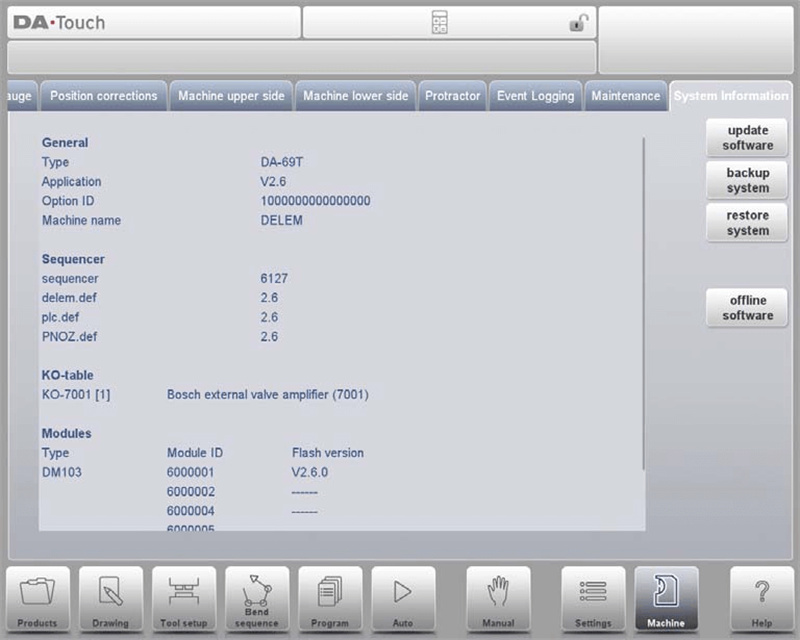
Evet. Ayarlar Modu, sistem ayarları bölümünde özel yazılım güncelleme seçenekleri içerir. Kullanıcılar, mevcut firmware/yazılım güncellemelerini kontrol edebilir ve doğrudan yükleyebilir; böylece kontrol ünitesi en son sürümü çalıştırır—geliştirilmiş özellikler, performans iyileştirmeleri ve güvenlik güncellemelerine erişim sağlanır.
Sonuç
DELEM DA-69T Ayarlar Modu’nun temel özelliklerini öğrenmek, pres bükme işlemlerinizin verimliliğini, hassasiyetini ve güvenilirliğini maksimize etmek için hayati öneme sahiptir. Sistemin yapılandırılabilir parametreleriyle tanışarak kontrol ünitesinin kurulumunu belirli üretim ihtiyaçlarınıza göre özelleştirerek makine performansını önemli ölçüde artırabilir, çıktı kalitesini iyileştirebilir ve yanlış yapılandırmalara veya işlem hatalarına bağlı olarak ortaya çıkabilecek maliyetli duruş sürelerini en aza indirebilirsiniz.
DELEM DA-69T’nin yeteneklerinden tam olarak yararlanmak için bu ayarları stratejik olarak uygulamanızı ve optimum performansı korumak amacıyla düzenli ekipman kontrolleri yapmanızı öneririz. Herhangi bir sorunuz varsa, daha fazla rehberlik veya teknik destek gerekiyorsa JUGAO ekibi, size yardımcı olmak için hazır durumdadır. Kapsamlı destek almak veya metal imalat operasyonlarınızı daha da ileriye taşımak için ek kaynakları keşfetmek amacıyla bizimle iletişime geçmekten çekinmeyin.

