





Nyckelfunktioner i operativsystemet DELEM DA-53T
Innehållsförteckning
1. Intuitiv användargränssnitt och navigering
2. Högupplöst pekskärm
3. Diverse drift- och programmeringslägen
4. Steg-för-steg-guide för igångsättning
5. Effektiva metoder för programändring
6. Automatiskt och manuellt produktionsläge
7. Datareservkopiering och funktioner för extern lagring
8. Praktiska programmeringsstöd
9. Bekväm listrutfunktion
10. Exakt parameterzoomfunktion
11. Flexibel gränssnittsnavigation
12. Enkel textinmatning och redigering
13. Alfanumerisk inmatning jämfört med specialteckensinmatning
14. Intelligent meddelandecenter
15. Säker nyckellåsfunktion
16. Exakt manuell positionering
17. Mångsidig programvarukompatibilitet
18. Vanliga frågor (FAQ)
19. Slutsats
Om du vill behärska de grundläggande funktionerna i DELEM DA-53T:s operativsystem kommer den här guiden att leda dig genom alla dess viktigaste funktioner. Detta avancerade styrssystem är utformat för att förbättra precisionen och effektiviteten i metallbearbetningsprocesser, och oavsett om du är en erfaren yrkesutövare eller nybörjare är det avgörande att förstå dess möjligheter för att optimera din produktionsarbetsflöde. Låt oss dyka in i vad som gör detta styrssystem till ett toppval för moderna pressbänkoperationer.
Intuitiv användargränssnitt och navigering
Högupplöst pekskärm
DELEM DA-53T:s operativsystem är utrustat med en högkvalitativ pekskärm som förenklar navigeringen och förbättrar interaktionen mellan operatör och maskin. Dess gränssnitt är utformat för maximal tydlighet, vilket gör att operatörer enkelt kan hantera och utföra alla uppgifter. Den faktiska skärmbild som visas på ditt kontrollpanel kan variera något från standardmodellen.
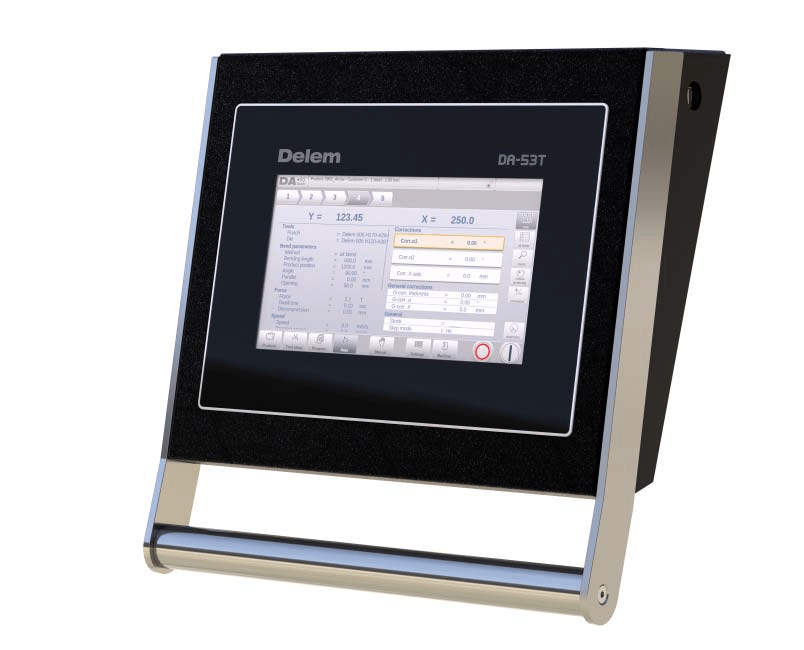
Kärnkomponenter för främre kontroll
1. Integrerade start-/stoppknappar: Dessa huvudfunktionssknappar är sömlöst integrerade i touchscreen-gränssnittet för enkel åtkomst med en enda tryckning.

2. USB-anslutningsportar: En USB-port är placerad på höger sida av kontrollpanelen och stödjer anslutning till externa enheter, såsom USB-minnesenheter, externa tangentbord och mus för utökad funktionalitet.

Olika drift- och programmeringslägen
Huvudskärmen på DELEM DA-53T-kontrollpanelen ändras dynamiskt beroende på den aktiva navigeringsknappen; standardvis visas funktionen Produkter när systemet initieras. Användare kan växla mellan olika funktionslägen genom att helt enkelt trycka på motsvarande ikoner eller knappar.
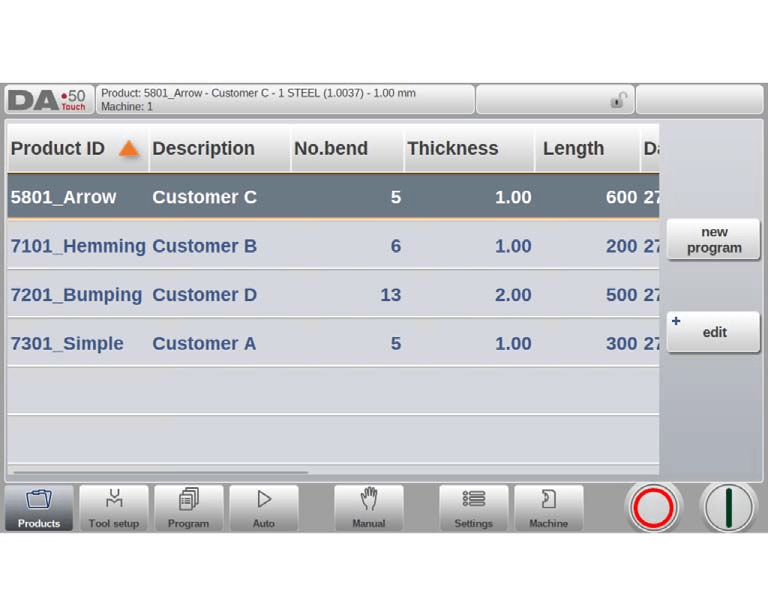
Huvudskärmen är uppdelad i fyra kärnpaneler, var och en med en specifik funktion:
1. Titelpanel: Visas permanent längst upp på skärmen och visar varumärkeslogotypen, inladdad produktinformation, en valfri service-rad samt indikatorer för maskinens realtidsstatus.

2. Informationspanel: Visar alla funktioner och visualiseringar som är kopplade till det för närvarande valda läget och fungerar som central hubb för driftinformation.
3.
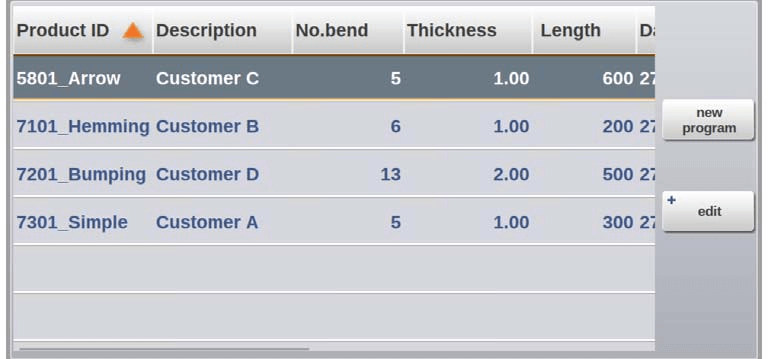
3. Kommandopanel: En underavdelning av informationspanelen som innehåller alla kontrollknappar och alternativ som är relevanta för innehållet som visas i informationspanelen.
4. Navigationspanel: En permanent på-skärmen-sektion med stora ikonbaserade knappar för alla huvudsakliga funktionslägen, vilket möjliggör växling mellan olika driftmoduler med ett enda klick.

Huvudsakliga navigeringslägen
•
Produktbiblioteksläge: Skapa nya program och välj försparade program från det inbyggda produktbiblioteket. •
Verktygsinställningsläge: Konfigurera maskinparametrar och ändra befintliga verktygsinställningskonfigurationer. •
CNC-programmeringsläge: Skapa nya CNC-program numeriskt eller redigera befintliga program med exakta numeriska justeringar. •
Produktionsläge: Påbörja produktionsprocessen för det förvalda programmet och övervaka produktionsstatus i realtid. •
Enkel böjningsläge: Programera alla parametrar för en enda oberoende böjning, utan att länka till ett komplett produktionsprogram. •
Användarprogrammeringsläge: Anpassa användarinställningar för skapande av nya program och ange samt lagra materialparametrar i den dedicerade materialbiblioteket. •
Maskinsysteminställningsläge: Justera maskinrelaterade användarinställningar, hantera verktygsbiblioteket och verktygsredigeraren, utföra säkerhetskopiering/återställning av data samt kontrollera programvaruversionsinformation, bland annat andra systemnivåoperationer.
Steg-för-steg-guide för komma igång
Att skapa ett exakt böjningsprogram med DELEM DA-53T-operativsystemet är en strömlinjeformad process som följer dessa enkla steg:
1. Skapa ett nytt program: Gå till Produktbiblioteksläget och välj alternativet "Nytt program" för att påbörja programskapandet.
2. Ange grundläggande programattribut: Ange de väsentliga uppgifterna för det nya programmet och bekräfta inmatningen genom att trycka på knappen "Acceptera".
3. Slutför verktygsinställningen: Systemet omdirigerar automatiskt till läget Verktygsinställning; välj eller ändra verktygskonfigurationer efter behov och fortsätt sedan till Programmenyn.
4. Konfigurera böjparametrar: I Programmenyn ställer du in de specifika parametrarna för den första böjen och använder funktionen "Lägg till böj" för att lägga till ytterligare böjar med anpassade parametrar efter behov.
5. Påbörja produktionen: Tryck på knappen för läget "Automatiskt" och sedan på "Start" för att påbörja massproduktionen av det programmerade produkten.
Denna steg-för-steg-process stödjer oberoende justering av parametrar för varje enskild böj, vilket säkerställer hög effektivitet och precision i produktionsprocessen.
Effektiva metoder för programändring
DELEM DA-53T:s mångsidiga programmeny ger full tillgång till numeriska programmeringsfunktioner och parametervärdena för den för närvarande inladdade produkten. Genom denna meny kan användare snabbt och effektivt ändra befintliga program, välja enskilda böjsteg för oberoende justering samt övervaka och justera programmerade värden i realtid när produktionskraven förändras. Systemet beräknar dynamiskt positionen för varje axel baserat på den specifika maskinkonfigurationen, vilket garanterar exakt och pålitlig driftsprestanda vid alla tillfällen.
Automatiskt och manuellt produktionsläge
AUTO-läge
Fullständiga produktprogram kan köras i automatiskt läge, där hela böjprocessen körs steg för steg automatiskt. Stegläget är tillgängligt i automatiskt läge och gör det möjligt för operatörer att starta varje enskild böjning manuellt för en mer kontrollerad produktion.
Manuellt läge
Manuell läge är ett helt oberoende produktionsläge som möjliggör programmering och utförande av en böjning i taget. Det används främst för att testa böjsystemets prestanda och noggrannhet innan omfattande produktion, vilket hjälper operatörer att verifiera böjparametrar och systemfunktionalitet.
Datareservkopiering och extern lagringsfunktioner
DELEM DA-53T stödjer extern lagring av både produktprogram och verktygskonfigurationsfiler, som kan sparas på en USB-minnesenhet via den inbyggda USB-porten. Denna funktion ger inte bara en säker reservkopieringslösning för kritiska produktionsdata, utan möjliggör också sömlös filutbyte mellan flera DELEM-styrsystem, vilket underlättar samarbetsbaserad produktion och datautbyte.
Praktiska programmeringshjälpmedel
Bekväm listrutefunktion
Systemet förenklar parameterhanteringen med en intuitiv listrutfunktion. För parametrar med en fast uppsättning valbara värden behöver användaren endast trycka på motsvarande parameterrad för att öppna listrutan, visa alla tillgängliga alternativ och välja önskat värde med ett enda tryck.
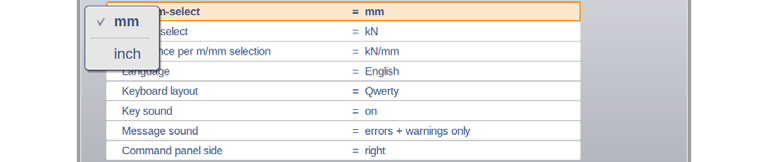
För att avbryta valet och stänga listrutan utan att ändra den aktuella parametern trycker du helt enkelt på någon yta utanför listrutan, vilket säkerställer en smidig och oavbruten parameterjustering.
Exakt parameterzoomfunktion
Parameterzoomfunktionen är en kärnfunktion i DELEM DA-53T, utformad för att hjälpa operatörer att fokusera på detaljerade parameterjusteringar. När en nyckelparameter (t.ex. böjningskraft) väljs i programläget förstoras automatiskt motsvarande parameterrad och relaterade inställningar på skärmen, vilket möjliggör mer exakt finjustering av kritiska värden.
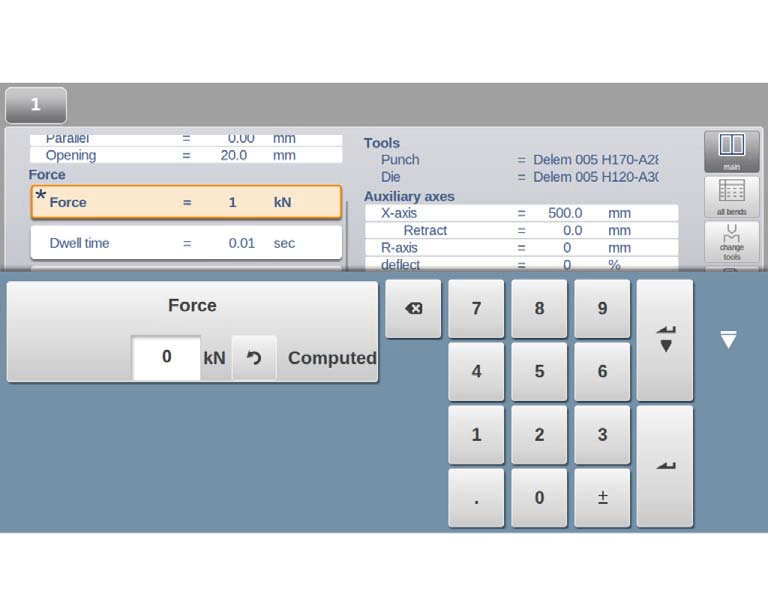
När en annan parameter väljs återgår den tidigare zoomade parametern till sin standardstorlek, och den nyvalda parametern förstoras, vilket säkerställer att operatörer alltid har en tydlig vy av den parameter de justerar.
Flexibel gränssnittsnavigation
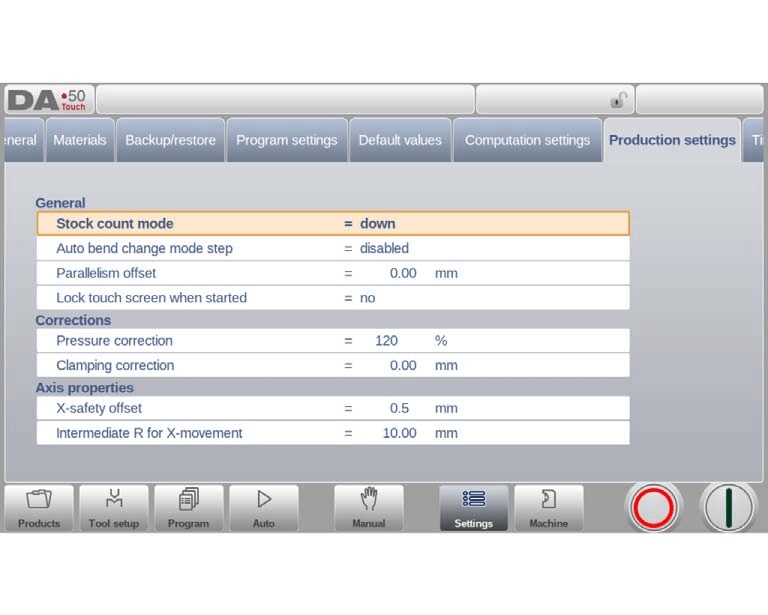
I många funktionslägen är programfönstret uppdelat i flera flikade avsnitt för strukturerad visning av olika funktionsmoduler. Flikar kan växlas med ett enkelt tryck, och för flikar som är delvis eller helt dolda kan användare dra flikraden horisontellt för att flytta önskad flik in i siktfältet och välja den, vilket säkerställer lätt tillgänglighet till alla funktionsavsnitt.
Enkel textinmatning och redigering
En flyttbar markör finns tillgänglig för alla inmatningsfält, vilket gör att användare kan ange specifika värden eller text på valfri position inom ett befintligt inmatningsfält. Tryck helt enkelt på önskad position i inmatningsfältet för att visa markören, och inmatat innehåll läggs till exakt på den platsen, vilket möjliggör exakt redigering av text och värden.
Alfanumerisk vs. specialteckeninmatning
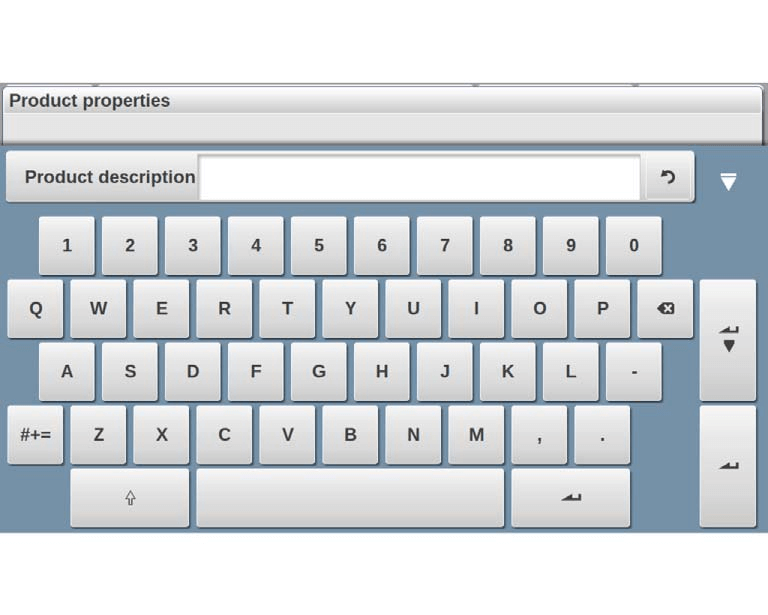
DELEM DA-53T har ett omfattande virtuellt tangentbord på skärmen som stödjer både alfanumerisk och specialteckeninmatning, med intelligent igenkänning av inmatningsfält: numeriska inmatningsfält filtrerar automatiskt bort icke-numeriska tecken för att förhindra felaktig inmatning, medan fullständig tangentbordsåtkomst är tillgänglig för alfanumeriska inmatningsfält.
Specialteckeninmatning
Specialtecken som ?, % och – kan enkelt nås via en dedicerad knapp för specialtecken i det nedre vänstra hörnet av det virtuella tangentbordet på skärmen, vilket ytterligare förbättrar systemets användarvänlighet.
Stöd för utökad teckenuppsättning
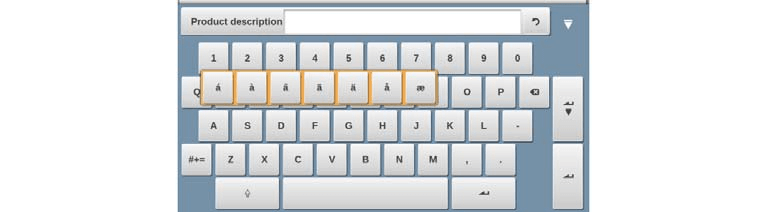
För accenterade tecken (t.ex. á, à, â) behöver användaren endast trycka och hålla ned motsvarande grundbokstav på det virtuella tangentbordet på skärmen för att visa alternativen för utökade tecken, vilket säkerställer att systemet uppfyller de olika regionernas och användarnas mångskiftande krav på textinmatning.
Intelligent meddelandecentral
DELEM DA-53T är utrustad med ett intuitivt meddelandehanteringssystem som centraliserar alla meddelanden och aviseringar från PLC:n, säkerhetssystemen och sekvensorn, vilket förenklar driftkommunikationen och hanteringen av aviseringar.
Visning och hantering av meddelanden
Meddelanden som skickas till meddelandecentralen indikeras med en dedicerad ikon i den övre titelpanelen, bredvid symboler såsom nyckellås. Användare kan trycka på denna ikon för att tillfälligt dölja meddelanden under obegränsad programmering och trycka på den igen för att återställa meddelandevisningen när som helst.
Realtime-aviseringar om nya meddelanden
När nya meddelanden eller aviseringar tas emot i bakgrunden visas en visuell indikator på ikonen för meddelandecentralen, vilket säkerställer att operatörer omedelbart informeras om eventuella systemuppdateringar, varningar eller driftrelaterade uppmaningar.

Säker nyckellåsfunktion
DELEM DA-53T inkluderar en robust nyckellåsfunktion för att skydda kritiska produktprogram och maskininställningar genom att förhindra obehörig åtkomst och ändringar.
Tvånivåkontrolllåsning
1. Programmlås (grått): Begränsar systemet till endast produktval och körning av automatiskt läge, vilket helt blockerar alla ändringar av befintliga program.
2. Maskinlås (rött): Låser hela maskinstyrningssystemet fullständigt, vilket förhindrar all drift och programmering via kontrollpanelen.
Aktivering och inaktivering av lås
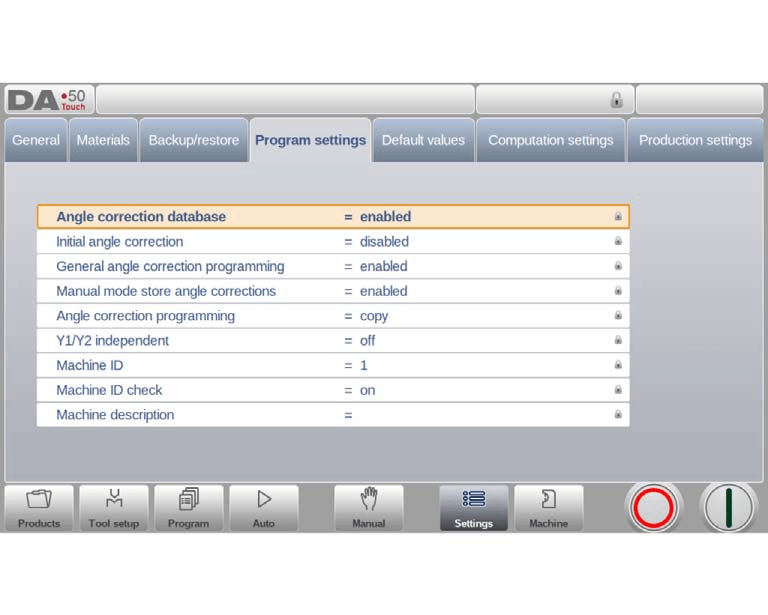
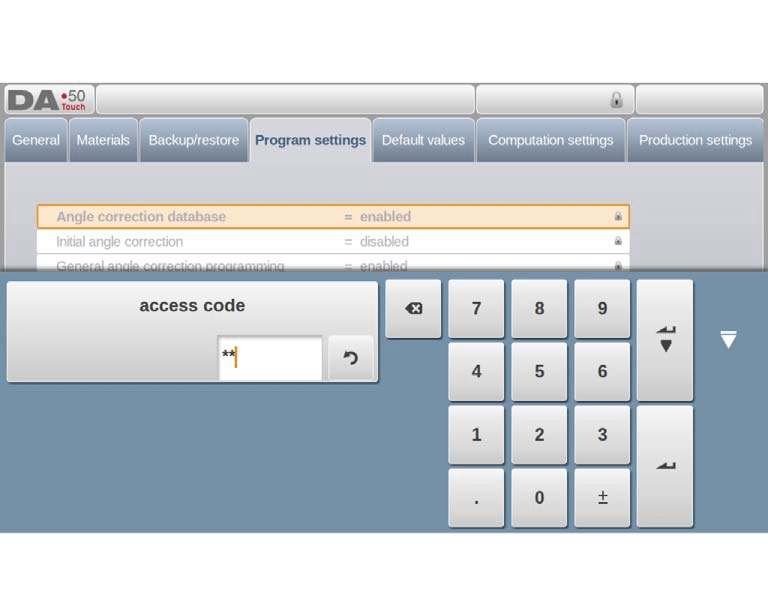
För att aktivera ett lås trycker du på nyckellåssymbolen på skärmen och anger den förinställda åtkomstkoden för att aktivera antingen Programmlås eller Maskinlås. Aktiva låsbegränsningar indikeras av låssymboler bredvid de relevanta parametrarna och funktionerna. För att låsa upp systemet trycker du igen på nyckellåssymbolen och anger den korrekta åtkomstkoden; låsindikatorerna försvinner då och full funktionalitet återställs.
Anpassningsbara åtkomstkoder
Åtkomstkoderna för båda låsnivåerna kan anpassas och ändras av användaren efter behov. Detaljerade instruktioner för hantering och ändring av koderna finns i systemets installationsmanual, vilket ger användaren full kontroll över systemets säkerhetsinställningar.
Exakt manuell positionering
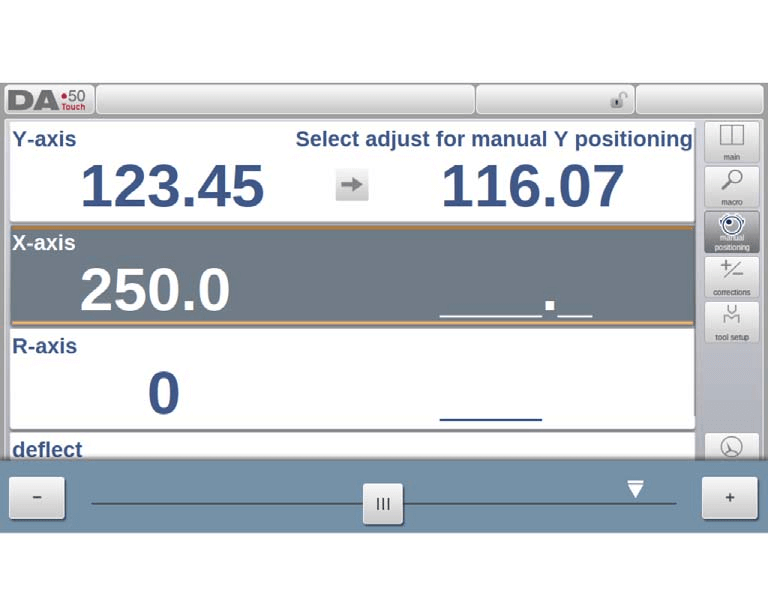
DELEM DA-53T erbjuder ett intuitivt gränssnitt för exakt axelpositionering både i manuellt och automatiskt läge. En hastighetsregleringsreglage finns längst ned på skärmen, vilket gör att operatörer kan justera axelrörelsens hastighet i realtid; axeln slutar omedelbart att röra sig när reglaget släpps. Precisionjusteringsknappar finns vid båda ändarna av reglaget för finjustering av axelpositionen, och en ljudsignal (pip) ger realtidsfeedback under axelrörelsen, vilket förbättrar operatörens situationssyn och säkerställer exakt positionering.
Mångsidig programvarukompatibilitet
Driftsystemet DELEM DA-53T är utformat för sömlös kompatibilitet med ett brett utbud av programvarulösningar från tredje part, vilket ger förbättrad kontrollflexibilitet och utbygbarhet. Denna kompatibilitet mellan olika programvaror maximerar systemets driftseffektivitet och stödjer anpassad integration med befintliga produktionssystem.
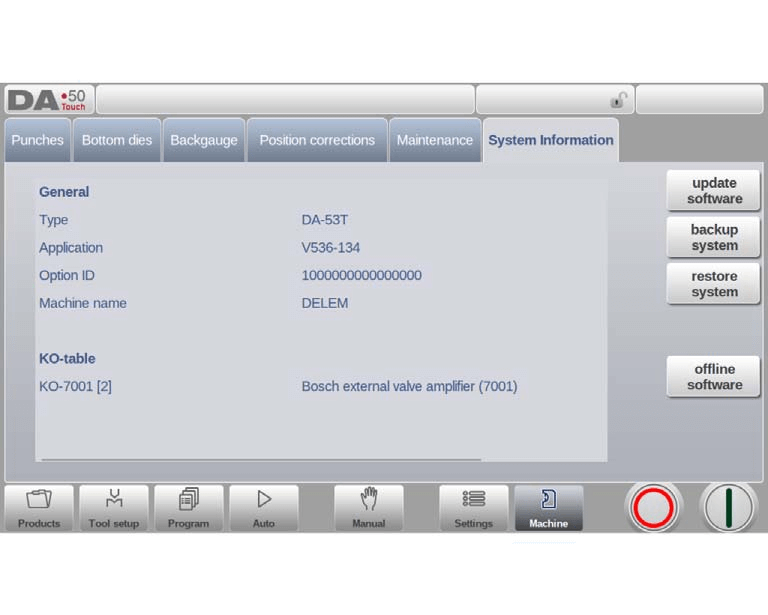
Den aktuella programvaruversionen för styrsystemet visas på fliken Systeminformation i läget Maskinsysteminställningar, med ett tydligt versionsnummerformat (t.ex. V 1.2.3) som följer dessa konventioner:
• V: Förkortning för "Version"
• Första siffran (1): Huvudversionsnummer, uppdateras när nya kärnfunktioner läggs till som kan ändra normala driftarbetsflöden
• Andra siffran (2): Underversionsnummer, uppdateras när nya hjälpfunktioner eller förbättringar läggs till utan att ändra befintliga driftarbetsflöden
• Tredje siffran (3): Uppdateringsversionsnummer, används för felkorrigeringar och mindre justeringar av den aktuella programvaruversionen
Frågor som ofta ställs (FAQ)
Hur navigerar man effektivt i DELEM DA-53T:s driftgränssnitt?
DELEM DA-53T:s gränssnitt är utformat för intuitiv drift. Den permanenta navigeringspanelen på huvudskärmen innehåller stora ikonbaserade knappar för att med ett enda klick växla mellan alla huvudlägen. Att bekanta sig med titelpanelen, informationspanelen och kommandopanelen är avgörande, eftersom de ger aktuell statusuppdatering om maskinen samt alla nödvändiga driftkontrollalternativ.
Hur underhåller man DELEM DA-53T:s operativsystem i optimalt skick?
Regelbunden underhåll är avgörande för konsekvent prestanda. Kontrollera ofta de realtidsbaserade maskinindikatorerna i rubrikpanelen och utför rutininspektioner i enlighet med systemets underhållsriktlinjer. Använd fullt ut de inbyggda funktionerna för dataskäddning/återställning för att skydda kritiska produktionsdata och håll systemprogramvaran uppdaterad till den senaste versionen. Rubrikpanelen visar tydliga visuella indikationer när systemet kräver underhåll eller uppmärksamhet, vilket säkerställer att åtgärder vidtas i tid.
Slutsats
Sammanfattningsvis är DELEM DA-53T:s operativsystem utformat med en användarcentrerad inriktning och erbjuder ett intuitivt gränssnitt, avancerad och exakt programmeringsfunktion samt flexibla, anpassningsbara inställningar som anpassar sig till olika produktionsbehov. Dess främsta funktioner inkluderar en välstrukturerad huvudskärm, sömlös navigering med ett enda klick samt fullt justerbara inställningar för både maskinoperationer och användarpreferenser. Alla dessa funktioner gör att operatörer kan hantera och utföra metallbearbetningsuppgifter med maximal precision och effektivitet, vilket effektiviserar produktionsarbetsflödena och minskar driftfel.
För att låsa upp det fulla potentiellt i DELEM DA-53T-operativsystemet är det avgörande att bekanta sig fullständigt med alla dess funktioner och förstå hur de kan utnyttjas för att förbättra produktionseffektiviteten och produktiviteten. Om du har några frågor eller behöver ytterligare teknisk hjälp kan du när som helst kontakta vårt supportteam. Dessutom finns mer detaljerad teknisk dokumentation och lärmaterial tillgängliga på vår officiella webbplats för att stärka din kompetens och driftsfärdigheter när det gäller DELEM DA-53T-systemet.

