





Როგორ უნდა მართოთ DELEM DA-53T CNC პრეს-ბრეიკი: სრული მომხმარებლის სახელმძღვანელო
Ეს სახელმძღვანელო წარმოადგენს სრულ სახელმძღვანელოს DELEM DA-53T CNC პრეს-ტარების დაყენებისა და ექსპლუატაციის შესახებ, რომელიც მოგაწოდებს ამ მოწყობილობის მართვის მასტერობის და სიზუსტის მაღალი დონის, ეფექტური გამოკეთების უზრუნველყოფის საშუალებას. ქვემოთ მოცემულია მანქანის კონფიგურაციის, ფუნქციონირების და პროგრამირების ნაბიჯ-ნაბიჯ აღწერა საუკეთესო სამუშაო შედეგების მისაღებად.
Სარჩევი
1. ექსპლუატაციის ზოგადი მიმოხილვა და საერთო შესავალება
2. სათაურის პანელი
3. ინფორმაციის პანელი
4. ბრძანების პანელი
5. ნავიგაციის პანელი
6. პროდუქტების ბიბლიოთეკა
7. ინსტრუმენტების კონფიგურაცია
8. პროდუქტების პროგრამირება
9. დაკვეთის მეთოდები
10. ავტომატური რეჟიმი
11. ხელმისაწვდომი ხედვის რეჟიმები
12. რეჟიმი ხელით მარეგულირებით
13. სისტემის პარამეტრები
14. მონაცემების ჩამოტვირთვა
15. ვიდეო დემონსტრაციები
1. ექსპლუატაციის ზოგადი მიმოხილვა და საერთო შესავალება
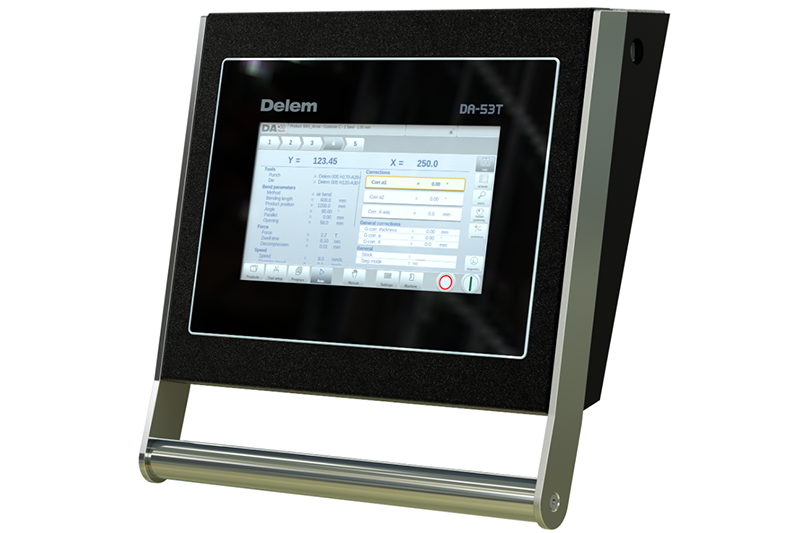
1.1 მარეგულირების ბლოკი
DELEM DA-53T მარეგულირების ბლოკის ფიზიკური დიზაინი შეიძლება მცირედ განსხვავდებოდეს მოწყობილობის მიხედვით, მაგრამ მისი ძირეული მუშაობა ხორციელდება შეხების ეკრანის საშუალებით. ყველა შეხების ეკრანის ფუნქციისა და მარეგულირებადი ელემენტების დეტალური აღწერა მოცემულია ამ სახელმძღვანელოს შემდგომი ნაკვეთებში, ასევე კონკრეტული ფუნქციური გამოყენებების ახსნებით.
1.2 წინა მარეგულირების ღილაკები
Შეხების ეკრანის მომხმარებლის ინტერფეისი ინტეგრირებს ძირეულ დაწყებისა და შეჩერების ღილაკებს, რომლებიც არის მანქანის მუშაობის დაწყებისა და შეჩერების ძირითადი ფიზიკური მარეგულირებლები.
1.3 USB კავშირები
USB პორტი მოთავსებულია მარეგულირებლის მარჯვენა მხარეს და საშუალებას აძლევს გარე მოწყობილობებთან (მაგალითად, USB ფლეშ-დრაივებთან, გარე კლავიატურებთან და თაგვებთან) დაკავშირების მეშვეობით მონაცემების გადაცემისა და დამატებითი მარეგულირების განხორციელების.
1.4 მუშაობის და პროგრამირების რეჟიმები
Მარეგულირებლის მთავარი ეკრანი აჩვენებს სხვადასხვა შინაარსს აქტიური ნავიგაციის ღილაკის მიხედვით, ხოლო პროდუქტების ფუნქციის ინტერფეისი არის ნაგულისხმევი მთავარი ეკრანი. მომხმარებლებს შეუძლიათ შეესაბამებარი ფუნქციონალური რეჟიმების გადასვლა ეკრანზე მოცემული რეჟიმების ვარიანტების შეხებით. მთავარი ეკრანი სტრუქტურულად იყოფა სათაურის პანელად, ინფორმაციის პანელად, ბრძანების პანელად და ნავიგაციის პანელად, რომლებიც თითოეული მისი საკუთარი ფუნქციონალური მდებარეობით არის განსაკუთრებული.
1.5 დაწყება
1. ძირითადი პროგრამირების ლოგიკა: კონტროლის ბლოკი ხელს უწყობს საჭიროების შესაბამად ნაკეთობის პროგრამების დაკომპილებას ნაბიჯ-ნაბიჯ, ხოლო მომხმარებლებს შეუძლიათ თავისუფალად შეცვალონ თითოეული ნაკეთობის ნაბიჯის კონკრეტული პარამეტრები ინდივიდუალური დამუშავების მოთხოვნების დასაკმაყოფილებლად.
2. მზადების სამუშაოები: პროდუქტის პროგრამირების დაწყებამდე შეასრულეთ ყველა საჭიროების შესაბამად მითითებული მზადების პროცედურა, რათა უზრუნველყოფოთ პროგრამირებისა და ექსპლუატაციის პროცესის შეცდომების გარეშე განხორციელება.
3. პროგრამის რედაქტირება: პროგრამის მენიუ აძლევს წვდომას მიმდინარე აქტიური პროდუქტის ციფრულ პროგრამასა და პარამეტრების მნიშვნელობებზე. ამ ადგილას შესაძლებელია არსებული პროგრამების რედაქტირება — მომხმარებლებს შეუძლიათ აირჩიონ ცალკეული ნაკეთობის ნაბიჯები, რეალურ დროში შეამოწმონ პროგრამირებული პარამეტრები და საჭიროების შემთხვევაში შეცვალონ მათი მნიშვნელობები. სისტემა ავტომატურად გამოთვლის ღერძების პოზიციებს მანქანის კონფიგურაციის პარამეტრების საფუძველზე.
4. წარმოების რეჟიმები (ავტომატური და მანუალური):
○ ავტომატური რეჟიმი: შესრულებს წინასწარ დაყენებულ პროდუქტის პროგრამებს თანმიმდევრობით და ავტომატურად ასრულებს ყოველ ჩამოხრევის ეტაპს. ასევე, მხარს უჭერს ნაბიჯ-ნაბიჯ რეჟიმს, სადაც მომხმარებელი თავისთვალით იწყებს თითოეულ ჩამოხრევის ეტაპს.
○ რეჟიმი ხელით მართვით: ეს არის დამოუკიდებელი წარმოების რეჟიმი ერთი ჩამოხრევის ეტაპის პროგრამირებისა და შესრულებისთვის, რომელიც ძირითადად გამოიყენება ჩამოხრევის სისტემის მუშაობის შესამოწმებლად.
Დეტალური მოქმედებებისთვის იხილეთ ამ სახელმძღვანელოს მეხუთე და მეექვსე თავები.
5. მონაცემების რეზერვული ასლის შექმნა და გარე საცავი მეხსიერება: პროდუქტის პროგრამები და ინსტრუმენტების კონფიგურაციის ფაილები შეიძლება შეინახოს გარე USB ფლეშ-მეხსიერებაზე. ეს არ მხოლოდ მნიშვნელოვანი მონაცემების უსაფრთხო რეზერვული ასლის შექმნას უზრუნველყოფს, არამედ ასევე საშუალებას აძლევს ფაილების გაზიარებასა და სხვადასხვა DELEM მართვის ერთეულს შორის გაცვლას. რეზერვული ასლის შექმნისა და გადატანის დეტალური მეთოდებისთვის იხილეთ მეშვიდე თავი.
1.6 პროგრამირების დამხმარე საშუალებები
Მართვის ერთეული აღჭურვილია მომხმარებლისთვის მოსახერხებელი პროგრამირების დამხმარე ფუნქციების სრული სპექტრით, რათა გამარტოს პარამეტრების დაყენების პროცესი და გააუმჯობესოს პროგრამირების ეფექტურობა:
1. სიაში გადახვევის ფუნქციონალობა: პარამეტრებისთვის, რომლებსაც აქვთ შეზღუდული რაოდენობის არჩევის ვარიანტები, ეკრანზე პარამეტრის ხაზზე დაჭერის შემდეგ გამოჩნდება ვარიანტების ჩამოსაშლელი სია დაჭერის ადგილას, რაც საშუალებას აძლევს პირდაპირ აირჩიოს სასურველი მნიშვნელობა.
2. პარამეტრის გადიდების ფუნქციონალობა: ძირითადი პარამეტრების პროგრამირების დროს (მაგალითად, გამოხვევის ძალა პროგრამის რეჟიმში), სისტემა ავტომატურად გადიდებს შესაბამის პარამეტრის ხაზს ხელსაყრელი ხილვადობის და მნიშვნელობების სწორად დასაყენებლად.
3. ჩანართებით ნავიგაცია: ნაკლებად ფუნქციონალურ რეჟიმებში პროგრამის ეკრანები გაყოფილია რამდენიმე ჩანართად, რაც საშუალებას აძლევს სწრაფად გადაერთდეს სხვადასხვა ფუნქციონალურ მოდულს და გაამარტივოს მუშაობა.
4. ტექსტის შეყვანა და რედაქტირება: დააჭირეთ სასურველ შეყვანის ადგილს, რათა გამოჩნდეს კურსორი, და შეიყვანეთ რიცხვითი მნიშვნელობები ან ტექსტი პირდაპირ კურსორის ადგილას სწორად დასაყენებლად.
5. ალფანუმერიკული და სპეციალური სიმბოლოების შეყვანა: ეკრანზე გამოჩენილი კლავიატურა ხელს უწყობს როგორც ალფანუმერიკული, ასევე სპეციალური სიმბოლოების შეყვანას. ტექსტური ველებისთვის სრული ალფანუმერიკული კლავიატურა გამოჩნდება, ხოლო სუფთა რიცხვითი ველებისთვის მხოლოდ რიცხვითი კლავიშები გამოჩნდება. სპეციალური სიმბოლოები (მაგ., ?, %, –) ხელმისაწვდომია კლავიატურის ქვედა მარცხენა კუთხეში მოთავსებული სპეციალური სიმბოლოების ღილაკის საშუალებით. ასოს (მაგ., 'a') გრძელი დაჭერის შემდეგ გამოჩნდება აკცენტით მონიშნული სპეციალური სიმბოლოები (მაგ., á, à, â).
6. შეტყობინებათა ცენტრი: PLC-დან, უსაფრთხოების სისტემებიდან და სეკვენსერიდან მომავალი გაფრთხილებები ცენტრალიზებულია შეტყობინებათა ცენტრში. როდესაც გაფრთხილებები აქტიურია, შეტყობინებათა ცენტრის იკონა გამოჩნდება ზედა ჰედერის ზოლში (კლავიშების ბლოკირების იკონას მოსახვედრედ). იკონაზე დაჭერის შემდეგ გაფრთხილებები დამალება ხდება ჩვეულებრივი პროგრამირების დროს, ხოლო ხელახლა დაჭერის შემდეგ გაფრთხილებების ჩვენება აღდგება. იკონაზე არსებული შეტყობინების ინდიკატორი ახალი წაუკითხავი გაფრთხილებების არსებობას აღნიშნავს.
7. კლავიშის ბლოკირების ფუნქცია: კონტროლის ბლოკის დაბლოკვით არ აძლევს უფლებას არაუფლებომოსილ პროგრამებსა და პარამეტრებზე ცვლილებების შეტანას, რაც უზრუნველყოფს წინასწარ დაყენებული მონაცემების მთლიანობას.
8. ხელით პოზიციონირება: ხელით და ავტომატურ რეჟიმებში ხელით პოზიციონირების გვერდზე მოცემულია ღერძის პოზიციონირების ქვედა სლაიდერი — სლაიდერის გადაადგილების მანძილი აკონტროლებს ღერძის მოძრაობის სიჩქარეს, ხოლო ღერძი გაჩერდება სლაიდერის გათავისუფლების შემდეგ. სლაიდერის ორივე ბოლოს მოთავსებული ღილაკები საშუალებას აძლევენ ღერძის პოზიციის სიზუსტით რეგულირებას, ხოლო ღერძის მოძრაობის დროს გამოიცემა ხმოვანი სიგნალი რეალურ დროში.
9. პროგრამული უზრუნველყოფის ვერსიის შემოწმება: კონტროლის ბლოკის პროგრამული უზრუნველყოფის ვერსია ჩანს მანქანის მენიუში მოცემული «სისტემის ინფორმაცია» ჩანართში, რაც სისტემის მოვლასა და განახლებას ადვილებს.
2. პროდუქტების ბიბლიოთეკა
«პროდუქტები» რეჟიმი არის ყველა პროდუქტის გამოყენების პროგრამების მართვის ძირეული ინტერფეისი, რომელიც ხელს უწყობს პროგრამების შერჩევას, რედაქტირებას და შექმნას სხვადასხვა წარმოების საჭიროებების შესატევად.
2.1 ძირეული ხედი
Პროდუქტების რეჟიმი აჩვენებს კონტროლის ერთეულის ბიბლიოთეკაში შენახული ყველა პროგრამის ზოგად ხილვას, სადაც თითოეული პროგრამის ჩანაწერი მოიცავს პროდუქტის ID-ს, პროდუქტის აღწერას, გამოხვევების რაოდენობას და ბოლო რედაქტირების/გამოყენების თარიღს. ამჟამად აქტიური პროგრამის პროდუქტის ID ეკრანის ზედა ნაკრებშია გამოსახული; მომხმარებლებს შეუძლიათ პროგრამის ჩატვირთვა შესაბამისი პროგრამის ჩანაწერის ნებისმიერ ადგილზე დაჭერით. იმ ბიბლიოთეკებისთვის, რომლებშიც პროგრამების რაოდენობა ეკრანზე გამოსახვის შესაძლებლობას აღემატება, სია ზევით გადასატანად გადაადგილებით შეიძლება დამატებითი ჩანაწერების ნახვა, ხოლო სასურველი პროგრამის არჩევა და აქტივიზაცია შესაძლებელია შესაბამის ჩანაწერზე დაჭერით.
2.2 პროდუქტის არჩევა
Პროგრამის ჩანაწერზე ერთხელ დაჭერით ის ირჩევა და კონტროლის ერთეულის მეხსიერებაში ჩატვირთება. ჩატვირთვის შემდეგ მომხმარებლებს შეუძლიათ პროდუქციის დაწყება პირდაპირ Auto ღილაკზე დაჭერით ან პარამეტრების რედაქტირებისა და ინსტრუმენტის კონფიგურაციის მიზნით გადასვლა ინსტრუმენტის მორგების (Tool Setup) და რიცხვითი პროგრამის (Program) ინტერფეისზე.
2.3 ახალი პროგრამის შექმნა
Დაიწყეთ ახალი რიცხვითი გამოკვეთის პროგრამა ღილაკზე „ახალი პროგრამა“ დაჭერით. სისტემა ჯერ მოუთხოვს ძირითად პროდუქტის ინფორმაციას, მათ შორის პროდუქტის ID-ს, მასალის სისქეს და მასალის ტიპს — შეავსეთ ეს ველები პროგრამირების დასაწყებად.
2.4 პროგრამების რედაქტირება, კოპირება და წაშლა
1. წაშლა: აირჩიეთ პროგრამის ჩანაწერი, შემდეგ დააჭირეთ „რედაქტირება“ და აირჩიეთ „წაშლა“. დაადასტურეთ წაშლის შეტყობინება პროგრამის წასაშლელად; ყველა შენახული პროგრამის ერთდროულად წასაშლელად დააჭირეთ „წაშლა ყველა“.
2. კოპირება: აირჩიეთ პროგრამის ჩანაწერი, დააჭირეთ „რედაქტირება“ და აირჩიეთ „კოპირება“, შეიყვანეთ კოპირებული პროგრამის ახალი პროდუქტის ID და დაადასტურეთ. კოპირებული პროგრამა შეიცავს ორიგინალის სრულ ინსტრუმენტების კონფიგურაციას და ყველა პარამეტრის მნიშვნელობას პირდაპირი გამოყენების ან მეორადი რედაქტირების მიზნით.
3. გადარქმევა: აირჩიეთ პროგრამის ჩანაწერი, დააჭირეთ „რედაქტირება“ და დააჭირეთ „გადარქმევა“, შემდეგ შეიყვანეთ ახალი სახელი ერთეულოვანი ნაბიჯით გადარქმევის პროცესის დასასრულებლად.
3. ინსტრუმენტების კონფიგურაცია
Საკუთარი ინსტრუმენტების კონფიგურაცია არის ღერძოვი ეტაპი ჩამოხრევის წარმოებაში, რაც უზრუნველყოფს ზედა (პანჩი) და ქვედა (დაი) ინსტრუმენტების შესატყოვნებლობას პროდუქტის დამუშავების მოთხოვნებთან.
3.1 ძირითადი ექსპლუატაცია
Აირჩიეთ სამიზნე პროდუქტი პროდუქტების ბიბლიოთეკიდან და დააჭირეთ „ინსტრუმენტების დაყენება“-ს, რათა აქტივიზირდეს ინსტრუმენტების კონფიგურაციის ინტერფეისი, რომელიც აჩვენებს მანქანის მიმდინარე აქტიურ ინსტრუმენტების დაყენებას. როგორც პანჩები, ასევე დაიები შეიძლება აირჩიოს და შეიცვალოს წინასწარ შენახული ინსტრუმენტების ბიბლიოთეკიდან.
3.2 ინსტრუმენტების არჩევა
Ინტერფეისი ხაზოვანად აჩვენებს ამჟამად გამოყენებული პანჩისა და დაის პარამეტრებს (მაგ., ID, სიმაღლე, კუთხე, რადიუსი, დაის V-ღერძი). დააჭირეთ „პანჩის არჩევა“ ან „დაის არჩევა“, რათა გაეცნოთ ინსტრუმენტების ბიბლიოთეკას და აირჩიოთ შესაბამისი ინსტრუმენტი კონფიგურაციის განახლების დასასრულებლად.
4. პროდუქტის პროგრამირება
Პროდუქტის პროგრამირება არის თითოეული ჩამოხრევის ეტაპის დეტალური პარამეტრების დაყენების პროცესი, ხოლო სისტემა მხარს უჭერს როგორც არსებული პროგრამების რედაქტირებას, ასევე ახალი პროგრამების ნულიდან შექმნას.
4.1 ძირითადი ექსპლუატაცია
• არსებული პროგრამის რედაქტირება: აირჩიეთ სამიზნე პროდუქტი პროდუქტების შეხედულებაში და დააჭირეთ პროგრამის ნავიგაციის ღილაკს, რათა შევიდეთ პროგრამირების ინტერფეისში.
• ახალი პროგრამის შექმნა: დააჭირეთ ღილაკს „ახალი პროგრამა“, შეავსეთ ძირითადი პროდუქტის მახასიათებლების პარამეტრები და დააყენეთ ხელსაწყოები; სისტემა ავტომატურად გადავა პროგრამის ინტერფეისში.
Ორივე შემთხვევაში პროგრამირების ოპერაციის ლოგიკა იდენტურია. ძირითადი ინტერფეისი აჩვენებს არსებულ რიცხვით პროგრამას (ან ახალი პროგრამების შემთხვევაში — პირველ გამოხვევის ნაბიჯს). ეკრანის ზედა ნაწილში მოთავსებული გამოხვევის სელექტორი საშუალებას აძლევს სწრაფად გადაადგილდეთ სხვადასხვა გამოხვევის ნაბიჯს შორის — უბრალოდ დააჭირეთ მითითებულ ნაბიჯს, რათა ნახოთ და რედაქტიროთ მისი პარამეტრები. ძირითადი ინტერფეისის გვერდით მოთავსებული ბრძანების ღილაკები საშუალებას აძლევს მივაღწიოთ დამატებით ხელსაწყოებს და ფუნქციონალურ მოქმედებებს.
4.2 პროგრამის რეჟიმი: პარამეტრების ახსნა
Ძირითადი პროგრამირების ეკრანი აჩვენებს ყველა დაკონფიგურებულ გამოხრის ეტაპს, ხოლო მომხმარებლებს შეუძლიათ თითოეული ეტაპის კონკრეტული პარამეტრების ნახვა და რედაქტირება. ეკრანის ზედა რიგში მოცემულია პროდუქტის ID და პროდუქტის აღწერა სწრაფად გამოსაცნობაროებლად. ძირითადი რედაქტირებადი პარამეტრები მოიცავს: გამოხრის პარამეტრებს, გამოხრის მეთოდებს, ძალას, სიჩქარეს, დამხმარე ფუნქციებს, პროდუქტის მახასიათებლებს, ინსტრუმენტების ინფორმაციას და დამხმარე ღერძების პარამეტრებს.
4.3 რედაქტირების/ნახვის რეჟიმები
1. ყველა გამოხრა: ამ ფუნქციის დაჭერის შედეგად გამოჩნდება ყველა გამოხრის ეტაპის სრული ცხრილი, სადაც შესაძლებელია მთლიანი CNC პროგრამის რედაქტირება. მომხმარებლებს შეუძლიათ ცხრილში პირდაპირ შეცვალონ ყველა გამოხრის პარამეტრი და შეასრულონ მოქმედებები, როგორიცაა გამოხრის ეტაპების ადგილების გაცვლა, გადატანა, დამატება და წაშლა. დამატებითი პარამეტრების სვეტების ნახვა და რედაქტირება შესაძლებელია ეკრანის ჰორიზონტალურად გადახვევით.
2. ინსტრუმენტების შეცვლა: ინსტრუმენტების კონფიგურაციის შესაცვლელად გლობალური ცვლილებებისთვის გამოიყენეთ „ინსტრუმენტების კონფიგურაცია“ მენიუ. რათა შეცვალოთ ინსტრუმენტების კონფიგურაცია მხოლოდ ერთი ჩამოხრევის ეტაპისთვის, დააჭირეთ „ინსტრუმენტების შეცვლა“ — სისტემა მოგეკითხება, აისახება თუ არა ცვლილება მთლიანად პროგრამაზე ან მხოლოდ არჩეულ ეტაპზე, და ავტომატურად გადაისვლება „ინსტრუმენტების კონფიგურაცია“ მენიუში გლობალური ცვლილებების შესატანად, თუ ამ ვარიანტი იქნება არჩეული.
3. პროდუქტის მახასიათებლები: დააჭირეთ „პროდუქტის მახასიათებლები“, რათა შეცვალოთ პროგრამის ძირითადი პარამეტრები (მაგალითად, მასალა, სისქე), რომლებიც ერთნაირად მოქმედებენ პროდუქტის ყველა ჩამოხრევის ეტაპზე.
4. ჩამოხრევის დამატება: ამ ღილაკზე დაჭერით, რათა ბოლო ჩამოხრევის ეტაპი დაკოპირდეს და პროგრამის ბოლოს ახალ ეტაპად დაემატოს, რაც მეორდებადი ჩამოხრევის ეტაპების შექმნას ამარტივებს.
5. ბამპინგი: ერთი რიცხვითი ჩამოხრევის ეტაპის გადაყვანა ბამპინგის ჩამოხრევის ეტაპად საჭიროების შესაბავად — მაგალითად, სისქე ან სპეციალური მასალების დამუშავების შემთხვევაში.
4.4 პროგრამირების პარამეტრები
Პროგრამის რეჟიმში პარამეტრები დაყენდება თითოეული ცალ-ცალკე, ხოლო სისტემა ავტომატურად ართვის და ახდენს განახლებას შეცვლილი პარამეტრების სხვა დაკავშირებული პარამეტრებზე მოქმედების შესახებ. პარამეტრებს შორის ურთიერთობა ვიზუალურად წარმოდგენილია სიმბოლოებითა და ფონის ფერებით — ინტუიციური იდენტიფიკაციის მიზნით:
• ინფორმაციის სიმბოლო: ჩნდება იმ პარამეტრების მოპირდაპირე მხარეს, რომლებიც ავტომატურად არის განახლებული ბოლოს რედაქტირებული მნიშვნელობის გამო და მიუთითებს დამოკიდებული პარამეტრის ცვლილებაზე.
• ვარსკვლავის სიმბოლო: აღნიშნავს იმ პარამეტრებს, რომელთა ხელით დაყენებული მნიშვნელობები განსხვავდება სისტემის გამოთვლილი მნიშვნელობებისგან; ეს საშუალებას აძლევს მომხმარებელს აიდენტიფიციროს მიზნად მიღებული მორგებული პარამეტრები ან პარამეტრების შეზღუდვები.
• შეცდომის სიმბოლო: გამოიტანება იმ პარამეტრების შემთხვევაში, რომლებიც არ აკმაყოფილებენ მოქმედების მოთხოვნებს (მაგალითად, ჰემინგის გამოხრის ეტაპი, რომელიც დაპროგრამებულია შესაბამისი ჰემინგის ინსტრუმენტების გარეშე), რაც მომხმარებელს აფრთხილებს კონფიგურაციის შეცდომებზე.
5. გამოხრის მეთოდები
DELEM DA-53T მხარს უჭერს რამდენიმე პროფესიონალური ჩამოკეცვის მეთოდს (მაგალითად, ჰაერით ჩამოკეცვა, კიდეების შეკეცვა, ბუმპინგი), რომლებიც ადაპტირებულია სხვადასხვა მასალის ტიპებს, სისქეებს და პროდუქტების ფორმებს. შესაბამისი ჩამოკეცვის მეთოდი არჩევается პროგრამის რეჟიმში პარამეტრების დაყენებებში, ხოლო სისტემა ავტომატურად არჩევს საუკეთესო დამუშავების პარამეტრებს არჩეული მეთოდისა და ინსტრუმენტების კონფიგურაციის მიხედვით.
6. ავტომატური რეჟიმი
Ავტომატური რეჟიმი არის ძირითადი წარმოების რეჟიმი სერიული დამუშავებისთვის, რომელიც საშუალებას აძლევს წინასწარ პროგრამირებული ჩამოკეცვის ეტაპების სრულიად ავტომატურ შესრულებას.
6.1 ძირითადი ექსპლუატაცია
Დააჭირეთ Auto ნავიგაციის ღილაკს, რათა მარეგულირებლის ერთეული გადაიყვანოს ავტომატურ წარმოების რეჟიმში. აქტიური პროგრამის ჩატვირთვის შემდეგ დააჭირეთ Start ღილაკს წარმოების დასაწყებად — სისტემა ავტომატურად ასრულებს ჩამოკეცვის პროგრამას ნაბიჯ-ნაბიჯ. წინასწარ შენახული პროდუქტების ბიბლიოთეკაში, რომლებსაც აქვთ წარმოების ისტორია, აირჩიეთ პროდუქტი პროდუქტების რეჟიმში და გადაიყვანეთ პირდაპირ ავტომატურ რეჟიმში წარმოების დასაწყებად.
Მნიშვნელოვანი შენიშვნა: ახალი გარემოების პროგრამის არჩევის შემდეგ ყოველთვის შეამოწმეთ ინსტრუმენტის ტიპი და მისი მდებარეობა მანქანაში; სისტემა ავტომატური რეჟიმში შესვლის დროს გამოაჩენს ინსტრუმენტების შემოწმების შეტყობინებას როგორც გახსენება.
Ავტომატური რეჟიმის ეკრანის ზედა სათაურში ჩანს არჩეული პროდუქტის ID და აღწერა, ხოლო გარემოების არჩევის პანელზე ჩანს პროგრამაში შეტანილი ყველა გარემოების ეტაპი. მომხმარებლებს შეუძლიათ კონკრეტული ეტაპის დაჭერა და წარმოების იმ წერტილიდან დაწყება, ხოლო ინტერფეისი მიმდინარე ხედში აჩვენებს არჩეული ეტაპის დეტალურ პარამეტრებს. სათაურში ასევე ჩანს მიმდინარე გარემოების ეტაპის გამეორების რაოდენობა და დაკავშირებული პროგრამები (თუ არსებობს), ხოლო დაკავშირებული პროგრამები მონიშნულია გარემოების არჩევის პანელზე ბოლო პოზიციაში.
6.2 ხედების რეჟიმები
Ავტომატური რეჟიმი სხვადასხვა წარმოების სცენარებს შესატანად საშუალებას აძლევს რამდენიმე მორგებადი ხედების რეჟიმის გამოყენების, ხოლო ძირითადი ხედი არის ნაგულისხმევი. ხედების რეჟიმების არჩევა შესაძლებელია ეკრანის მარჯვენა მხარეს; ხელმისაწვდომია ექვსი რეჟიმი:
1. ძირითადი: აჩვენებს მიმდინარე გამოხრის ეტაპის რიცხვით პარამეტრებს და შესწორების მნიშვნელობებს, სადაც შესწორების მნიშვნელობები შეიძლება პროგრამირდეს და პირდაპირ შეიცვალოს.
2. ყველა გამოხრა: აჩვენებს ყველა გამოხრის ეტაპის ცხრილს ყველა შესაბამისი პარამეტრით, რაც საშუალებას აძლევს გლობალურად შეამოწმოს პროგრამა და სწრაფად შეამოწმოს პარამეტრები.
3. მაკრო: აჩვენებს მხოლოდ დიდი ღერძების მნიშვნელობებს გაზრდილ ფორმატში, რაც ხელს უწყობს ღერძების პარამეტრების წაკითხვას მართვის ბლოკიდან მოშორებით მუშაობის დროს.
4. ხელით პოზიციონირება: გაზრდის ღერძების მნიშვნელობებს და საშუალებას აძლევს ღერძების არჩევას — გადაადგილეთ ქვედა სლაიდერი მისი შუა პოზიციიდან ღერძების მოძრაობის რეგულირებისთვის, ხოლო სლაიდერი ავტომატურად დაბრუნდება შუა პოზიციაში გათავისუფლების შემდეგ.
5. შესწორებები: ყველა შესწორების მნიშვნელობის ცენტრალიზებული ხედი და რედაქტირება გამოხრის პროგრამისთვის, რათა დაზუსტდეს გამოხრის სიზუსტე.
6. დიაგნოსტიკა: ძირითადად სამსახურებისა და მოვლის საჭიროებებისთვის, იგი მონიტორებს დამოუკიდებელი ღერძების მუშაობას და მართვის სისტემის შეყვანის/გამოტანის (I/O) სტატუსს. იშვიათად ეს ხელსაწყო შეიძლება დაგეხმაროს გამოყენების პროცესში მომხდარი პრობლემების დიაგნოსტიკაში.
6.3 ბამპინგის კორექცია
Თუ ჩატვირთულ პროგრამაში შეიცავს ბამპინგის გამოყენების ნაბიჯს, აქტიურდება „ბამპინგის კორექცია“ (Bumping Corr.) ფუნქცია. ამ ფუნქციის დაჭერის შემდეგ გაიხსნება სპეციალური ფანჯარა, სადაც შეიძლება შეიყვანოს ბამპინგის გამოყენების ნაბიჯის კორექციის მნიშვნელობები, რაც აუმჯობესებს ბამპინგის ოპერაციების დამუშავების სიზუსტეს.
7. რეჟიმი ხელით მართვით
Ხელით მართვის რეჟიმი განკუთვნილია ერთ-ერთი ნაბიჯის გამოყენების ოპერაციებისთვის, საცდელი გაშვებებისთვის და პატარა სერიების ინდივიდუალური დამუშავებისთვის, რომელსაც შეიძლება მოწყობილობის დამოუკიდებელი დაყენება და პარამეტრების პროგრამირება.
7.1 ძირითადი მოქმედებები და მოწყობილობის დაყენება
Დააჭირეთ ხელით ნავიგაციის ღილაკს რომ გადაიყვანოთ ხელით წარმოების რეჟიმში. ხელით რეჟიმში ხელსაწყოების დაყენების პროგრამირების პროცესი იდენტურია ავტომატურ რეჟიმში მიმდინარე პროცესს, და მიუხედავად იმისა, რომ ორივე რეჟიმი იყენებს დამოუკიდებელ ხელსაწყოების დაყენებას (რაც სრულიად განსხვავებული კონფიგურაციების მხარდაჭერას უზრუნველყოფს), სიმძიმის გასამარტივებლად ავტომატური რეჟიმის ხელსაწყოების დაყენება შეიძლება პირდაპირ გამოყენებულ იქნას ხელით რეჟიმში.
Როდესაც გადასვლით ავტომატურიდან ხელით რეჟიმში, სისტემა მომხმარებლის მიერ ავტომატური რეჟიმის ხელსაწყოების დაყენების ხელახლა გამოყენების შესაძლებლობას სთავაზობს და გაფრთხილებას აგებს კონფიგურაციების განსხვავებების შემოწმების შესახებ დამუშავების შეცდომების თავიდან ასაცილებლად. ხელით რეჟიმში ხელსაწყოების დაყენების ინტერფეისი აჩვენებს მიმდინარე პანჩისა და დაისის დეტალურ პარამეტრებს, ხოლო სწრაფი ხელსაწყოების შეცვლის მიზნით არსებობს „აირჩიეთ პანჩი“ და „აირჩიეთ დაისი“ ღილაკები.
7.2 პროგრამირების პარამეტრები და ხედები
Პარამეტრები რეჟიმში «Manual» ცალ-ცალკე დასტურდება, ხოლო სისტემა ავტომატურად გამოთვლის პარამეტრებს შორის ურთიერთგავლენას. პარამეტრების ურთიერთკავშირის იდენტიფიკაციისთვის გამოყენებულია იგივე სიმბოლო და ფონის ფერი, როგორც რეჟიმში «Program». ძირითად ინტერფეისზე ჩანს ერთი გამოხვევის ეტაპის ყველა ძირევადი პარამეტრი, მათ შორის — პროდუქტის მახასიათებლები, გამოხვევის მეთოდი, ინსტრუმენტის ინფორმაცია, დამხმარე ღერძების მოწესრიგება და კორექციის მნიშვნელობები.
7.3 მაკრო ხედი
Როგორც რეჟიმში «Auto», ასევე რეჟიმში «Manual» მაკრო ხედი გადის მხოლოდ დიდი ღერძების მნიშვნელობებზე და მათ გაზრდის, რაც მანქანის დაშორებული მანევრირების დროს პარამეტრების წაკითხვას ამარტივებს.
7.4 ღერძების ხელით მოძრაობა
1. ძირითადი მოძრაობა: ეკრანზე მოცემული სლაიდერისა და სიზუსტის გასაუმჯობესებლად განკუთვნილი ღილაკების საშუალებით მართავთ თითოეული ღერძის მოძრაობას; ღერძის მოძრაობის დროს ხმოვანი სიგნალი გამოიცემა რეალურ დროში.
2. სწავლების ფუნქცია: მხარს უჭერს ღერძების პოზიციონირების სწავლების მეთოდს, რაც სპეციალური დამუშავების მოთხოვნების შესაბამად ღერძების პოზიციების სიზუსტით ხელით მოწესრიგებას აძლევს საშუალებას.
7.5 კორექციები
Შესწორების ხედი აჩვენებს ხელით რეჟიმში პროგრამირებული ერთი გამოხრის ეტაპის შესწორების მნიშვნელობებს (რომლებიც ერთ ხაზზე არის წარმოდგენილი მარტივად რედაქტირების მიზნით), რაც საშუალებას აძლევს სწრაფად დააკონტროლოს და დაასწოროს გამოხრის სიზუსტე.
7.6 დიაგნოსტიკა
Დიაგნოსტიკის ჩართვა გადააყვანს ღერძების სტატუსის მონიტორინგის ხედში, რომელიც აჩვენებს ყველა ხელმისაწვდომი ღერძის რეალურ დროში მიმდინარე მუშაობის მდგომარეობას. ეს ხედი შეიძლება მუშაობის დროს აქტიური რჩეს, რაც საშუალებას აძლევს რეალურ დროში მონიტორინგის განხორციელებას მანქანის მართვის ერთეულის შესრულების შესახებ გამოხრის ციკლის დროს და საშუალებას აძლევს საკითხების სწრაფად გამოვლენასა და ამოხსნას.
8. სისტემის პარამეტრები
Პარამეტრების რეჟიმი (რომელსაც წვდომა შეიძლება Settings ნავიგაციის ღილაკის მეშვეობით) გამოიყენება მართვის ერთეულის გლობალური პარამეტრების დაყენების მიზნით, რომლებშიც შედის ნაგულისხმევი მნიშვნელობები, მასალების ბიბლიოთეკები, მონაცემების რეზერვირება და წარმოების შეზღუდვები — ყველა ეს პარამეტრი ახალი პროდუქტების პროგრამირებასა და წარმოებას ზემოქმედებს და შეიძლება მორგებული იყოს ფაქტობრივი წარმოების საჭიროებების მიხედვით.
Პარამეტრები ლოგიკურად გაყოფილია რამდენიმე ჩანართად, ხოლო შემდეგ მოცემულია ძირევადი ფუნქციონალური ჩანართები და მათი მოქმედებები:
1. ზოგადი: მიზნის პარამეტრის შესაცვლელად დააჭირეთ მას. რიცხვითი/ალფანუმერიკული პარამეტრებისთვის გამოჩნდება კლავიატურა, ხოლო ფიქსირებული ვარიანტების მქონე პარამეტრებისთვის — ჩამოსაშლელი სია. გრძელი სიების ყველა ვარიანტის ნახვისთვის გადაადგილდით ვერტიკალურად.
2. მასალები: მასალების თვისებების პროგრამირება და მართვა — არსებული მასალების რედაქტირება, ახალი მასალების დამატება ან გამოუყენებელი მასალების წაშლა. მარეგულირებელი ბლოკი მხარს უჭერს მაქსიმუმ 99 მომხმარებლის მიერ შექმნილ მასალას სავრევარო დამუშავების საჭიროებების დასაკმაყოფილებლად.
3. რეზერვირება / აღდგენა: პროდუქტის პროგრამების, ინსტრუმენტების ბიბლიოთეკების, სისტემური პარამეტრების და პარამეტრების ცხრილების სრული რეზერვირება და აღდგენა. ასევე მხარს უჭერს DELEM-ის ძველი მოდელების მარეგულირებელი ბლოკებიდან DLC-ფორმატის პროდუქტისა და ინსტრუმენტების ფაილების აღდგენას, ასევე მასალების ბიბლიოთეკის სპეციალიზებულ რეზერვირებას და აღდგენას.
4. პროგრამის პარამეტრები: პროგრამირების მომდევნო პროცესის პერსონალიზაციისთვის პროგრამასთან დაკავშირებული ფუნქციონალური გადამრთველებისა და პარამეტრების (მაგალითად, კუთხის კორექციის პროგრამირება, Y1/Y2 ღერძების დამოუკიდებლობა, მანქანის ID-ის შემოწმება) კონფიგურაცია.
5. ნაგულისხმევი მნიშვნელობები: დააყენეთ ნაგულისხმევი პარამეტრები ახალი პროგრამის შესაქმნელად (მაგ., ნაგულისხმევი ჩაკეცვის ძალა, სიჩქარე, რეტრაქტული მანძილი), რაც ამცირებს მეორდებად პარამეტრების შეყვანას და ამაღლებს პროგრამირების ეფექტურობას.
6. გამოთვლის პარამეტრები: შეამოწმეთ სისტემის ძირევადი გამოთვლის პარამეტრები (მაგ., ჩაკეცვის ნაკლებობის კორექცია, ბოტომინგის ძალის კოეფიციენტი), რათა ოპტიმიზირდეს სისტემის ავტომატური პარამეტრების გამოთვლების სიზუსტე.
7. წარმოების პარამეტრები: დააკონფიგურირეთ წარმოებასთან დაკავშირებული პარამეტრები, მათ შორის მასალის რაოდენობის რეჟიმი, ავტომატური ჩაკეცვის ცვლილების რეჟიმი, პარალელიზმის ოფსეტი, ტაჩსკრინის ბლოკირება, წნევის კორექცია, მიმაგრების კორექცია და ღერძების უსაფრთხოების ოფსეტები — ყველა ეს პარამეტრი მიზანად ისახავს წარმოების ეფექტურობის და დამუშავების უსაფრთხოების ოპტიმიზაციას.
8. დროის პარამეტრები: დააყენეთ მარეგულირებლის ეკრანზე დროის ჩვენება (ჩართვა/გამორთვა), შეამოწმეთ მიმდინარე დრო, და დააკონფიგურირეთ დროის ფორმატი (24-საათიანი/12-საათიანი) და თარიღის ფორმატი (მაგ., დ-თ-წწწწ), რათა უზრუნველყოფოთ სწორი მონაცემების ჩანაწერი და დროის შტამპი.
9. მონაცემების ჩამოტვირთვა და ვიდეო დემონსტრაციები
• ოპერაციის ჩამოტვირთვა: კონტროლის ბლოკი ხელს უწყობს პროდუქტის პროგრამების, ინსტრუმენტების კონფიგურაციების და სისტემის პარამეტრების ფაილების ჩამოტვირთვას გარე USB მოწყობილობებზე მონაცემების გაზიარების, რეზერვული ასლის შექმნის ან სხვადასხვა DELEM მოწყობილობებს შორის მონაცემების გადაცემის მიზნით.
• ვიდეო დემო: მიაწვდით სპეციალურად მომზადებულ ვიდეო დემონსტრაციებს ძირევანი ოპერაციებისთვის (მაგალითად, პროგრამის შექმნა, ინსტრუმენტების მორგება, ავტომატური/რეჟიმის მიხედვით მუშაობა), რათა ვიზუალურად გაეცნოთ ოპერაციის პროცესს და მომხმარებლებს მოწყობილობის სწრაფად მასტერებაში დაეხმაროთ.
Ეს სახელმძღვანელო მოიცავს DELEM DA-53T CNC ჭედავი საჭედრაკის ყველა ძირევან ოპერაციას. ზემოხსენებული ნაბიჯებისა და მითითებების მიყოლა უზრუნველყოფს მანქანის სტანდარტიზებულ, მაღალი სიზუსტის და ეფექტურ მუშაობას. განვითარებული ფუნქციების გამოყენების და შეცდომების აღმოფხვრის შესახებ დეტალური ინფორმაციის მისაღებად მიმართეთ DELEM-ის ოფიციალურ ტექნიკურ დოკუმენტაციას ან დაუკავშირდით პროფესიონალურ მომსახურებას მომსახურების შემდგომი ეტაპის სამსახურს.

