





איך לנהל את DELEM DA-41S ידנית
תוכן העניינים
1. סקירה כללית של ה-DELEM DA-41S
2. מדריך הפעלה למדריך ה-DELEM DA-41S
3. רכיבי חומרה
4. מצבי עבודה
5. הורדת המדריך
6. הדגמה וידאו
מתקשים עם ה-DELEM DA-41S? מדריך מוקדש זה יעזור לכם לשלוט בפעולתו בקלות, ולשפר את החוויה שלכם עם מכונות כיפוף CNC.
כדי לה sacמך את המנואל של DELEM DA-41S במלואו, התחלו על ידי היכרות עם ממשק ההתקן, הגדרת הפרמטרים כראוי והתייצבות להוראות ההגדרה צעד אחר צעד. חשוב גם להבין את פונקציות התכנות שלו כדי להפעיל מכונות CNC לחציית לוחות באופן יעיל. מדריך זה מפרק את השלבים המורכבים של הפעלה לפעולות קלות לביצוע, מה שהופך אותו מתאים הן למשתמשים חדשים והן לבעלי ניסיון רב.
מוכנים לנצל את הביצועים המלאים של ה-DELEM DA-41S שלכם? בואו נחקור את ההוראות המפורטות שלהלן!
סקירה כללית של ה-DELEM DA-41S
יחידת הבקרה התכנותית DELEM DA-41 נועדה למכונות כיפוף מסורתיות. הידני הזה מבוסס על ההנחה שה־DA-41 מוגדר באמצעות נוסחת עומק הכיפוף. אם היחידה מוגדרת לחישוב עומק הכיפוף באמצעות טבלאות, יש להתייעץ בהדרכה למשתמש גרסה 2 (8064-901C). אם אינכם בטוחים באיזו שיטת חישוב הוגדרה היחידה, יש לפנות לספק המכונה שלכם לשם הבהרה.
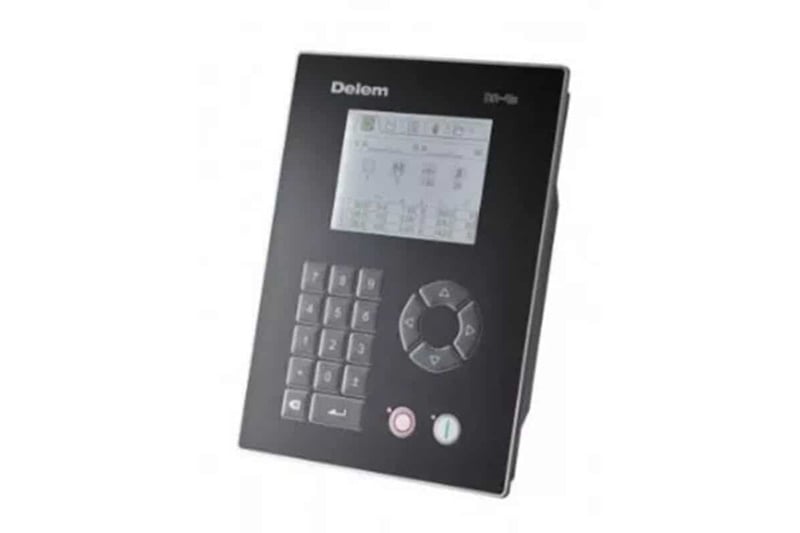
מדריך הפעלה ל־DELEM DA-41S
רכיבי hardware
1. הפאנל הקדמי
התמונה שלהלן מציגה את תבנית הפאנל הקדמי, הכולל מסך תצוגה וטור מקשים לביצוע תכנות ובקרת צירים. פונקציות המסך יפורטו בחלק הבא.
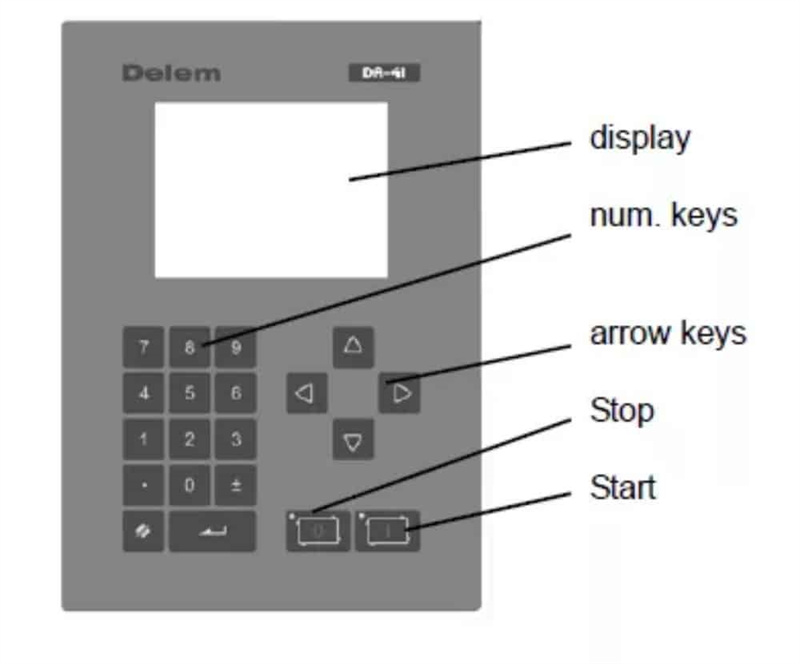
מקלדת הפאנל הקדמי כוללת את המפתחות הפונקציונליים הבאים:
• 10 מקשים מספריים (0–9)
• מקש לנקודה עשרונית
• מקש החלפה של סימן פלוס/מינוס
• מקש ניקוי למחיקת ערכי פרמטרים
• מקש כניסה לאישור ערכי קלט
• מקשי החיצים לבחירת פרמטרים שונים
• מקש עצירה (מסומן ב-0) עם מדגם מצב LED
• מקש התחלה (מסומן ב-1) עם מדגם מצב LED
2. מסך תצוגה
ה-DELEM DA-41 מצויד במסך LCD חד-צבעי בגודל 320×240. מצבים עבודה שונים מיוצגים על ידי סימנים מסוימים בראש המסך, המאפשרים למשתמשים לזהות במהירות את מצב העבודה הנוכחי.
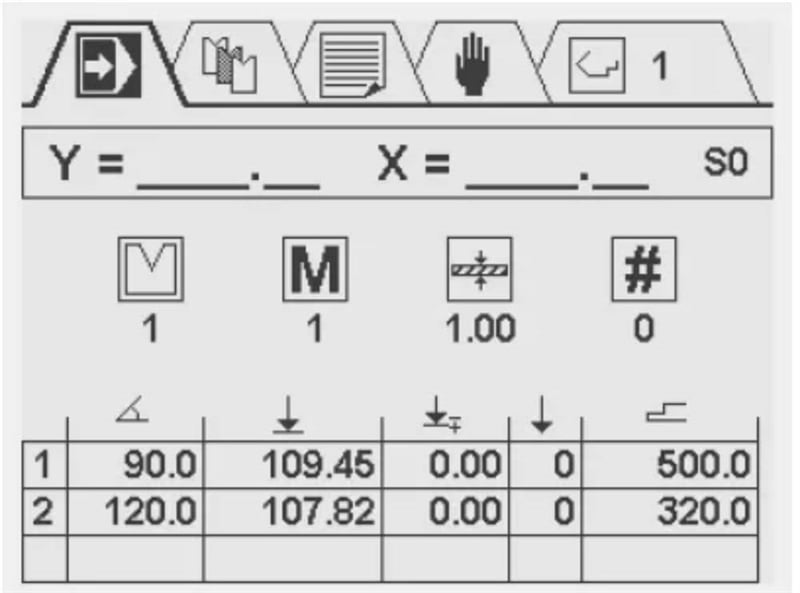
מצבים של עבודה
1. מבוא בסיסי
מסך ה-LCD החד-צבעי בגודל 320×240 של ה-DA-41 מסמן בבירור את מצב העבודה הפעיל באמצעות סימנים מיוחדים בראש המסך. מצבי העבודה הזמינים כוללים תכנות וריצה של מוצר, תכנות כלים, קבועי תוכנית, תנועה ידנית וביקורת תוכנית קיפוף.
2. פעולות ניווט בסיסיות
• החלפת מצב: הקש על מקש החץ למעלה עד שהסימן של מצב היעד מודגש, ולאחר מכן השתמש במקשי החצים שמאלה וימינה כדי לנווט למצב הרצוי.
• כניסה למצב: הקש על מקש החץ למטה כדי להיכנס למצב הנבחר.
• ניווט בפרמטרים בתוך מצב: השתמשו במפתחות החצים כדי להזיז את הסמן בין פרמטרים ושדות קלט שונים.
• תכנות פרמטרים: הזיזו את הסמן לסמל המתאים, הזינו את הערך הדרוש ולחצו על מקש ENTER לאישור. הערך מאושר אוטומטית גם כאשר לוחצים על מקש חץ; במקרים מסוימים ניתן להשתמש גם במפתחות <חץ שמאלה/ימינה> כדי להתאים ערכים.
• הגבלות תכנות: שלבים ופרמטרים המקבילים להם ניתנים לתכנות ו לצפיה רק כאשר יחידת הבקרה נמצאת במצב עצירה.
3. תכנות מוצר
מסך תכנות המוצר מחולק לשלושה חלקים מובחנים מלמעלה למטה:
• מיקומים בזמן אמת של ציר Y וציר X
• תכונות כלליות של המוצר
• טבלת שלבי עקיצה, שבה כל שלב מזווג עם מספר פרמטרים
מספר התוכנית הפעילה כרגע מוצג בפינה העליונה הימנית של המסך. מסך זה משמש לעריכה וביצוע תוכניות מוצרים, והסבר מפורט על תכנות מוצרים ניתן למצוא בפרק 4 של המנואל.
4. בחירת כלים
מסך זה מציג סקירה מקיפה של כל הכלים הזמינים, עם טבלה המפרטת את מספר הכלי, פתח ה-V, זווית הכלי ורדיוס הכלי. במהלך תכנות המוצר, מאפייני הכלים שנקבעו מראש משמשים לחישוב ערכי ציר ה-Y. כדי להגדיר או לשנות מאפייני כלים, פשוט הזז את הסמן לשדה המתאים של הכלי היעד והקליד את הערכים הרצויים ישירות.
5. הגדרת קבועי התוכנית
מסך קבועי התוכנית מאפשר למפעילים לצפות ולהתאים מגוון הגדרות של יחידת הבקרה. פרמטרים שניתנים לעריכה (מלבד אלו שרק לקריאה) ניתנים לשינוי באמצעות מקשי החצים <שמאלה/ימינה> או על ידי הקלדת ערכים מספריים ישירות.
יציאה מתפריט: כדי לצאת מתפריט קבועי התוכנה, הקש על מקש החץ למעלה כדי לחזור לתפריט הסימנים העליון או הקש על כפתור העצירה כדי לחזור ישירות למצב היצור האוטומטי.
גישה לתפריט השירות: הזן את הקוד 456 והקש על מקש הכניסה כדי לפתוח את תפריט השירות; הקש על כפתור העצירה כדי לצאת מתפריט.
הערה: אם יוקלד מקש הכניסה ללא הזנת הקוד המצוין, נקודת ההכיול תוצג במצב קריאה בלבד, וסמל נעילה יופיע בפינה העליונה הימנית של המסך כדי לציין מצב זה.
מסך השירות מאפשר תכנות של נקודת ההכיול האמיתית ומספק סקירה של מידע בזמן אמת על המערכת. הפונקציות הספציפיות הזמינות במסך קבועי התוכנה משתנות בהתאם לדרישות הטכניות של המכונה.
תזוזת ציר ידנית: במסך זה ניתן להזיז את הצירים X ו-Y ידנית באמצעות מקשי החצים, ופעולה זו זמינה רק כאשר יחידת הבקרה לא פועלת. הקש על מקשי החצים למעלה/למטה כדי לבחור את ציר Y או ציר X: הקש פעם אחת על מקשי החצים שמאלה/ימינה להזזה איטית של הציר, או לחץ ולשמור על המקשים להזזה מהירה של הציר.
6. בחר תוכנית מוצר
יחידת הבקרה DELEM DA-41 תומכת עד ל-100 תוכניות מוצרים, וכל התוכניות מוגדרות כברירת מחדל כה содержаות 0 צעדים. לאחר שנבחרה תוכנית, צעד אחד מתווסף אליה באופן אוטומטי.
שלבי בחירת התוכנית:
1. הזז את הסמן למספר התוכנית הרצויה והקש על מקש ENTER כדי לבחור אותה; מספר התוכנית שנבחר יופיע בפינה העליונה הימנית של המסך, ליד סמל המצב.
2. למספרים גבוהים של תוכניות (למשל, 74): הקש על הספרה הראשונה של המספר (7), והסמן יקפוץ לקבוצת התוכניות שמתחילות בספרה הזו. לאחר מכן השתמש במקשי החצים כדי לאתר את מספר התוכנית המדויק.
לאחר שנבחר תוכנית, יחידת הבקרה תעבור אוטומטית למצב תכנות, והתוכנית תישאר פעילה עד שתוכנית אחרת תיבחר או עד שתימחק התוכנית הנוכחית.
מחיקת תוכנית: הזז את הסמן למספר התוכנית ולחץ על מקש האיפוס. מספר התוכנית יישמר, אך כל השלבים שלה יאפסו ל-0.
7. פונקציית נעילת מקשים
ליחידת הבקרה מותקנת פונקציית נעילת מקשים כדי למנוע תכנות לא מורשית, וזמינות הפונקציה הזו תלויה במאפייני המכונה.
• מצב לא נעול: ניתן לתכנת את יחידת הבקרה בהתאם להנחיות המופיעות במדריך זה.
• מצב נעול: סמל נעילה יופיע בפינה השמאלית העליונה של חלון התכנות, ויתחילו לפעול הגבלות הפעלה הבאות:
○ לא ניתן ליצור תוכניות חדשות, ולא ניתן לערוך תוכניות קיימות.
○ לא ניתן למחוק תוכניות.
○ לא ניתן ליצור כלים חדשים, ולא ניתן לערוך פרמטרים של כלים קיימים.
אפילו במצב נעול, הפעולות הבאות עדיין מותרות:
• בחר תכניות קיימות מראש (בהתאם לכך שיש להן שלב אחד או יותר).
• הפעל את התכניות שנבחרו.
• ערוך תיקוני ציר Y בתכניות הפעילות.
• שנה את הקבועים בתכנית.
• הזז את הצירים X ו-Y דרך מסך התנועה הידנית.

