





ДелЕМ ДА-66Т ЦНЦ машине за савијање
Правилна инсталација ДЕЛЕМ ДА-66Т ЦНЦ контролера је од кључне важности за обезбеђивање дугорочне перформанси и тачности вашег преса. Ако се припремате да инсталирате овај напредни систем контроле, неопходно је пратити структуриран и прецизан процес. Овај водич пружа јасан, корачки пут који ће вам помоћи да завршите инсталацију без проблем и избегнете капиле у заједничкој инсталацији.
Упутство за инсталацију ДЕЛЕМ ДА-66Т је дизајнирано са јасностима у виду, нуди једноставне инструкције прилагођене за подршку успешнојинтеграцији са вашим притиском кочнице. Ако се придржавате ових смерница, можете осигурати да је ваш систем правилно конфигурисан од самог почетка, омогућавајући поуздану и прецизну операцију од првог дана.
Хајде да прођемо кроз основне фазе процеса инсталације како бисмо вам помогли да свој ДЕЛЕМ ДА-66Т поставите и да радите ефикасно и прецизно.
Предлог
Овај документ пружа техничке информације потребне за правилну инсталацију система за управљање ДА-Татцх на притиснутом кочницу. Намењен је употреби квалификованог сервисног особља овлашћеног да врши инсталацију и монтажу машине.
Ограничена гаранција
● Опрема је снабдевана од стране Делма без безбедносних уређаја. Произвођач машине мора осигурати сигурно окружење.
● Ова опрема мора бити инсталирана и коришћена у складу са спецификацијама ДЕЛЕМ. Гаранција за опрему је неважећа у случају неправилног инсталације и/или употребе ове опреме.
● Општи услови испоруке Делема примењују се на овај производ. Ови услови су доступни од Делма на захтев.
● Овај приручник вам не даје никакве права. Делем задржава право да промени овај упутство без претходног упозорења.
● Сва права су заштитена. Ауторска права је у власништву Делема. Ниједан део ове публикације не може бити копиран или репродукован без писменог дозвола ДелЕМБВ-а.
Част I Опис хардвера
Овај део садржи хардверске спецификације Делем контроле серије ДА-Тош.
1.Увод
Овај приручник садржи информације потребне за инсталацију ДА-Татцхконтрола. Таква контрола је срце система за управљање пресом којег се управља асинхронизованим пресом.
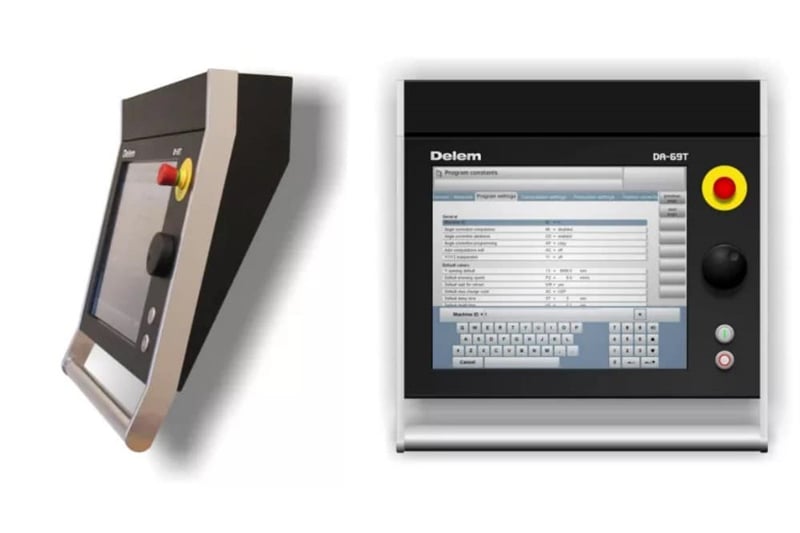
Да-Тацх контрола комбинује различите задатке у једној јединици:
програмирања производа и алата;
контрола осе током савијања;
подешавање подешавања машине.
Програмски процес и управљање производом описани су у приручнику за употребу [4,5] одговарајућег модела управљања. Контрола пресбрејка и систем I/O између контроле и машине се врши са
помоћ ММ модула. Ово је објашњено у поглављу 2 овог одељка.
2.Системски И/О
Систем I/O између DA-Touch контроле и машине врши се помоћу DM модула. Ови модули су повезани са ДА-Туцх контролом помоћу високобрзне шине (ХСБ). Значење свих И/О сигнала описано је у параметру машине
упутство о управљању Делемом.
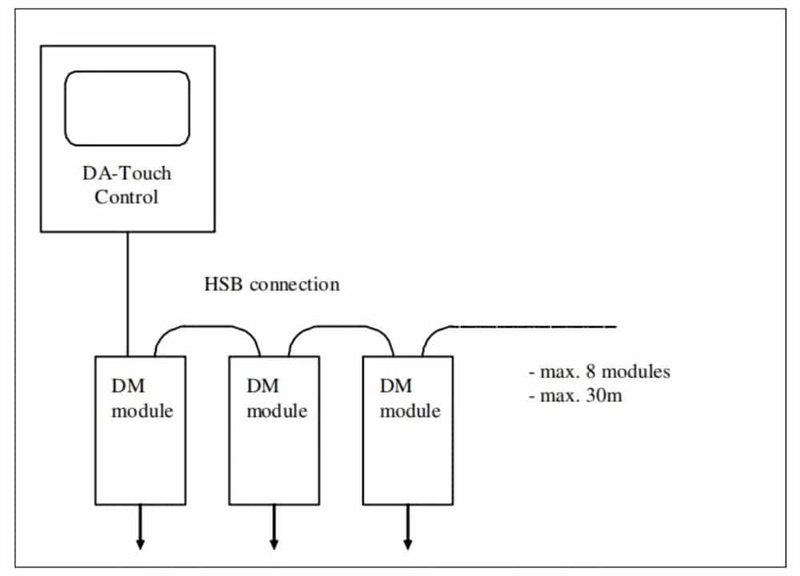
Максимално дозвољени број модула за ХСБ је 8. Укупна дужина HSB кабла на аутобусу не сме бити дужа од 30 метара. Ако је потребно више модула у систему, онда се може омогућити друга, неопходна ХСБ веза путем софтверске опције.
Пре него што се модул може користити за управљање осом, он мора бити повезан са контролом и препознат као важећи ДМ модул. Процедура за инсталирање ДМмодула у систему и додељивање осија тим модулима је описана у упутству за параметре машине за управљање ДЕЛЕМ [1].
Спецификације свих ДМ модула могу се наћи у Делем модусс рукопису[2].
3. Спецификације
3.1 Физичке димензије
За димензије управљача ДА-Татцх, погледајте придружене цртеже на крају овог одељка.
Следеће вредности спецификације окружења важе за сваку ДА-Татцхконтрол:
Температура окружења |
0 50°C упозорење: Избегавајте дуготрајну изложеност контроле директној сунчевој светлости.У супротном, температура унутар контроле ће се повећати изнад толерантних нивоа. Употреба контроле треба да се врши у затвореном простору. |
ХранилиштеТемпература |
минимум - 10°C максимум. 70°C |
Релативна влажност |
максимално 90 % некондензирања |
ЕМЦ |
дизајниран и изграђен да испуни следеће стандарде: • EN50081-2 • EN61000-6-2 |
Окретање |
Дизајниран и изграђен да испуни захтеве стандарда IP54. |
3.2Техничке спецификације
Подаци енергије |
18 28 ВДЦ 75 Вт |
Показач |
LCD/TFT 1280x 1024 Толеранција на грешке: укупно 15 пиксела дефекта макс. 4 пиксела дефекта у радијусу од 10 мм максимум. 10 не-белих пиксела на белом екрану максимум. 10 нецрних пиксела на црном екрану |
Интерфејс |
2х ХСБ 2х РС-232 2х УСБ 1х 10/100 базаТ |
дискови |
Компактна Флешкарта, 1 ГБ (ДА-66Т) или 2 ГБ (ДА-69Т) |
дугме за хитно заустављање |
Намерани изолациони напон: 250 ВА/ДЦ Намерани пик напон Уимп: 2.5 кВ Намерани радни ток ИЕ: • АЦ 15 Б300 3А / 120В, 1.5А / 240В; ИЕ: 5А • ДЦ 13 К 300 0.55А / 120В, 0.27А / |
4.Заредни делови
4.1 Увод
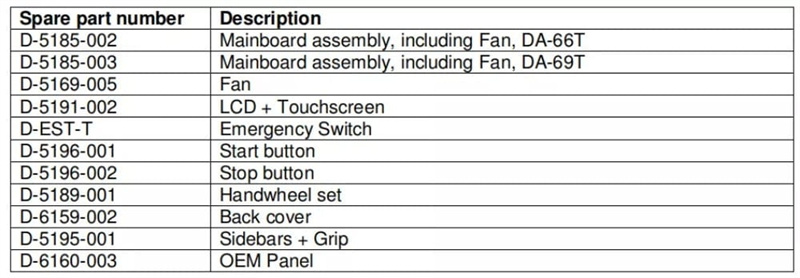
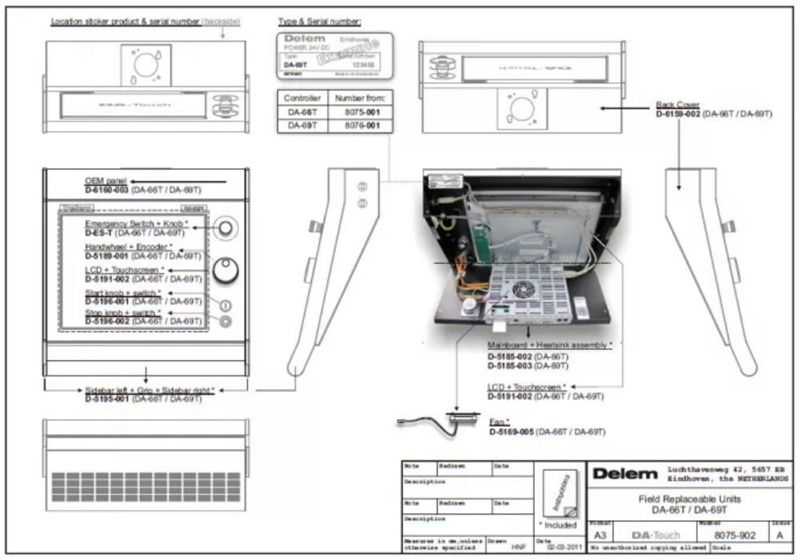
Табела на следећој страни даје преглед доступних резервних делова за управљачке уређаје ДА-Татцх. Следеће поглавље садржи експлодиран поглед на ДА-Татцхконтрол, у коме се користе исти бројеви резервних делова.
Напомена:
Када наручујете резервне делове, увек наведите тип управљача, број модела и серијски број управљача за који су резервни делови намењени.
4.2Обзор резервних делова
5.Схематика
5.1 Да-Тцх информација
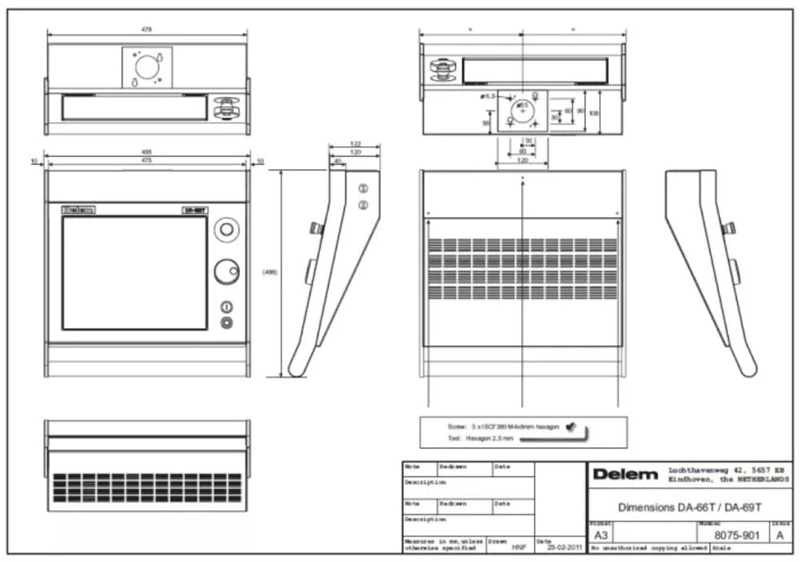
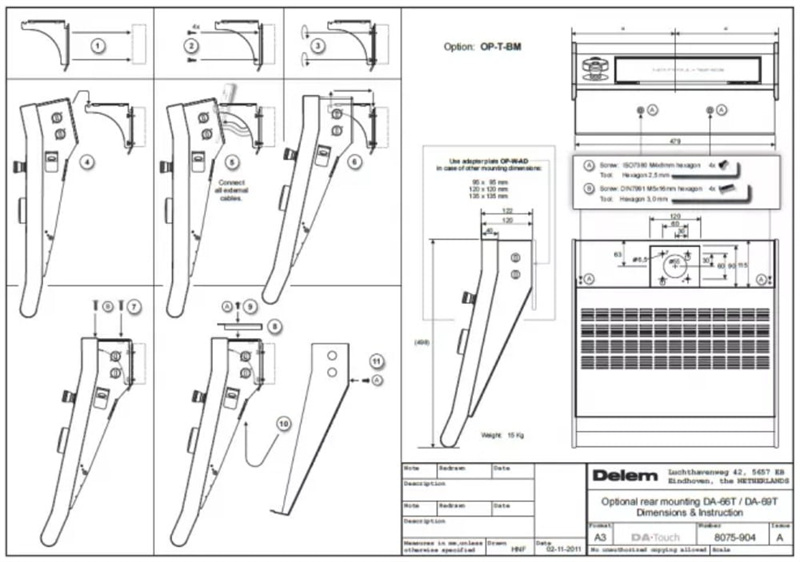
5.2 Различити
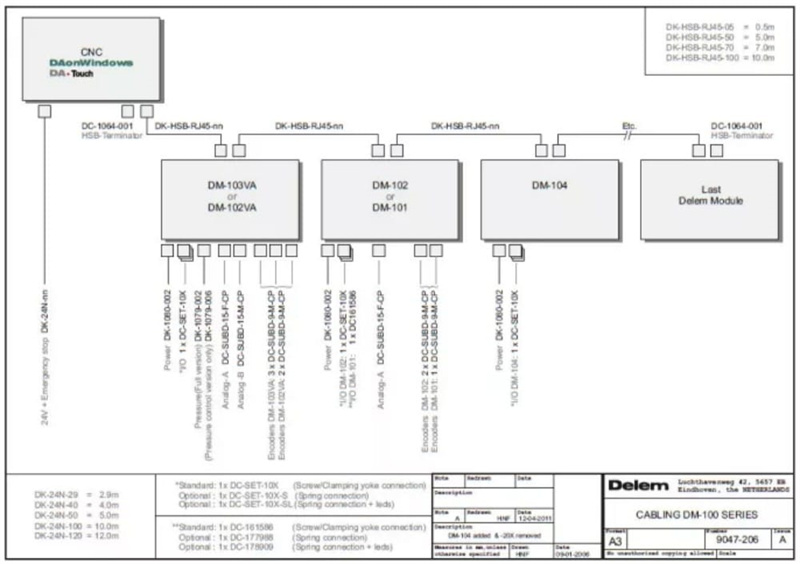
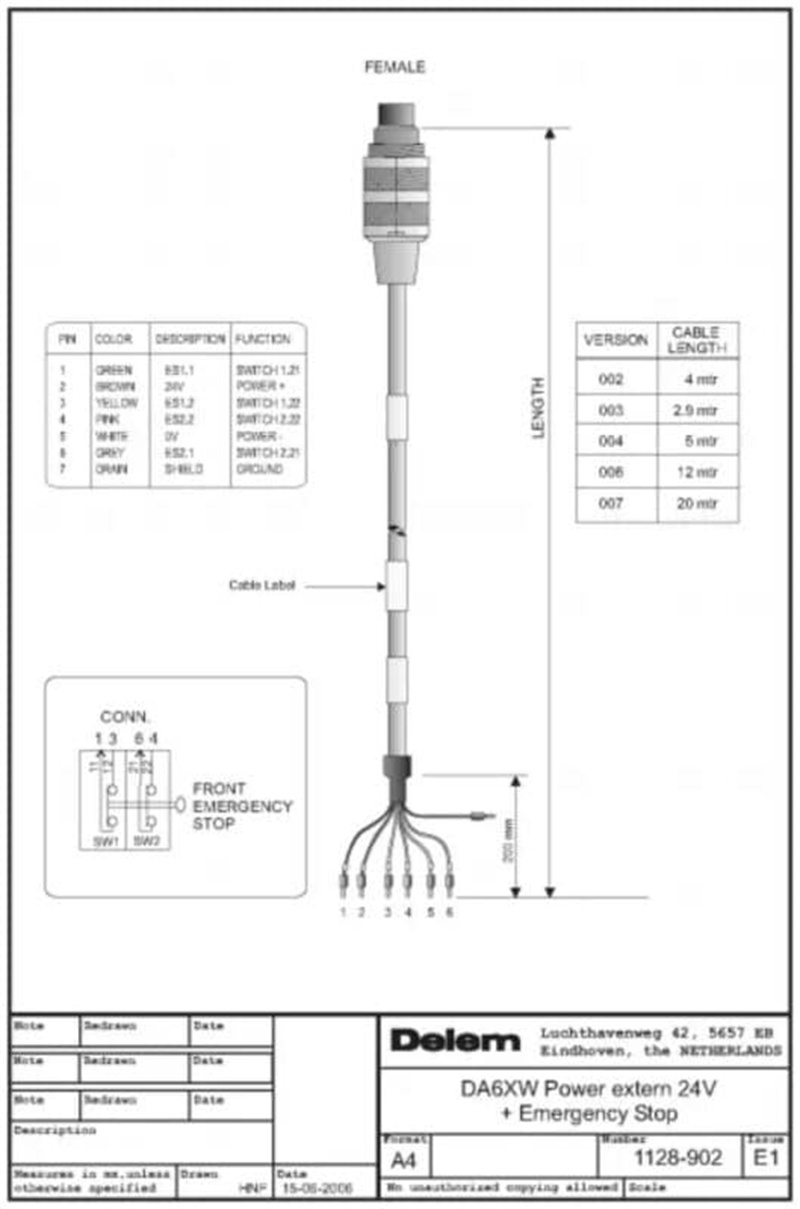
Део II Поредности машине
Овај део ће описати неопходне подешавања ДА-Татцх контроле у вези са подешавањамашина.
Многа подешавања уређаја могу се мењати кроз Виндовс окружење.
1.Параметри машине
Поправка параметара машине и параметара осе врши се у Деле апликацији. Овај поступак је детаљно описан у упутству о параметрима машине Делем [1].
Напомена:
Инсталација опција се не врши у менију параметара Делем машине.Видети поглавље 3 за више информација о инсталацији опција.
Напомена:
Процедура ажурирања софтвера се не врши у менију параметара Делем машине. Видети поглавље 2 овог дела за више информација о процедури ажурирања.
2.Задаци Виндовса
2.1Увод Виндовса
Да би се добила приступ функцији Виндовс у ДА-Тцх контролеру, тастатура и миша треба да буду повезани са USB портом. Да бисте отворили мени за почетак Виндовса, притиснете дугме Виндовс на USB тастатури.
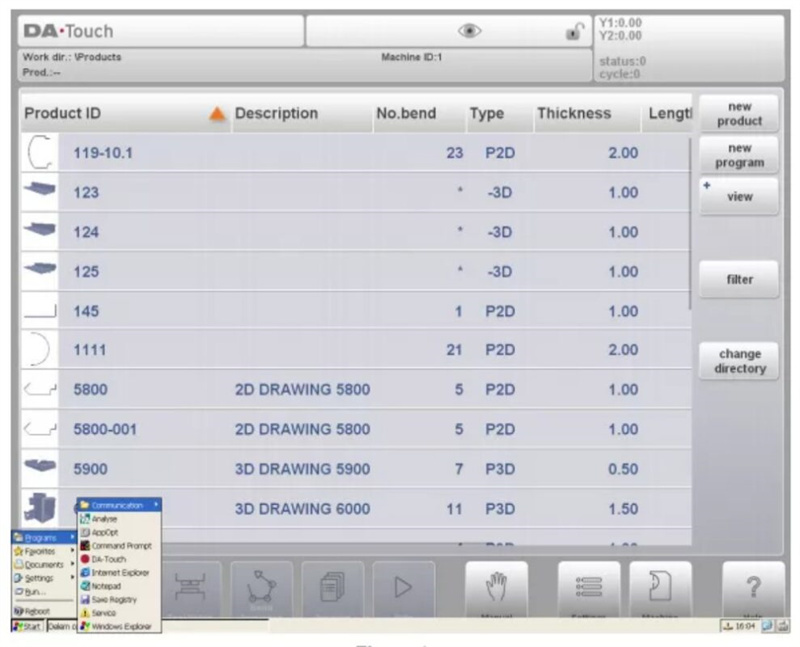
Да бисте прешли на прозор без отварања било које апликације, кликните на симбол оловке у доњем десном углу екрана. Апликација за контролу Делем је пребачена на позадину, али остаје активна.
Да бисте активирали одређену апликацију, кликните на дугме Почетак у доњем левом углу екрана. Изаберите апликацију са листе. За многе задате са машином, ова процедура ће бити неопходна, па се обавезно упознајте са овом рутином.
Команда Reboot изнад дугмета Start служи за рестартирање контроле. У овом приручнику ће бити наведено када је то потребно.
2.2 Улазак у систему
За неколико операција и функција у Виндовс окружењу, потребно је прво да се пријавите са правилним нивоом приступа. Ако се не пријавите са одговарајућим нивоом, функција неће бити извршена или ће се појавити порука о грешци.
Стварна ниво приступ ће бити означен испод симбола кључ браве
• Након рестартовања/рестартовања контроле ниво приступа ће и даље бити активан.
• Улазни ниво се ресетује када је контрола искључена.
• Поменути кодови за приступ су исти кодови као и за приступ менију параметара машине.
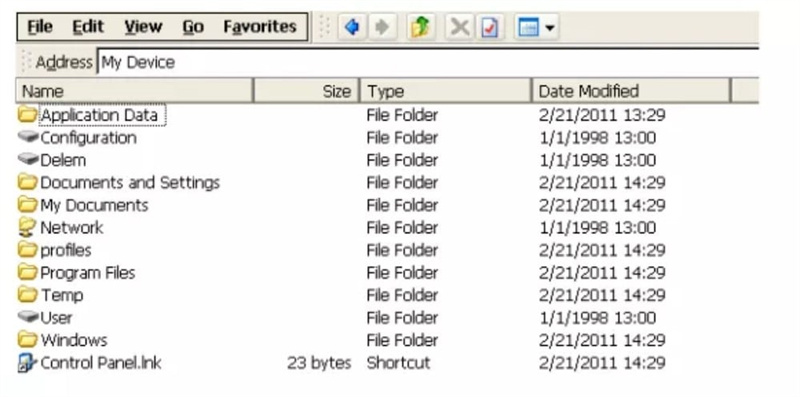
2.3 Структура директоријума
Подаци о контролу су организовани у дискове и директорије, као на рачунару. У оквиру графичког интерфејса Виндовса, термин Фолдер се такође користи за директоријум.
Већина директорија на Виндовс десктопу су нестабилни директорији, што значи да се губе када се контрола искључи и поново се стварају када се контрола покрене. Следећи дискови су трајни, јер се односи на компактФлаш картицу контроле:
Delem
Конфигурација
Корисник
Ова CompactFlash картица је унутрашњи уређај за складиштење контроле. Сваки подаци који треба да се сачувају за каснију употребу треба да се чувају у једном од дискова који се налазе на CompactFlash-у.
2.4 Важне фајлове
Многа подешавања контроле се чувају у датотекама, који се налазе на хард диску контроле. То је случај и за апликацију Делем, као и за платформу Виндовс. Када год се контроле (поново) покрене, софтвер ће тражити ове датотеке и вратити последње сачуване подешавања.
Ако се из било ког разлога подешавања помешају, могуће је избрисати ове датотеке. При следећем покретању, контролна единица ће преузети своје подразумеване подешавања. То би требало да се ради само као последње средство, ако контрола више не функционише исправно.
Ако су подешавања тачна и не желите да их неразређени људи мењају, могуће је да ове датотеке поставите као датотеке само за читање. На овај начин подешавања не могу бити промењена. Да бисте поставили датотеку на режим само за читање, урадите следеће:
• отворите Проналазач Виндовса
• претражите на исправном месту (у директоријуму) да бисте пронашли датотеку
• кликните на жељену датотеку
• отворите мени Файл и изаберите пропатрије
Треба да се појави прозор попут онога који је приказано испод:
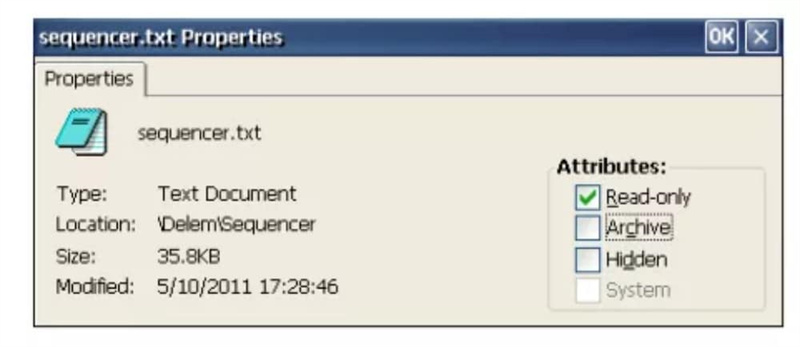
У одељку атрибути прозора, означите подешавање само за читање и кликните на ОК да бисте сачували подешавање. Файл се више не може мењати.
У примеру горе приказане су особине датотеке секвенцера. То значи да ће се промене у чипцу секвенцера игнорисати.
Друга могућност је да се датотеке означе као "скривене". Скривена датотека није приказана у Проналазитељу Виндовса и као таква је заштићена од неовлашћених акција корисника. Скривена датотека такође се не може отворити из оквира Виндовс апликација,као што је Вордпад.Делемова апликација и даље може отворити потребну датотеку подешавања,чак и ако је скривена.
Ако овлашћена особа жели да приступи сакривеним датотекама, Проналазач Виндовса има подешавање да види све датотеке. Из прегледача, отворите мени Преглед и изаберите Опције.... Појављује се следећи прозор:
Не приказује скривене датотеке и фајлове
Додатак Истраживач неће приказивати датотеке које су обележене као скривене.
Скриј заштићене датотеке оперативног система
Истраживач неће приказивати датотеке које користи оперативни систем Виндовс.
Скриј проширења датотека
Екплореро не ће приказивати троцифрену екстензију у именима датотека.
На следећим страницама је наведена листа датотека које садрже подешавања за оперативни систем Windows
и за апликацију за контролу Делем.
2.5 Виндовс регистар
У оквиру Виндовса ОС, неколико подешавања контроле може се прилагодити, као што је осетљивост миша, итд. Обично се ове Виндовске подешавања ресетују на фабричке подешавања када се контрола поново покрене или искључи.
Ако желите да задржите ове подешавања трајно, могуће је да их сачувате помоћу прибора SaveRegistry.exe. Овај прибор се може покренути из менјуа за почетак Виндовса, Програми-> Сачување регистра. Све тренутне подешавања у Виндовсу се чувају и преузимају се на следећем покретању.
Поредности су сачуване у датотеци user.reg, која се налази у директоријуму \User\Delem\Boot. Када се сачува регистар док се пријављујете са нивоом 1 или вишим, подешавање ће бити сачувано у config.reg у директорију \Configuration\Delem\Boot. Приликом покретања, обе датотеке регистра се провере и подешавања из обе датотеке ће се користити (слијепити).
Ако из неког разлога подешавања више нису прихватљива, онда избришите ову датотеку. При следећем покретању фабрички подесовни ће бити обновени.
Проверка регистра се такође може извршити путем поступка спасавања.Види одељак 2.10 о поступку спасавања.
Напомена:
Не чувају се све поставке Интернет Екплорера у регистар. Почетна страница Екплорера је сачувана у регистру. Међутим, омиљене веб странице се чувају у директоријуму \Windows\Favorites. Овај директоријум је изгубљен након искључења струје. Да бисте сачували ове подешавања
требало би да копирате датотеке из овог директоријума на контролни хард диск. Након започињења, ове датотеке се могу копирати назад у директорију Фоворите.
Файлови се могу аутоматски копирати након покретања модификовањем датотеке autoexec.bat. Погледајте одељак 2.9 о овој фајлу.
2.6 Програм Записница
Програм Notepad се може користити за уређивање једноставних текстуалних датотека на контроли. Програм се може активирати кроз мени за почетак Виндовса:
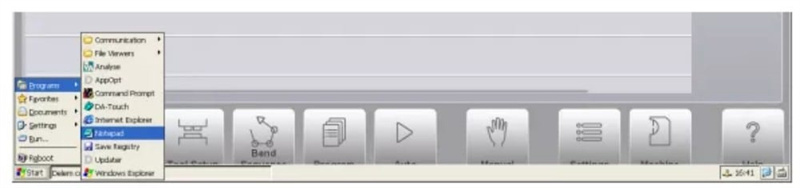
Друга могућа метода је да се отворе одговарајуће датотеке двоструким кликњем на њих мишем. Файл је погодан ако има икону за бележник.
2.7Мрежавање
2.7.1Конфигурација
Са мрежним функционалностима, апликација Делем може да копира или преузима датотеке у или из мреже. Доступне мрежне локације за апликацију Делем морају бити распоређене на Виндовс платформи.
Поступак за понуду мреже укључује око четири корака:
1. успоставити мрежу за Виндовс платформу
2. дефинисати мрежне стазе за Виндовс
3. проверите доступност мреже на контролу
4. сачувати подешавања (регистар)
Први корак треба да организује администратор мреже. Ово укључује свезаједничке задатке као што су повезивање контроле са мрежом, избора правог мрежног протокола за Виндовс и понуде заједничког диска.
Други корак мора бити извршен на контролу. Користите мени Windows Start да бисте активирали командни промпт. Унесите следећу команду:
2.7.2 Уклоните мапирање мреже
Да бисте уклонили постојеће мапирање мреже, извршите следеће кораке:
Активирајте командни промпт и унесите следећу команду:
нето коришћење <име пута> /d
2.7.3Структура мрежног директоријума
Када се успостави мрежна веза, могуће је да се складиште или повраћају подаци из мреже.
2.8 Измени аутоеццец.бат
Файл autoexec.bat је стандардна датотека у Виндовс систему. Свака команда која се може извршити са командног реда, такође се може ставити у ову batchfile. Када год се контроле започе или ребутује, систем ће најпре тражити посебну фајлу за баче autoexec.bat. Било који
команда која је написана тамо ће бити извршена од стране система аутоматски.
Уобичајени задаци за такву датотеку могу бити повезивање са мрежом и копирање датотека из мреже. У стандардној датотеци, реализована је једна задача:активирати апликацију Делем. Ако је потребно, могу се додати и други задаци.
Да би се уредила ова фајл за баче, контролу опрема апликацијаNotepad. Овај програм се може покренути из менија "Почетак" у Виндовсу. Такође можете да изаберете датотеку, отворите мени Датотека и изаберете Изменити.
3.ДА Уређивања контроле
3.1 Увод
У овом поглављу се разматрају неке функције са којима се модификује функционалност апликације ДА.
3.2 Додајте KO-таблицу
Ко-таблица је датотека која садржи почетне параметре за управљање у оси Y за одређени тип хидраулике. Поуздан сет KO-таблица увек је укључен у софтвер. У случају да је потребна KO-таблица која још није укључена, она се може додати ручно.
Само копирајте датотеку (KO-7xxx.bin) у следећу мапку: \Configuration\Delem\Machine
Активна KO-таблица се може изабрати у параметрима машине (Generalparameters).
Напомена:
Да бисте могли да пишете, бришете или мењате датотеке на диску \Конфигурацијаморате се пријавити са нивоом 1 или вишим.
3.3 Опција инсталације
3.3.1Објављивање опције контроле
Могуће је инсталирати софтверске опције на контролу. Опције се могу тражити у Делму. Опције за ДА-Татцх контролу могу се купити у било ком тренутку. То се ради куповином "Опције Ваучера" за одређену функцију (3Д визуелизација, читач баркода итд.). Нови ваучер опције важи за било коју контролу ДА-Тош. Стога је могуће купити један или више опционих ваучера и задржати их на залихи док опција не постане неопходна за контролу. Опциони ваучер изгледа следећи начин:
3.1.2 Захтев код опције у Делему
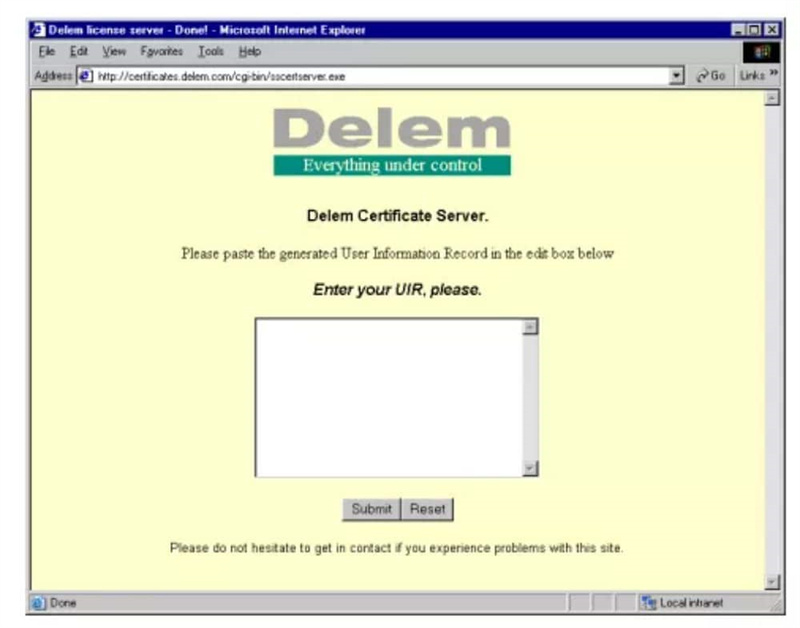
УИР датотека која је генерисана програм опције мора бити послата на Делем.Од ове УИР датотеке генерише се датотека лиценце. Ова датотека лиценце може се затим користити за омогућити опцију на контролу.
Постоје различити начини да се датотека УИР пошаље у Делем. Најједноставнији (и најповољнији) начин је да ставите датотеку на флешику и пошаљете ову флешику на Делем. Након одређеног периода, добићете флешику са датотеком лиценце.
Друга метода је да се датотека УИР пошаље е-поштом на ДЕЛЕМ и затражи опција. Ускоро ћете добити досије о лиценци.
Трећи метод је коришћење интернет везе и повезивање са посебном Делем лиценцом
3.3.3 Модул за идентификацију Делема (ДИМ)
Када се опција активира, она се чува у модулу за идентификацију Делема (Delem Identification module, DIM). ДИМ је мала картица која се убацује у маинборд. Активисане опције се могу пренети на другу контролу истог типа (ДА-66Т или ДА-69Т) једноставно уносећи ДИМ у нову контролу.
3.3.4 Обезбедити опцију
Када се опција активира, она се региструје у ДИМ-у. Немогуће је уклонити опцију из ДИМ-а. Ако би из неког разлога опција требало да буде ((привремено) искључена, она се може онемогућити апликацијом AppOpt.
Да бисте онемогућили опцију, изаберите опцију са листе и притиснете дугмеОдбијање лиценце.
3.4 Поредовање секвенцера
Секвенсер је уграђена ПЛЦ функција Делем система. Текстна датотека са кодом секвенцера се чува на хард диску контроле, у датотециsequencer.txt. Поуздан Делем секвенсер је сачуван у мапци \ Делем \ Секвенсер. Ова папка такође садржи стандард
секуенсер укључује датотеке, као што је delem.def.
3.5 Боје екрана
Контролни екрани апликације ДА могу се модификовати како би задовољили жеље клијента. Ово се врши модификовањем датотеке под називом цолурс.ини. Након испоруке, ова датотека садржи фабричке стандардне вредности. Поуздан цвета.нифиле се налази у мапци\Delem\Style\Default\1280×1024. Да бисте могли да уређујете подешавања боја, извршите следеће кораке:
• Улазак са нивоом 1 или вишим
• Створити подпапку \Style\Default\1280×1024 у \Configuration\Delem
• Копирајте подразумеване боје.ни датотеку из \Delem\Style\Default\1280×1024 на \Configuration\Delem\Style\Default\1280×1024
• Сада се цолурс.ини може уређивати са текстовим уредником, на пример, уграђеном апликацијом Нотепад.
3.6 Логотип компаније
У горњем левом углу екрана за управљање се приказује лого Делме производа ДА-Тош.

Овај логотип је мала слика, која се чува на контролном диску као стандардна PNG слика: logo.png. Ако је потребно, овај логотип може бити замењен или измењен на одговарајући логотип компаније:

3.7 Заштитни систем / систем за обнављање
Могуће је направити потпуну резервну копију контроле ДА-Тцх. Ова резервна опрема укључује:
Апликациони софтвер
Све додатне датотеке на \Конфигурација вожњу (секуенсер итд)
Параметри машине
Сви кориснички подаци (продукти, алати, подешавања)
Направите резервну копију система
Извршите следеће кораке да бисте направили комплетну резервну копију система:
• Унесите USB меморијски споменик у један од USB порта.
• Изаберите страницу Информације о систему у менију Машина.
• Притисните софттеј бацк-ап систем. Појављује се следећи прозор:
3.8 Калибрација сенчскрена
Тоцццскрин је калибриран и спреман за употребу након испоруке.
Понекад може бити потребно да се сензорски екран поново калибрише, на пример након што је контролна единица монтирана на машину. Калибрација се врши брзо и лако.
• Изаберите страницу "Одршка" у менију "Машина".
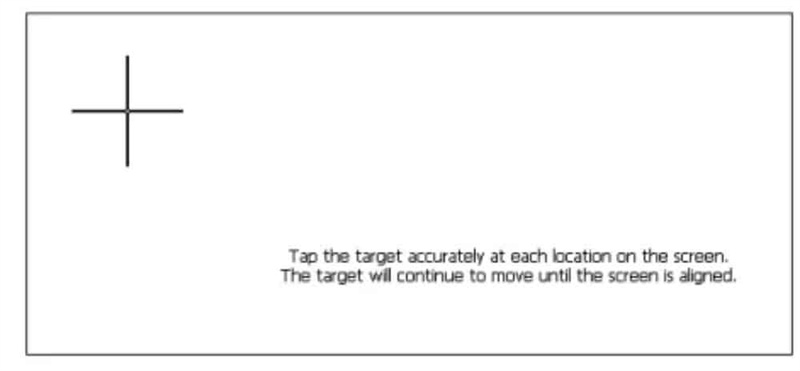
• Додирните дугме калибрирајте тачскрејн.
• Појављује се бели екран са црним крстом. Додири црни крст веома пажљиво.
• Поновите то сваки пут када се крст помера у нови положај.
3.9 Програм анализе
Управљач је опремљен програмом за анализу циклуса прескочне кочнице. Овај програм за анализу може се радити паралелно са апликацијом ДА.
Принцип рада је следећи. Током једног циклуса савијања, програм снима вредности неколико аналогних и дигиталних И/О сигнала. Сви ови подаци се одмах чувају у датотеци на контролном диску и могу се графички представити.
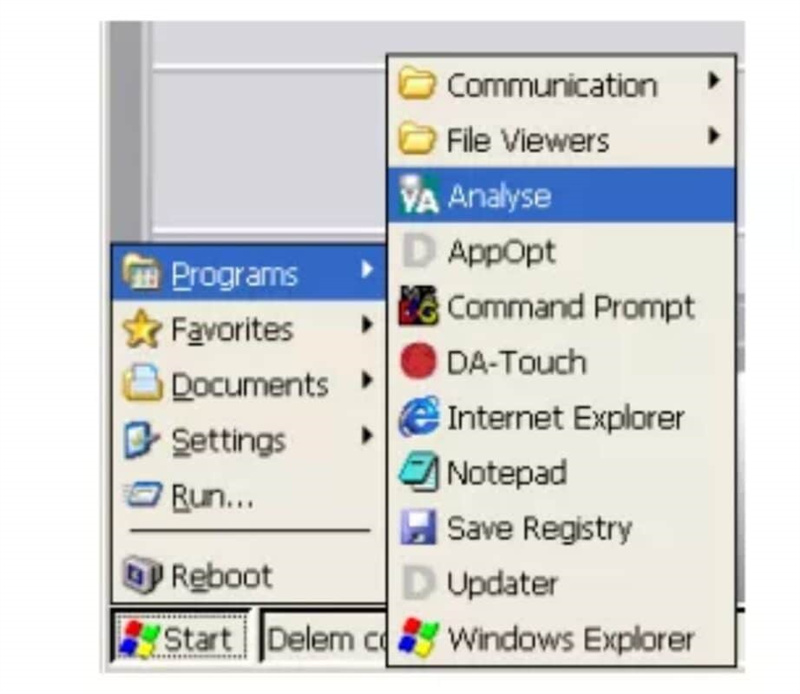
Прво се пријавите са нивоом 2 или вишим.Затим започните програме-> Анализа из менју за почетак Виндовса да бисте активирали алат за анализу.
4. Уколико је потребно. Ажурирање софтвера за контролу
4.1 ДелемИнсталлер
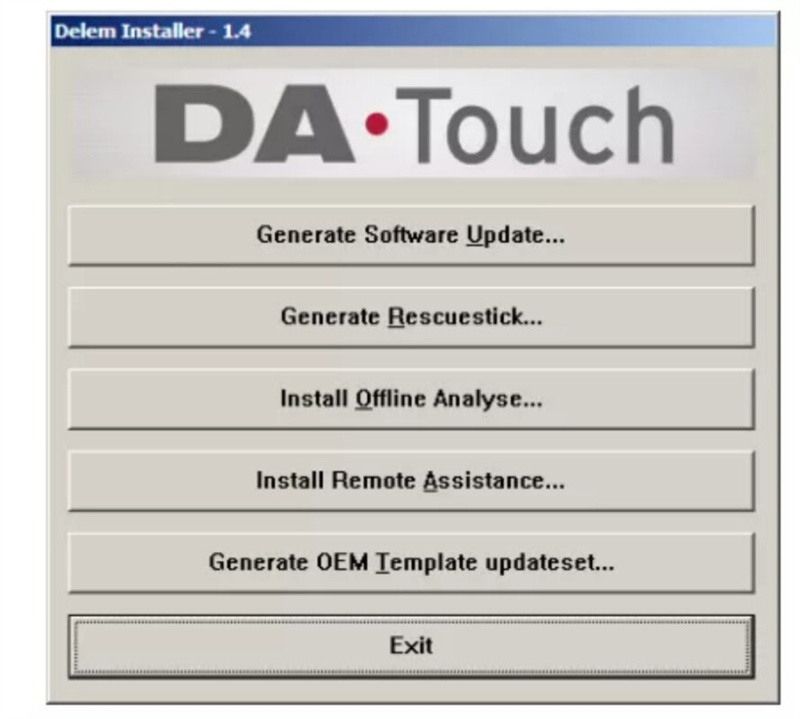
DelemInstaller.exe је мали програм који се покреће на рачунару. Користи се да се генерише датотека за ажурирање која ће бити инсталирана на контролу DA-Touch.
Поред тога, додатни алати се могу инсталирати са ДелемИнсталлером или се може генерисати спасавачки УСБ стик.
Када се DelemInstaller.exe покрене на рачунару, појављује се следећи екран:
4.2 Процедура ажурирања софтвера
Напомена: Процедура ажурирања која је описана у овом параграфу ће ажурирати само апликациони софтвер ДА-Туцх контроле. Промена на конфигурационом дискови и подаци на корисничком дискови остаће незамећени.
4.3 ОЕМ ажурирани комплет
По поступку описаном у тачки 4.2, ажурирана је само стандардна апликација контроле ДАТуцх. Са ОЕМ ажурирањем се могу истовремено инсталирати додатне датотеке, као што је датотека секвенцера.
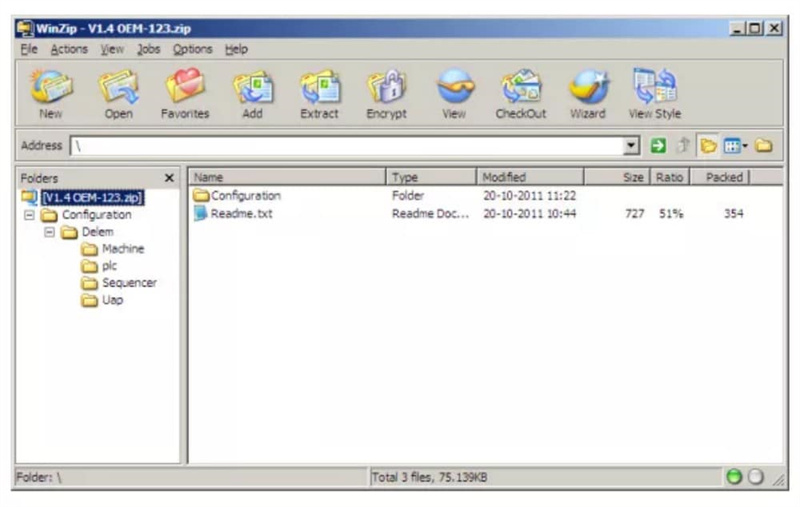
OEM-updare set је.zip датотека која садржи апликациони софтвер и додатне датотеке, организоване у истој структури фолдера као и оне инсталиране на DA-Touch контролу.
Са апликацијом DelemInstaller може се генерисати шаблон.zip који се може користити као почетна тачка за састављање сопственог скупа ажурирања. Ова.zip датотека већ садржи најчешће коришћене фолдере.
4.4 Контрола Процедура спасавања
4.4.1 Увод
Процедура спасавања за Делем контролу има за циљ да поново инсталира све оригиналне софтвере на контролу. То је последње средство, када други покушаји да се "исправи" контрола нису успели и/или контрола се више не покреће са унутрашњег чврстог диска (компакт флеш картице).
Када се ова процедура спроведе, сви постојећи подаци на тврдом диску се бришу: производи, алати итд. Ове опције нису сачуване на CompactFlash картици, већ на DIM-у.
Овај поступак може бити успешан само када је све хардвер још увек функционалан.
4.4.2 захтеви
За обављање процедуре на контролу, потребна је следећа опрема:
комплетан комплет DA-Touch софтвера;
рачунар који ради на оперативном систему Виндовс (Виндовс ХП, Виндовс 7);
USB паметник;
4.4.3 Процедура спасавања
Процедура спасавања се врши помоћу USB паметника, који је распознат од стране контроле као спољни USB диск. USB паметник је опремљен неопходним софтвером, а контролна кутија се покреће са USB паметника да би се поново инсталирао контролни софтвер.
Део III Дијагностички програм
Да би се могла тестирати контролна единица ДА-Татцх, опремљена је дијагностичким програмом. Са тестовим функцијама дијагностичког програма сервисни инжењер може тестирати саму контролу и комуникације са спољно повезаним компонентама система.
Пре почетка дијагностичког програма потребно је проверити да ли хидраулична пумпа пресне кочнице није у покрету. То је зато што се током дијагностичког рада контроле не врши никакво регулисање пресног зрака.
1.Обљежавања
1.1 Излаз клапана
Са дијагностичким програмом морате бити веома пажљиви јер пропорционални вентили могу бити одведени. Високи затварачки вентили морају бити у затвореном положају како би се спречило спуштање горњег греда. Добра пракса је да се горња греда постави у најнижи положај
пре почетка дијагностичког програма.
1.2 Проверка компоненти
У опису испитивања указује се која компонента је одговорна за исправно функционисање тог одређеног дела.
За цртеж изложеног изгледа са свим унутрашњим каблима и картицама управљача ДА-Тцх погледајте укључене дијаграме на крају дела I.
Маинборд контроле се може лако заменити, јер су сви специфични подаци складиштени на хард диску.
Ако се интерни хард диск (КомпактФлеш картица) мора заменити, препоручује се да се направи резервна копија свих података специфичних за корисника: производа, алата, константи програма и параметара машине. Користите алате продукт резервна копија и toolsbackup у менију подешавања за ово
сврху. Заједно са алатима аутоматски ће се параметри из менија Пореда и машина (уведени од стране корисника) писати на резервни медиј. Да бисте сачували параметре машине, морате отићи у мени параметре машине и и одаберете опцију 5, Параметр резервна копија.
2.Мени за испитивање
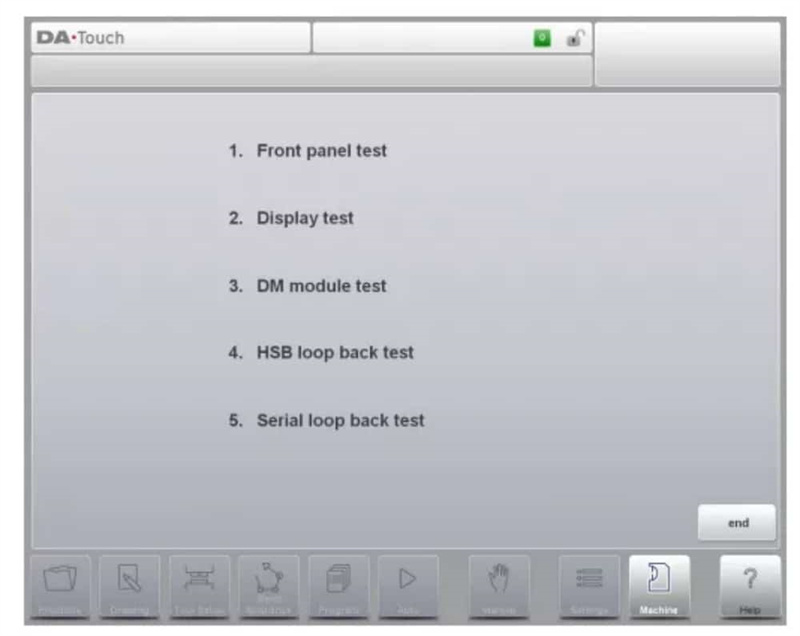
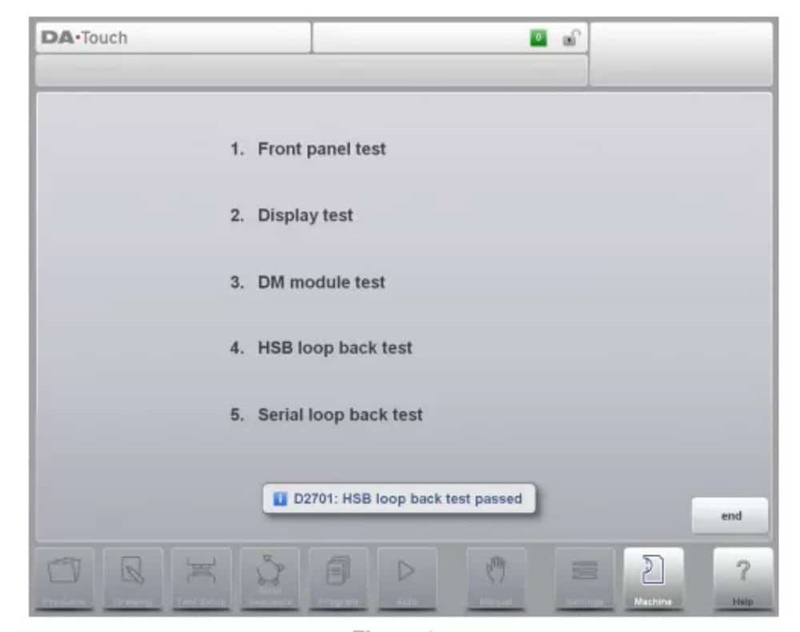
Када се дијагностички програм покрене, на екрану се приказује мени као што је показано на слици 2.а (пример дијагностичког главног менија).
3.Проба предње панеле
Funkcija
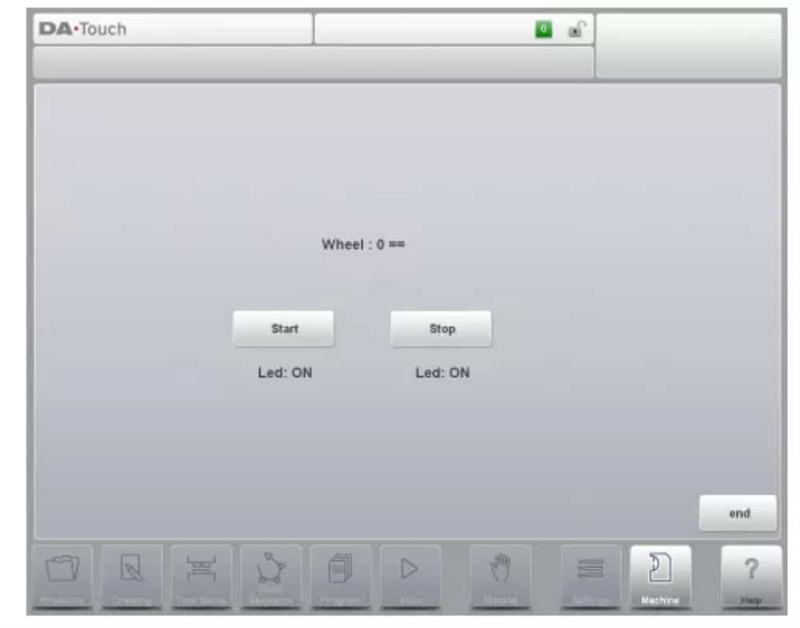
Овај тест је намењен проверзи функционисања дугмета за покретање и заустављање и ручног вола.
Опис
Појављује се следећи екран, као на слици 3.а.
4.Искушење на екрану
Funkcija
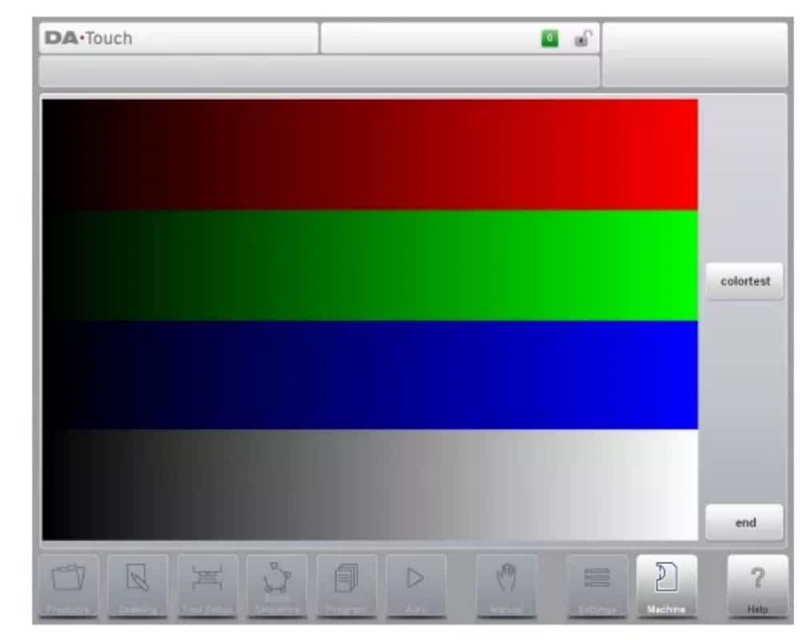
Да бисте добили добру идеју о подешавању боје и правилном функционисању црног екрана, видећете низ хоризонталних трака. Важно је да су доступне три главне боје (црвена, зелена и плава).
Ако притиснете дугме колортест, појављује се бели екран (тоглефункција).
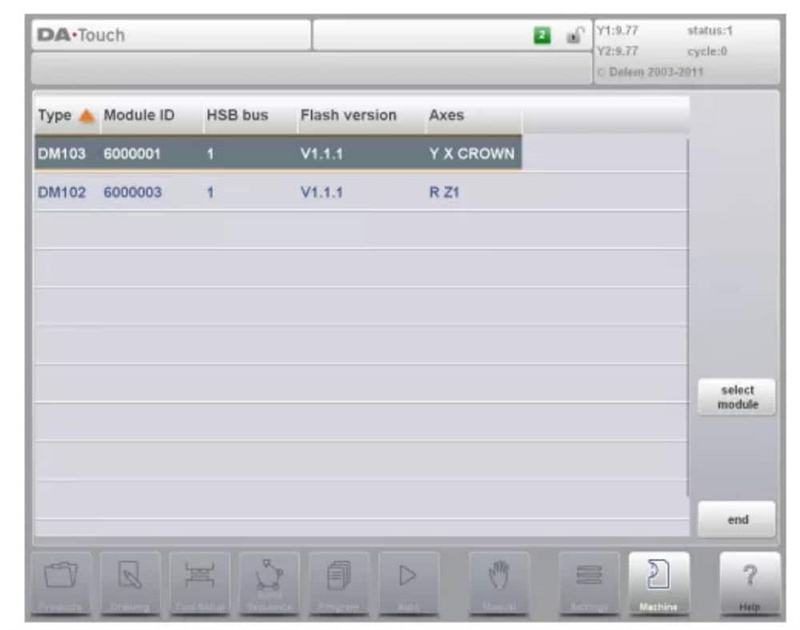
5. Тестовање ДМ модула
Funkcija
Овај тест проверује улазе и излазе повезаних ДМ модула.
6.Тест ХСБ
Funkcija
Овим испитом се проверује коннектор за брзину (HSB) контроле.Опис
Са овим испитом се проверује HSB кола управљача. Да би се извршио овај тест:
• отворите контролу;
• уклоните стандардни ХСБ кабл који је повезан са мајнборд;
• узмите мали ХСБ кабл и ставите један крај на први ХСБ конектор и ставите други крај на други ХСБ конектор;
• затворите контролу;
• активирајте контролу и идите у главни мени за дијагностику;
• Додирните ставку 4 у главном менију дијагностичког режима.
7.Тест серијских портова
Funkcija
У овом испиту се проверују серијски интерфејси (РС-232) коннектори контроле.
Опис
• отворите контролу;
• монтирајте повратни конектор на порт RS-232 за тестирање;
• затворите контролу;
• активирајте контролу и идите у главни мени за дијагностику;
• Додирните ставку 5 у главном менију дијагностичког режима.
• Обе везе се тестирају истовремено.
• Резултат ће се приказати на екрану.
Важне лозинке
Ниво 0: 741 Ниво 1: 14753 Ниво 2: 32157 Ниво 3: 25789
Ако желите да преузмете ДЕЛЕМ ДА-66Т упутство за инсталацију за вашу ЦНЦпресс кочницу у PDF, можете отићи у наш центар за преузимање, овде ћете наћи све упутства које ће вам бити потребне.

