





Osnovne značilnosti krmilnega vmesnika serije ET
Vsebina
• Pregled
• Pojasnilo glavnih funkcionalnih gumbov
• Uvod v funkcije pomožne tipkovnice
• Praktični scenariji uporabe in prednosti za uporabnike
• Pogosta vprašanja (Pogosta vprašanja)
Kako najbolj učinkovito izkoristiti gumb Za savanje na vmesniku serije ET?
Katera ukrepa za odpravo napak je treba izvesti, kadar pride do napak na vmesniku serije ET?
Ali je mogoče prilagoditi nastavitve ročnega upravljanja na vmesniku serije ET?
• Zaključek
Krmilni vmesnik serije ET je jedrni del numeričnega krmilnega sistema za popolnoma električne servopogonske upogibne stroje, razumevanje njegovih jedrnih značilnosti pa je ključno za optimizacijo obratovanja takšne opreme. Razvit za zagotavljanje visoke natančnosti, operativne učinkovitosti in intuitivnega upravljanja, je ta vmesnik zasnovan tako, da pomaga operatorjem osvojiti spretnosti pri upravljanju strojev in poenostaviti proizvodne procese. V tem članku bomo podrobno opisali jedrne lastnosti vmesnika serije ET z osredotočenostjo na glavne funkcionalne gumbe in pomožno tipkovnico, da bomo uporabnikom omogočili popolno izkoriščanje zmogljivosti upogibnih strojev.
Pregled
Kot napreden numerični krmilni sistem je vmesnik serije ET posebej zasnovan za optimizacijo obratovalne učinkovitosti popolnoma električnih servopogonskih upogibnih strojev. Z intuitivno postavitvijo in napredno funkcionalno zasnovo poenostavlja celoten proces upogibanja, hkrati pa znatno izboljša natančnost in učinkovitost upogibnih operacij. Za podjetja za obdelavo in izdelavo kovin, ki si prizadevajo za visokokakovostno proizvodnjo z zmanjšanimi časi izdelave, je ta uporabniško usmerjen vmesnik nepogrešljiv element, saj njegova močna zmogljivost omogoča stabilne in visokokakovostne proizvodne operacije.
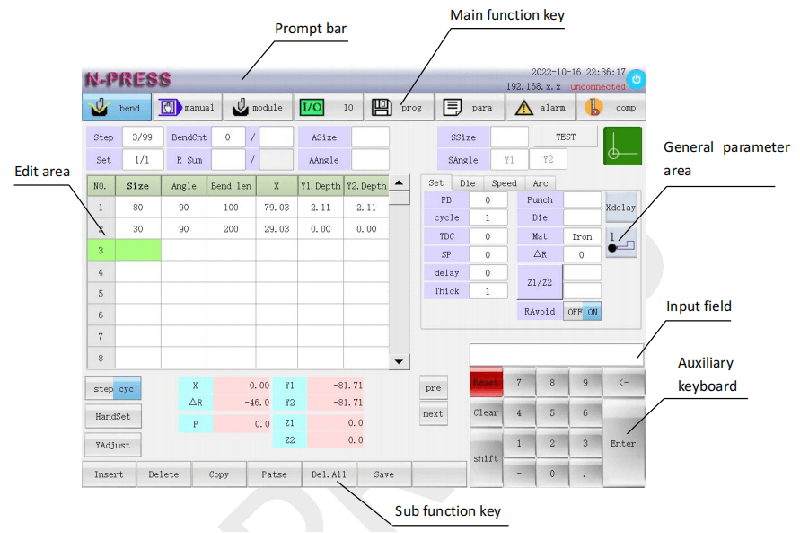
Pojasnilo glavnih funkcionalnih gumbov
1. Gumb za upogibanje: Dostop do vmesnika za obdelovalne operacije
To je osnovni gumb za obdelovalne operacije.
Klik na gumb Začenjanje omogoča dostop do namenskega vmesnika za obdelavo, kjer lahko uporabniki urejajo programe za operacije začenjanja in nastavljajo natančne parametre začenjanja. Ta funkcija omogoča kalibracijo izjemno natančnih procesnih parametrov, kar zagotavlja dosledne in enotne rezultate začenjanja delovnih kosov ter je zato temeljna funkcija vmesnika serije ET. Znanje uporabe tega gumba je bistveno za operaterje, da bi v celoti izkoristili obdelovalne zmogljivosti stroja.
2. Gumb za ročno upravljanje: Omogoča prilagojeno ročno nadzorovanje operacij

To je gumb za ročno nadzorovanje operacij.
Gumb Ročno omogoča operaterjem fleksibilno ročno krmiljenje upogibnega stroja. S to funkcijo lahko uporabniki prilagodijo in izberete hitrost ročnega delovanja ter nastavitev z ročnim kolesom, kar omogoča osebniški pristop k upogibnim operacijam za različne delovne predmete in zahteve obdelave. Vmesnik vključuje tudi funkcijo preverjanja uporabnika, ki zahteva edinstveno strankino kodo, s čimer se dodatno poveča varnost in prilagodljivost obratovanja. Ta gumb je še posebej koristen pri natančnem nastavljanju in prilagajanju, ki temelji na izkušnjah operaterja in natančnem ročnem krmiljenju.
Po ročnem delovanju se z dodatnim gumbom Y1Y2 lahko preklopi način ročnega krmiljenja in prilagodijo koordinatne pozicije ustreznih osi stroja. Poleg tega omogoča dodatni gumb za odmike nastavitev odmikov za osi X, Y1, Y2 in R, s čimer se še naprej izboljša natančnost ročnega delovanja.
3. Gumb za kalup: Upravljanje vmesnika za nastavitev parametrov kalupa

To je namenski gumb za upravljanje s kalupi.
Pritisnite gumb za kalup, da odprete vmesnik za nastavitev parametrov kalupa, kjer lahko uporabniki nastavijo parametre zgornjega in spodnjega kalupa ter vnesete in nastavite fizikalne lastnosti obdelovanih materialov. Ta funkcija je ključna za prilagoditev ustrezne specifikacije kalupa obdelovanemu materialu, kar je pomemben dejavnik, ki neposredno vpliva na natančnost in kakovost končnega izdelka z ukrivitvijo. Pravilna uporaba tega gumba učinkovito preprečuje napake pri obdelavi, ki jih povzročajo neustrezne nastavitve kalupa in materiala, ter ohranja stalne visoke standarde proizvodne kakovosti.
4. Gumb za I/O signale: Nastavitev vhodnih in izhodnih parametrov sistema
To je gumb za nastavitev I/O signalov.
Gumb IO Signal ima ključno vlogo pri konfiguraciji vhodnih in izhodnih signalnih točk krmilnega sistema upogibnega stroja. S klikom na ta gumb se odpre vmesnik za informacije in stanje IO signalov, kjer lahko uporabniki urejajo nastavitvene parametre vseh IO signalnih točk, vključno s konfiguracijo priključkov za vsako signalno točko ter prilagajanjem njihovih delovnih stanj (običajno odprto ali običajno zaprto). Za izvedbo takšnih konfiguracijskih operacij je potrebna preveritvena koda uporabnika, pravilna nastavitev pa zagotavlja brezhibno integracijo upogibnega stroja z drugo opremo in sistemi na proizvodni liniji, s čimer se preprečijo prekinitve proizvodnje in ohrani gladek ter neprekinjen potek proizvodnje.
5. Gumb Program: Učinkovito upravljanje upogibnih programov

To je osnovni gumb za upravljanje programskih parametrov.
Gumb Program je vhodna točka v vmesnik za upravljanje programov, kjer lahko uporabniki upravljajo vse obstoječe programe za upogibne procese. Tu so na voljo funkcije, kot so branje, spreminjanje in brisanje programov, kar poenostavi proizvodni delovni tok in izboljša splošno operativno učinkovitost stroja. Ta funkcionalnost omogoča operatorjem učinkovito upravljanje knjižnice programov stroja, kar omogoča hitro preklop med različnimi nalogami upogibnega obdelovanja ter maksimizira učinkovit čas delovanja stroja.
6. Gumb Parametri: Napredne nastavitve sistema in preverjanje uporabnika

To je namenski gumb za napredne nastavitve parametrov.
Gumb Parametri omogoča dostop do naprednega vmesnika za konfiguracijo sistema, s čimer lahko operaterji prilagodijo osnovne delovne parametre stroja za izpolnitev posebnih zahtev različnih proizvodnih nalog. Prek gumbov za sekundarne funkcije na tem vmesniku lahko uporabniki opravijo preverjanje uporabnika z vnosom strankine kode (ki služi kot geslo za preverjanje) ter izvedejo varne operativne naloge, kot je upravljanje podatkov na USB pomnilniških ključih.
Ta funkcija zagotavlja varno in učinkovito prenos in varnostno kopiranje podatkov med strojem in zunanjimi shrambnimi napravami, kar je bistveno za ohranitev celovitosti podatkov nadzornega sistema ter prilagoditev stroja različnim proizvodnim in operativnim zahtevam.
7. Gumb za alarm: spremljanje v realnem času in odpravljanje napak
To je gumb za alarm napak stroja in za odpravljanje napak.
Gumb Alarm na vmesniku ET serije omogoča takojšen dostop do vmesnika za alarm za napake v stroju, ki prikazuje trenutne kode za alarm za napake in podrobne informacije o napakih. Če uporabniki kliknejo ta gumb, lahko s pomočjo gumbov sekundarnih funkcij izvedejo operacije, kot so preverjanje uporabnika, ponastavitev preverjanja, ki je v zamudi, in druge kritične korake za odpravljanje napak, kar omogoča hitro prepoznavanje in reševanje napak stroja. Ta proaktivni pristop k spremljanju napak in ravnanju z njimi ne rešuje le morebitnih težav pravočasno, temveč tudi zmanjšuje čas zastoja stroja in podaljša življenjsko dobo delov stroja, saj preprečuje, da bi se manjše napake razvile v resne okvare.
8. -Prav. Kompenzacijski gumb: Natančna kalibracija za operacije upogibanja

To je gumb za nastavitev natančnosti.
Natančnost je najvišja prioriteta pri upogibnem obdelovalnem procesu, gumb za kompenzacijo na vmesniku serije ET pa je ključna funkcija za dosego visoke natančnosti pri upogibanju. S klikom na ta gumb se odpre vmesnik za natančno kompenzacijo, kjer lahko uporabniki ogledajo in prilagodijo teoretične in dejanske vrednosti kompenzacije več osi stroja – vključno z osmi X, Y1, Y2, R, Z1 in Z2 – ter nastavijo vrednosti kotne kompenzacije za različne obdelovane materiale.
Ta izčrpna funkcija prikaza in prilagoditve kompenzacijskih parametrov omogoča operaterjem, da prilagodijo obdelovalna dejanja stroja specifičnim fizikalnim lastnostim obdelovanih materialov. Poleg tega vmesnik podpira preverjanje uporabnika prek strankine kode, sekundarne funkcionalne gumbe pa omogočajo opravljanje nalog, kot so brisanje vrstic kompenzacijskih podatkov, vstavljanje novih kompenzacijskih podatkov, izpraznjevanje stolpcev kompenzacijskih parametrov ter preklop med načini prikaza parametrov, kar zagotavlja, da vsaka operacija upogibanja izpolnjuje najvišje standarde natančnosti.
Uvod v funkcije pomožne tipkovnice
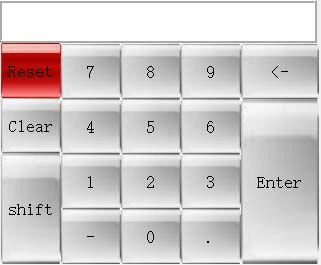
1. Vnosno območje: jedro za interakcijo z vmesnikom in vnos podatkov
Vhodna površina je ključna komponenta dodatne tipkovnice, ki prikazuje številčne in znakovne vhode ter omogoča brezhibno interakcijo med operaterji in nadzornim vmesnikom. To je namenjeno območje, kjer uporabniki vnašajo ključne podatke za obdelavo, kot so mere izdelka, procesni kodirniki in vrednosti parametrov, ki jih sistem nato obdeluje in izvaja, da zagotovi natančne operacije upogibanja.
2. Gumb za ponastavitev: izbris sistemskih opozoril in sporočil
Gumb za ponastavitev je zasnovan tako, da ohranja gladko potekajoče proizvodne procese; s pomočjo tega gumba se izbrišejo različna sporočila in opozorila, ki bi lahko zakrila pomembne informacije v informacijski vrstici sistema. Še posebej uporaben je pri upravljanju opozoril o napakah stroja in operativnih opozorilih, saj zagotavlja, da ostane uporabniški vmesnik jasen in neoviran ter da operativni postopki niso prekinjeni z nepomembnimi sporočili.
3. Gumb za izbris: učinkovito upravljanje vhodnih podatkov
Gumb Počisti je bistveno orodje za hitro urejanje in popravek vnesenih podatkov v vhodnem območju. Ne glede na to, ali počistimo vsebino posameznega tekstovnega polja ali celotnega vhodnega območja, ta funkcija omogoča operaterjem takojšnje odpravo vnosi napak, kar zagotavlja natančnost procesnih podatkov in učinkovitost celotne obdelovalne operacije.
4. Gumb Vnesi: Potrditev operativnih ukazov in izvedba vnosov
Gumb Enter je osnovna sestavina vmesnika serije ET in igra ključno vlogo pri potrjevanju operativnih ukazov ter izboljšanju splošne operativne učinkovitosti. Ko uporabniki vnašajo številčne parametre in druge podatke, se vsebina prikaže v vhodnem polju; pritisk na gumb Enter hitro prenese vnesene podatke na ustrezna mesta za nastavitev funkcionalnih parametrov v sistemu. Ta proces ne potrjuje le vnosnih operacij uporabnika, temveč zagotavlja tudi hitro in natančno odzivanje stroja na ukaze, s čimer se celoten proces upogibanja gladko in brezhibno izvede.
Praktični scenariji uporabe in prednosti za uporabnike
Povečajte proizvodno učinkovitost z vmesnikom serije ET
Vmesnik serije ET ne le poenostavlja nadzor zapletenih operacij upogibanja, temveč tudi znatno izboljša skupno proizvodno učinkovitost delavnice. Njegov intuitiven in prijazen za uporabnika dizajn omogoča hitro preklop med različnimi obdelovalnimi nalogami, kar zmanjšuje mrtvi čas stroja med nalogami in maksimizira proizvodni pretok. Te lastnosti so še posebej pomembne za proizvodne objekte, ki želijo razširiti obseg proizvodnje, hkrati pa ohraniti stalno kakovost izdelkov.
Uporabniška izkušnja in povratne informacije o vmesniku serije ET
Odzivi uporabnikov na vmesnik serije ET so bili dosedaj konstantno pozitivni, saj ga operaterji na splošno prepoznajo kot uporabniško prijazen in zelo zanesljiv nadzorni sistem. Njegova izčrpna funkcionalna zasnova omogoča učinkovito obravnavo širokega spektra nalog pri upogibanju, njegove napredne in prilagodljive operativne funkcije pa zagotavljajo močno podporo za doseganje visokokakovostnega upogibanja in s tem zasluženo široko priznanje tako med operaterji na terenu kot tudi med proizvodnimi managerji.
Pogosta vprašanja (FAQ)
Kako najbolj učinkovito izkoristiti gumb Za savanje na vmesniku serije ET?
Za učinkovito uporabo gumba za upogibanje kliknite nanj, da vstopite v vmesnik za izvajanje operacij, kjer lahko urejate program za upogibno obdelavo delovnega predmeta in nastavite vse potrebne parametre upogibne obdelave v skladu z zahtevami proizvodnje. To zagotavlja, da se vsaka upogibna operacija izvede z nespremenjeno visoko natančnostjo in popolnoma izkorišča obdelovalne zmogljivosti stroja.
Katera ukrepa za odpravo napak je treba izvesti, kadar pride do napak na vmesniku serije ET?
V primeru operativnih napak ali okvar stroja pritisnite gumb Alarm, da dostopate do vmesnika za alarme napak in pregledate podrobne trenutne informacije o napakah ter njihove kode. Večino napak je mogoče odpraviti z izvedbo preverjanja uporabnika s strani stranke s pomočjo strankine kode in sledenjem ustrezni koraki za odpravo težav, ki jih sistem ponuja, da se alarm izklopi in se normalno delovanje stroja nadaljuje.
Ali je mogoče prilagoditi nastavitve ročnega upravljanja na vmesniku serije ET?
Da, vmesnik serije ET v celoti podpira prilagojene nastavitve ročnega upravljanja prek gumba Ročno. Operatorji lahko s tem gumbom prilagodijo hitrost ročnega upravljanja in nastavitev z ročnim kolesom ter s vpisom edinstvene strankine kode za preverjanje uporabnika odklenejo še naprednejše prilagojene funkcije upravljanja.
Zaključek
Krmilni vmesnik serije ET je opremljen z veliko močnih funkcij, ki so zasnovane tako, da izboljšajo obratno zmogljivost in proizvodno učinkovitost popolnoma električnih servopogonskih upogibnih strojev. Z obvladovanjem uporabe osnovnih glavnih funkcionalnih gumbov – kot so gumbi za upogibanje, ročni način in program – lahko operaterji natančno prilagodijo delovanje stroja dejanskim proizvodnim potrebam in optimizirajo vsak korak, od nastavitve procesnega programa do izvajanja na mestu. Podrobno razumevanje in fleksibilna uporaba naprednih nastavitvenih funkcij, ki jih omogočajo gumba Parameter in Kompenzacija, še dodatno izboljšata proces obdelave ter zagotavljata natančnost in kakovost vsakega upogibnega opravila.
Za popolno izkoriščanje zmogljivosti tega naprednega kontrolnega vmesnika morajo operaterji spoznati tako glavne funkcionalne gumbe kot tudi delovne funkcije pomožne tipkovnice. To ne le poenostavi celoten proces proizvodnje, temveč učinkovito zmanjša tudi tveganje za izpad stroja zaradi operativnih napak ali napačnih nastavitev, kar zagotavlja dosledno in stabilno proizvodno učinkovitost podjetja.
Uporabnikom, ki želijo podrobneje spoznati vmesnik serije ET ali raziskati naprednejše veščine uporabe, je na voljo naš profesionalni tehnični podporni tim, ki jim vedno ponuja podrobno in ciljno podporo. Ali potrebujete profesionalno tehnično svetovanje ali dodatna navodila za obratovanje – zavezani smo pomagati vam pri maksimalnem izkoriščanju obratovalnih zmogljivosti vaše popolnoma električne servopogonske gibalne naprave ter doseči višjo proizvodno učinkovitost in kakovost izdelkov.

