





Programozás az ESTUN E310P használatával
Ha be akar lépni az ESTUN E310P programozás világába, ide jött helyesen. A fémipar számos szakembere keresi a gépek működésének hatékony javításának módjait, és az ESTUN E310P programozás elsajátítása jelentősen növelheti mind a pontosságot, mind a termelékenységet. Ebben a cikkben végigvezetem az ESTUN E310P programozás alapjaiban való elindulás lépéseinek lényegén, segítve, hogy ezt a hatékony eszközt teljes kapacitásában kihasználhassa. Akár kezdőként érkezik, aki szeretné elsajátítani az alapokat, akár tapasztalt gépkezelőként, aki finomítani szeretné készségeit – ez az útmutató a szükséges kulcsinformációkat nyújtja, hogy maximális szintre emelje programozási jártasságát.
Programozási konstansok
A programozási állandók elengedhetetlenek az ESTUN E310P számára, és pontosságot valamint konzisztenciát biztosítanak a műveletek során. Ezek az állandók meghatározzák a kritikus paramétereket, amelyek lehetővé teszik a vezérlő pontos működését. A felhasználók beállíthatnak specifikus állandókat a sebesség, a pozíció és a nyomás tekintetében, hogy a rendszert egyedi alkalmazási igényeikhez igazítsák.
Kattintson ide a „Programozási állandók” oldalra váltáshoz.

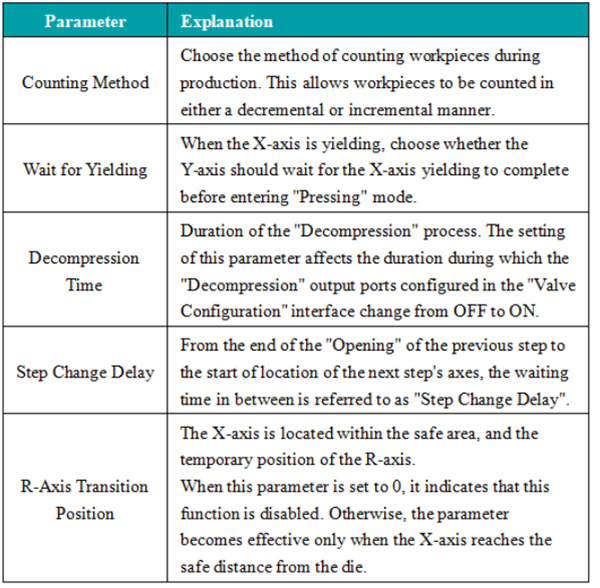
Ezen állandók finomhangolásával biztosíthatja, hogy a gépek optimális hatékonysággal működjenek, csökkentve ezzel a kopást és meghosszabbítva a berendezés élettartamát.
Programmenedzsment
A programkezelés az ESTUN E310P-n rugalmasságot és könnyű kezelhetőséget biztosít. A vezérlő lehetővé teszi több program létrehozását, szerkesztését és tárolását, így gyors átváltást tesz lehetővé különböző feladatok között.
Új program létrehozása
Kattintson a „Programkezelés” elemre a „Program” oldal megnyitásához.

Kattintson a „Létrehozás” gombra, és adja meg a program számát az új program létrehozására szolgáló oldalon. Kattintson a „Kész” gombra az új program automatikus betöltéséhez. A jelenleg aktív program az éppen létrehozott lesz. Ezután szerkessze a megfelelő paramétereket a többlépéses programban. A programkezelés szakaszban megtekintheti az újonnan létrehozott program alapvető paramétereit és létrehozásának időpontját.
Megjegyzés: Új program létrehozásakor a program automatikusan betöltődik az ESTUN E310P programozási rendszerrel.
Program betöltése
Ahhoz, hogy egy programot betöltsön az ESTUN E310P programozási rendszerben, kattintson a betölteni kívánt programot tartalmazó sorra, majd kattintson a „Betöltés” gombra. Ez a művelet a betöltött programot hívja meg a többlépéses programban.
Program törlése
Ahhoz, hogy egy programot töröljön az ESTUN E310P programozási beállításokban, kattintson a törölni kívánt programot tartalmazó sorra, majd kattintson a „Törlés” gombra. Ezután válassza az „OK” lehetőséget a felugró párbeszédpanelben, amely a következő kérdést teszi fel: „Valóban törölni szeretné ezt a programot?”.
Megjegyzés: Nem törölhet egy jelenleg futó többlépéses programot.
Az ESTUN E310P programozási funkciójának ezen lépései követésével hatékonyan és eredményesen kezelheti programjait, így biztosítva a zavartalan működést és az optimális termelékenységet.
Forma beállítása
A forma beállítása az ESTUN E310P kritikus funkciója, amely lehetővé teszi a formázási műveletek pontos szabályozását.
Az alábbiakban rövid áttekintést nyújtunk a beállítási lépésekről:
Kattintson, majd válassza ki a „Forma beállítása” lehetőséget. Összesen 30 darab formaállítás érhető el.

Kattintson a kívánt forma „AZONOSÍTÓJA” sorára, amelyet be szeretne állítani.
Kattintson az „Szerkesztés” gombra a forma műszaki paramétereinek megadásához a megjelenő virtuális billentyűzettel.
Kattintson a „Kész” gombra a bevitt adatok megerősítéséhez, majd kattintson a „Változtatások mentése” gombra a paraméterek elmentéséhez.
A forma műszaki paramétereinek illusztrációjáért tekintse meg az alábbi ábrát:
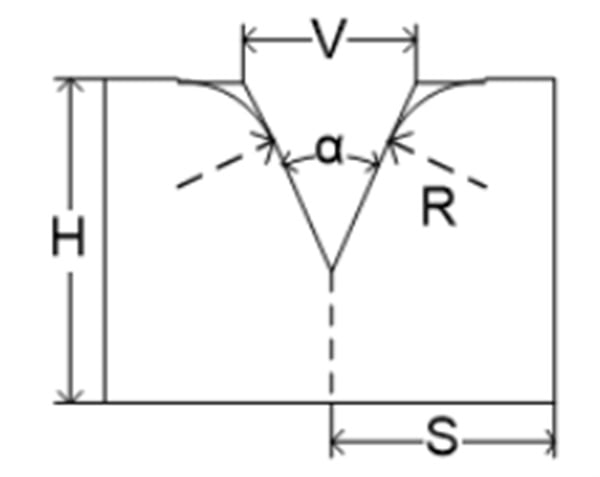
H: A forma magassága. Ezt a magasságot a hajlítás mélységének kiszámítására használják.
V: A nyomóforma V-alakú horpadásának szélessége. A V-szélesség a két érintési vonal közötti távolság.
α: A nyomóforma szöge.
R: A V-alakú horpadás mindkét oldalának sugara.
S: Biztonsági távolság. Ez a paraméter akkor válik érvényessé, amikor az R tengelyt felszerelték, hogy megakadályozza a leállító ujj és a nyomóforma közötti ütközést. A számítási képlet: „Biztonsági távolság = FS + V/2”. Ahol: FS = A V-alakú horpadás mögötti sík rész; V = A V-alakú nyílás szélessége.
Ez a funkció lehetővé teszi a működtetők számára, hogy olyan konkrét paramétereket adjanak meg, amelyek meghatározzák a forma alakját és méretét, ezzel javítva a végső termék minőségét és egységességét. Az ESTUN E310P intuitív felületet kínál a formabeállításhoz, így még a bonyolult formakonfigurációk is könnyen kezelhetők. Ez a képesség különösen előnyös azokban az iparágakban, ahol a pontosság döntő fontosságú.
Egyetlen lépéses művelet
Az egylépéses működési mód lehetővé teszi a kezelők számára, hogy folyamatok egyes lépéseit rendkívül pontosan vezéreljék. Ez a mód különösen alkalmas tesztelésre és prototípus-fejlesztésre, mivel lehetővé teszi minden egyes lépés megfigyelését és módosítását a folytatás előtt.
A folyamat áttekintése:
Nyissa meg az egylépéses oldalt, vagy kattintson ide az egylépéses oldalra váltáshoz.

Kattintson a beállítani kívánt paraméterre.
Adja meg a kívánt értéket a felugró virtuális billentyűzeten.
Kattintson a „Kész” gombra a bevitel megerősítéséhez.
Ismételje meg a 2–4. lépéseket további paraméterbeállításokhoz.
Miután az összes kívánt paramétert beállította, kattintson a „Indítás/Leállítás” gombra a berendezés működésének elindításához.
Paraméterspecifikáció

Adja meg a munkadarab anyagszámát. 1: Acél; 2: Alumínium; 3: Cink; 4: Rozsdamentes acél; 5: Új anyag 1; 6: Új anyag 2.

Ha szög módban programoz, adja meg a használandó nyomószerszám azonosítóját. Ha pozíció módban programoz, adjon meg 0-t.

Adja meg a munkadarab vastagságát.

Beállítja a jelenlegi lépéshez kívánt hajlási szöget.

Adja meg a jelenlegi hajlítási lépés szögkorrekcióját; csak erre a konkrét lépésre érvényes.

A Y-tengely célpozíciós értéke. Szögmódban történő programozás esetén ezt az értéket automatikusan kiszámítja a rendszer, de a felhasználó módosíthatja.

Az X-tengely célpozíciós értéke.

Az X-tengely rugalmas elmozdulása a hajlítási folyamat során.

Az R-tengely célpozíciós értéke.

Zavaró hatások kompenzációs értéke.
Az egylépéses működés aktiválásával a felhasználók korai stádiumban azonosíthatják a potenciális problémákat, és szükség esetén korrekciókat hajthatnak végre, ezzel javítva a gyártás általános megbízhatóságát és minőségét.
Töblépéses működés
A többlépéses művelet az ESTUN E310P eszközön lehetővé teszi egy műveletsorozat automatizálását, ami növeli a hatékonyságot olyan gyártási környezetekben, ahol több lépés szükséges.
Az eljárás áttekintése
Kattintson a többlépéses program ikonjára a többlépéses program oldalra váltáshoz.

Kattintson a beállítani kívánt paraméterre.
Kattintson a „Kész” gombra a bevitt adatok megerősítéséhez.
Ismételje meg a 2–4. lépéseket további paraméterbeállításokhoz.
Kattintson ide egy új lépés hozzáadásához, amely másolja az előző lépés tartalmát.

Miután minden kívánt paramétert beállított, kattintson a „Start/Leállítás” gombra a berendezés működésének elindításához.
Gyors programozás
A szokásos programozáson túl gyors programozás is elérhető. A többlépéses program oldal tetején kattintson a „Gyors” gombra a többlépéses programozás megkönnyítéséhez. A programozás befejezése után kattintson a „Futtatás” gombra a végrehajtáshoz.
Ez a mód automatizálja a műveletek közötti átmeneteket, így csökkenti a manuális beavatkozást és a hibák lehetőségét. A kezelők összetett műveleti sorozatokat programozhatnak, amelyeket az ESTUN E310P pontosan hajt végre, biztosítva, hogy a gyártási folyamatok egyaránt hatékonyak és megbízhatók legyenek.
Összegzés
Az ESTUN E310P programozásának hatékony elsajátítása az interfész megértését, a paraméterek saját igényekhez való testreszabását és a leírt programozási lépések rendszeres gyakorlását foglalja magában. Ha követi ezeket az alapvető irányelveket, akkor maximálisan kihasználhatja az ESTUN E310P képességeit, és növelheti műveletei pontosságát és hatékonyságát.
További információk, részletes segítség vagy konkrét kérdések az ESTUN E310P programozásával kapcsolatban? Kérjük, ne habozzon felvenni velünk a kapcsolatot. Emellett tekintse meg kiterjedt dokumentációs könyvtárunkat, ahol mélyebb betekintést nyerhet és további erőforrásokhoz juthat az ESTUN berendezések optimális használatának támogatásához.

