





U tom slučaju, u skladu s člankom 4. stavkom 1.
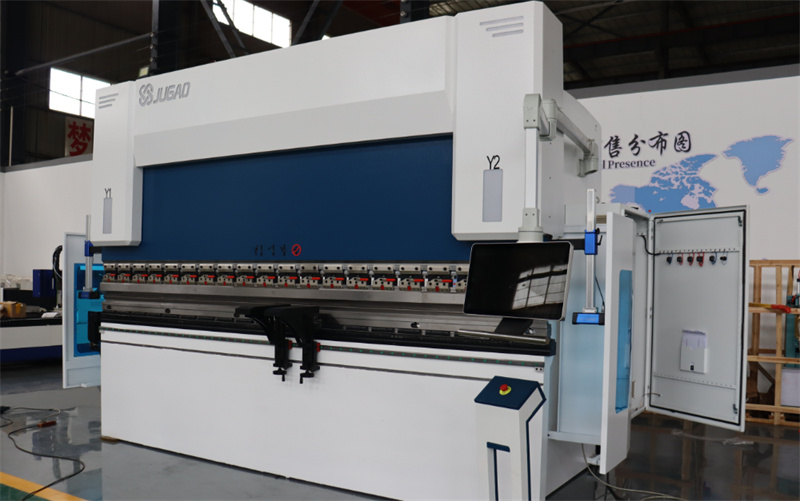
U slučaju da je to potrebno za provjeru brzine, za svaki preskočni preskočni preskočni preskočni preskočni preskočni preskočni preskočni preskočni preskočni preskočni preskočni preskočni preskočni preskočni preskočni preskočni preskočni preskočni preskočni preskočni pres Prilikom programiranja složenih dijelova, uspostavljanje ispravnog i učinkovitog slijeda savijanja od suštinskog je značaja kako bi se izbjegle sudari, skratili vremena postavljanja i osigurala točnost oblikovanja. U ovom članku objašnjava se kako primijeniti ESA S875 Automatsko računanje u programiranju za savijanje sekvenci, uključujući osnovne principe, potrebne uvjete i praktične korake uporabe. Razumijevanjem kako ova funkcija funkcionira, operateri mogu poboljšati učinkovitost programiranja, smanjiti ručno podešavanje i postići stabilnije i pouzdanije rezultate savijanja u svakodnevnoj proizvodnji.
Upotreba funkcije za automatsko izračunavanje
U slučaju da je to moguće, u skladu s člankom 6. stavkom 2. Za početak, pritisnite [Računati]. To otvara prozor koji prikazuje potpunu simulaciju dijela, uključujući gornji i donji dio presne kočnice, udarac, obrt, zaustavljanje i metalni list prije savijanja.
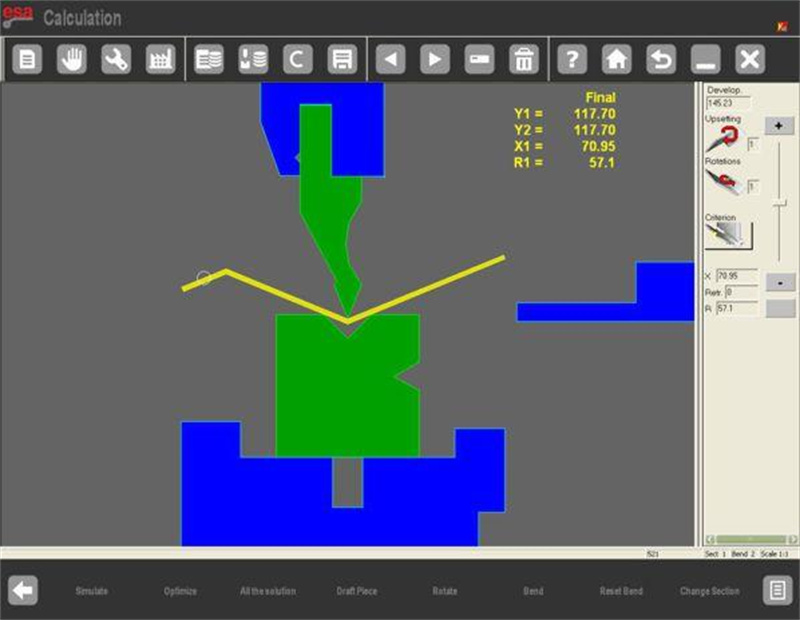
Na desnoj strani tri prozora pružaju ključne informacije: broj rotacija komada, kut prevrtanja u odnosu na izračunanu sekvencu savijanja i aktiviranje funkcije traženja za pronalaženje svih mogućih rješenja. Numerička kontrola daje prioritet ostavljajući najveći dio listova upravljivim za operatora, a prilagodbe kriterijima izračunavanja omogućuju traženje u više potencijalnih sekvenci savijanja.
Automatsko ili ručno traženje sekvence savijanja
U slučaju da je to potrebno za izračun zapremine savijanja, u skladu s člankom 6. stavkom 2. točkom (a) ovog Pravilnika, za svaki dio se može izračunati u skladu s člankom 6. stavkom 2. točkom (a) ovog Pravilnika.
Automatsko traženje zavija
U automatskom režimu, numerička kontrola identificira optimalni slijed savijanja. Pritisak [Optimizirati] pokreće sustavovu potragu za najefikasnijim redoslijedom. Ovaj način smanjuje potrebu za ručnim unosom i osigurava da se zavoj izračunava kako bi se izbjegli sudari s čelikom, udarcem ili zaustavljanjem. Sistem automatski optimizira redoslijed savijanja kako bi se održala pravilna manipulacija listom, poboljšala brzina proizvodnje i osigurala dosljedna kvaliteta savijanja. Automatsko izračunavanje idealno je za standardne dijelove ili kada je potrebno dovršiti više zavoja s minimalnom intervencijom.
Ručno traženje zavojnica
Ručni režim omogućuje operateru da izvrši određene zavoje unutar sekvence. Operatori mogu djelomično ili u potpunosti definirati zavoje, a preostali zavoji se izračunavaju automatski pomoću numeričke kontrole. Navigacija između zavoja provodi se pomoću tastera sa strelicama, a rotacija komada može se postići pomoću funkcije [Rotirati]. Prisiljena savijanja mogu se poništiti pritiskom na [Kriv] ključ ponovno. Nakon što je operator definirao određene zavoje, pritiskom na [Optimizirati] ponovno se izračunava preostali niz uz poštovanje ručno prisiljenih zavoja, osiguravajući fleksibilnost u programiranju složenih dijelova koji mogu zahtijevati specifičan redoslijed zavoja zbog ograničenja alata ili rukovanja.
Izvješća o rezultatima optimizacije i povratne informacije
U slučaju da se u skladu s ESA S875 ne može izračunati, kontrolna jedinica ESS S875 mora biti opremljena sljedećim sustavima:
Sljedeći članak: "Postoji li mogućnost da se u slučaju izbijanja izloži određeni sustav?" Operatori mogu [prihvatiti] rješenje, simulirati slijed savijanja, nastaviti s alternativnim rješenjima ili stati da bi napravili promjene.
Ne postoji rješenje: upozorava operatera da se trenutna konfiguracija komada ne može savijati pomoću odabrane sekvence. U tom slučaju mogu se primijeniti alternativni kriteriji ili ručno identificirati problematične krivulje. Točke sudara su istaknute, što olakšava podešavanje redoslijeda ili položaja.
Snimak slijeda savijanja dostupan je putem funkcije [Simulacija]. Ovaj prikaz koraka po koraku omogućuje operaterima da vizualizuju komad prije savijanja, kao i nakon svakog savijanja. U slučaju da je to moguće, mora se provjeriti da li je to moguće. Ako se dogodi sudar, zaustavljanje se kreće samo ako to dopuštaju granice osovine, pomažući upravljačima da spreče pogreške i izbjegnu potencijalnu štetu ploče ili alata.
U slučaju da je to potrebno, potrebno je utvrditi datum početka.
Sklonjenje na/podržani način osigurava da je komad sigurno postavljen za svaki zavoj. Ako je to potrebno, u slučaju da je to potrebno, za svaki element koji je uključen u proizvod, mora se upotrijebiti sljedeći sustav: Operatori mogu prilagoditi pozicije podrške, navoditi kroz zakrivljene staze ili zaustaviti simulaciju na bilo kojem koraku kako bi provjerili poravnanost. Za dijelove koji bi se mogli blago sudarati s dijelovima stroja bez nanošenja štete, operater može prisiliti cijeli niz savijanja. Ovaj je način posebno koristan pri radu s složenim geometrijama, dugim listovima ili specijaliziranim alatom.
Osnovne koristi i praktični savjeti
U skladu s člankom 4. stavkom 1.
Smanjuje vrijeme programiranja automatskim izračunom optimalnih sekvenci savijanja.
Minimizira rizik od sudara i potencijalnih oštećenja ploča.
Poboljšava preciznost savijanja i ponovljivost za složene dijelove.
Podržava i potpuno automatsko i pomoću operatora podešavanje, pružajući maksimalnu fleksibilnost.
Omogućuje simulaciju zakrivljenja prije proizvodnje, smanjujući pogreške i otpad materijala.
Praktični savjeti za optimalne rezultate uključuju provjeru dimenzija dijelova i podataka o alatkama, pažljivo pregledanje rezultata simulacije i korištenje ručnih prilagodbi za savijanje kada se radi o dijelovima neobičnog oblika ili specifičnim zahtjevima za rukovanje.
Zaključak
U slučaju da je to moguće, potrebno je upotrijebiti sustav za izračun brzine. Koristeći ovu funkciju, operateri mogu automatski generirati precizne sekvence, smanjiti pogreške pri rukovanju materijalom i izbjeći potencijalne sudare. Kombinacija automatskog i ručnog podešavanja savijanja pruža fleksibilnost pri programiranju složenih dijelova, dok ugrađene simulacijske funkcije pružaju jasnu vizualnu provjeru prije početka proizvodnje.
Uvođenje ESA S875 Automatsko izračunavanje pomaže poboljšati učinkovitost programiranja, osigurati dosljednu kvalitetu savijanja i smanjiti vrijeme postavljanja. Za daljnje upute o povećanju prednosti ove funkcije ili rješavanju specifičnih scenarija, molimo Vas da pogledate priručnik za korištenje ili kontaktirate tim za podršku JUGAO CNC MACHINE za stručnu pomoć.

