





Přehled obsluhy DELEM DA-58T
Obsah
1. Úvod
2. Režimy provozu a programování
3. Začínáme
(I) Příprava na programování
(II) Vytvoření výkresu
(III) Určení pořadí ohybů
(IV) Číselný program
(V) Automatická/ruční nabídka a režimy výroby
(VI) Zálohování dat a externí úložiště
1. Programovací pomůcky
(I) Text nápovědy
(II) Funkce seznamu
(III) Filtrování a okamžité vyhledávání
(IV) Navigace
(V) Vstup a úprava textu
(VI) Psaní alfanumerických a speciálních znaků
(VII) Síť
(IX) Funkce zámku kláves
(X) Ruční nastavení pozice
(X) Popis verze softwaru
1. Často kladené otázky (FAQ)
2. Závěr
1. Úvod
Při provozu CNC ohýbacích lisek je důležité porozumět řídicímu systému, který zvyšuje efektivitu a přesnost. Jako jádro CNC ohýbacích lisek poskytuje řídicí systém DELEM DA-58T nejen optimalizaci procesů tváření kovů, ale také zjednodušuje ovládání stroje. Ať už používáte systém DELEM poprvé, nebo chcete dále optimalizovat svůj pracovní postup, tento článek vám pomůže plně využít výkon tohoto řídicího systému prostřednictvím jasné analýzy funkcí.
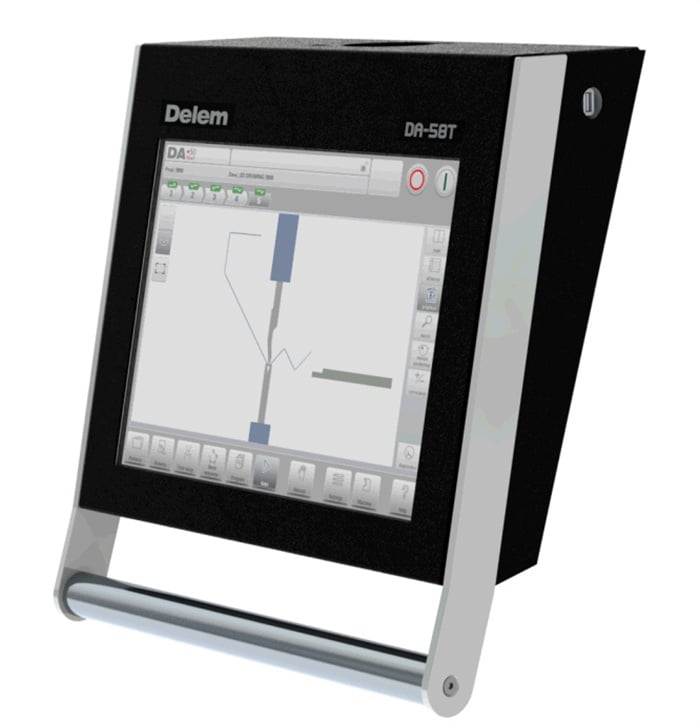
(I) Ovládací jednotka a ovládací prvky na čelním panelu
Ovládací jednotka DELEM DA-58T funguje jako „srdce“ celého stroje a poskytuje stabilní rozhraní pro všechny operace (konkrétní konfigurace ovládací jednotky se může v závislosti na modelu zařízení mírně lišit). Její ovládací prvky na čelním panelu jsou intuitivně navrženy, což umožňuje uživatelům snadnou interakci se systémem a zajišťuje plynulou navigaci a provedení příkazů.

Obzvláště tlačítka „Start“ a „Stop“ jsou integrována do uživatelského rozhraní dotykové obrazovky. Celková logika ovládání odpovídá zvykům uživatelů, čímž efektivně zkracuje dobu ovládání a zvyšuje výkon.
(II) USB konektory a připojení

USB port je umístěn na pravé straně ovládací jednotky a umožňuje připojení externích zařízení, jako jsou USB flash disky, externí klávesnice nebo myši. Prostřednictvím tohoto portu mohou uživatelé pohodlně přenášet data (např. import/export programů) a aktualizovat software, čímž se dále rozšiřuje praktické využití systému.
2. Režimy provozu a programování
Jednou z hlavních výhod řídicího systému DELEM DA-58T je jeho flexibilní ovládání a programovací režimy, které se dají přizpůsobit různorodým výrobním požadavkům. Ať již v ručním nebo automatickém režimu, mohou uživatelé upravit pracovní postup podle konkrétních požadavků projektu, což umožňuje přesné zpracování různých úloh v kovozpracování.
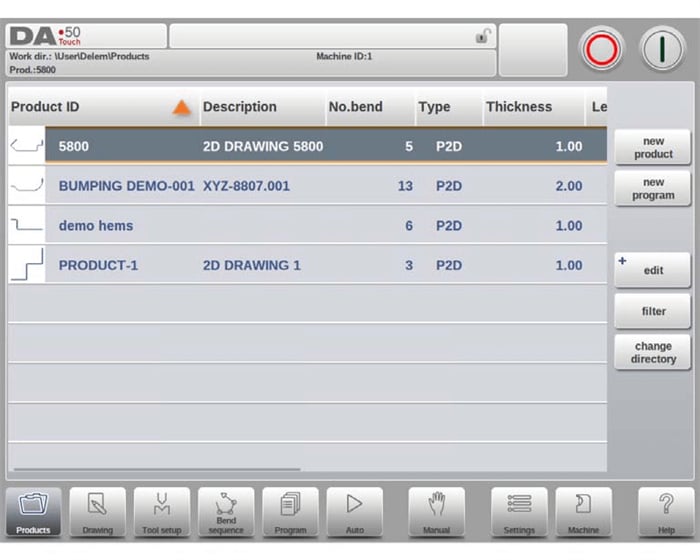
(I) Struktura hlavní obrazovky
Ovládací rozhraní DELEM DA-58T je navrženo podle principu „intuice a efektivita“, přičemž hlavní obrazovka je rozdělena do čtyř funkčních oblastí, z nichž každá má jasný účel:
1. Panel nadpisu: Trvale zobrazuje základní informace, včetně loga značky, načteného produktu, aktuální ohýbací operace, vybrané podsložky a indikátorů stavu stroje, takže uživatelé mohou okamžitě sledovat stav zařízení.

2. Informační panel: Zobrazuje exkluzivní funkce a podrobné parametry aktuálního režimu, čímž zajišťuje snadný přístup ke klíčovým údajům.
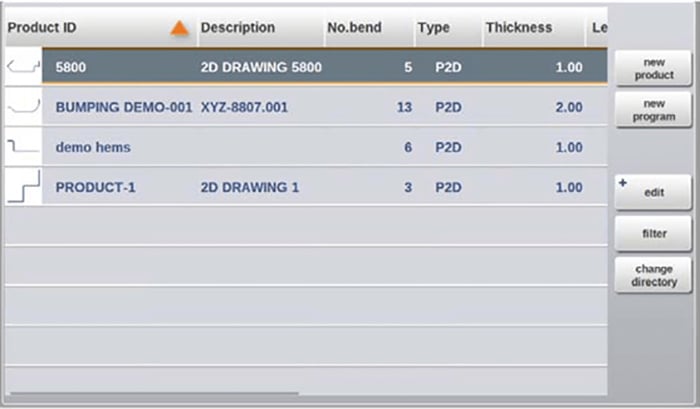
3. Panel příkazů: Integrován v rámci informačního panelu, centralizuje ovládací tlačítka související s aktuální úlohou a tím zkracuje pracovní postupy.
4. Navigační panel: Stále viditelný, využívá velká tlačítka s ikonami pro jednoduché přepínání mezi hlavními základními režimy, včetně:

【Produkty】: Vytvoření nového programu nebo výběr z existující knihovny programů;
【Kresba】: Návrh nebo úprava výrobků pomocí grafického rozhraní dle požadavků projektu;
【Nastavení nástroje】: Rychle nakonfigurujte parametry stroje a upravte instalaci nástroje;
【Pořadí ohybů】: Vypočtěte a doladěte pořadí ohybů pro optimalizaci výrobní efektivity;
【Program】: Vytvářejte nebo upravujte CNC programy číselně pro přesnou kontrolu;
【Auto】: Spusťte sériovou výrobu vybraného produktu/programu;
【Ručně】: Nezávisle nastavte parametry pro jednotlivé ohyby (bez potřeby kompletního programu);
【Nastavení】: Přizpůsobte parametry programování produktu nebo nakonfigurujte vlastnosti materiálu v „Knihovně materiálů“;
【Stroj】: Upravte nastavení stroje, přistupte ke knihovně nástrojů nebo spravujte zálohování a obnovu dat;
【Nápověda】: Bez ohledu na to, ve kterém ovládacím rozhraní se nacházíte, kliknutím na toto tlačítko vyvoláte „kontextově citlivý systém nápovědy“ a získáte tak specifické pokyny pro aktuální operaci.
3. Začínáme
DELEM DA-58T umožňuje vytváření programů výrobků prostřednictvím pracovního postupu „návrh výkresu → určení sekvence → generování programu“. Konkrétní kroky jsou následující:
1. V navigačním panelu vyberte režim 【Products】 a kliknutím na „New Product“ vytvořte nový projekt;
2. Zadejte vlastnosti výrobku, poté přejděte do režimu 【Drawing】 a nakreslete 2D obrys výrobku;
3. V režimu 【Tool Setup】 zkontrolujte stávající konfiguraci nástrojů; upravte nebo vytvořte novou konfiguraci, pokud jsou potřeba úpravy;
4. V režimu 【Bend Sequence】 určete konečnou ohybovou sekvenci automatickým výpočtem systému nebo ruční úpravou;
5. Pokud je vyžadována optimalizace parametrů, přejděte do režimu 【Program】 a upravte číselný CNC program;
6. Klikněte na režim 【Auto】 a stiskněte tlačítko „Start“ pro zahájení výroby naprogramovaného výrobku.
(I) Příprava na programování
Před zahájením programování výrobku je nutné dokončit dvě základní přípravné úkoly, aby bylo zajištěno, že další operace proběhnou bez chyb:
1. Konfigurace knihovny materiálů: Vstupte na stránku „Materiály“ v režimu 【Nastavení】 a zadejte správné vlastnosti materiálu (např. typ materiálu, tloušťka, pevnost v tahu);
2. Konfigurace knihovny nástrojů: Vstupte do režimu 【Stroj】 a ověřte, že parametry nástrojů byly přesně zadány – toto je základem pro generování platných CNC programů.
(II) Vytvoření výkresu
DELEM DA-58T nabízí výkonné 2D kreslení pro podporu vizuálního návrhu výrobků s následující konkrétní logikou ovládání:
• Náčrt: Použijte operaci „táhnutí“ na dotykové obrazovce k reálnému nastavení délek čar a úhlů, čímž rychle vytvoříte obrys tvaru výrobku nebo nástroje;
• Doladění parametrů: Po vytvoření náčrtu zadejte přesné hodnoty délek čar a úhlů pomocí vyskakovací klávesnice; použijte funkci „Enter“ nebo „Enter-Další“ pro nepřetržité zadávání;
• Oprava chyb: Kliknutím na tlačítko „Zpět“ vrátíte poslední operaci, nebo pomocí klávesy „Backspace“ smažete poslední zadaný znak pro flexibilní úpravy.
Kromě toho systém nabízí tři typy nástrojů pro navigaci, které zvyšují efektivitu kreslení:
1. Funkce přiblížení: Přiblížení/oddálení obrazovky dvěma prsty pro usnadnění úprav podrobností;
2. Přizpůsobit na celou obrazovku: Klepnutím na ikonu „Přizpůsobit na celou obrazovku“ se automaticky upraví velikost výkresu na plnou obrazovku pro lepší přehlednost;
3. Posunutí: Posunutí jedním prstem pro posun výkresu, což usnadňuje prohlížení různých oblastí.
Mezi klíčové funkce kreslicího nástroje patří:
• Podporuje proporcionální zobrazení tloušťky plechu a obsahuje automatické měřítko;
• Umožňuje zadání horizontálních/vertikálních rozměrů pro návrh proporcionálních nástrojů;
• Umožňuje flexibilní úpravy délek a úhlů a podporuje přidávání speciálních ohybových prvků, jako je zalomení nebo vyražení;
• Umožňuje kopírovat stávající výrobky a upravovat je za účelem rychlého vytváření nových projektů;
• Podporuje výrobu ve 3D propojením 2D programů.
(III) Určení pořadí ohybů
DELEM DA-58T zjednodušuje plánování ohýbání prostřednictvím propojeného pracovního postupu „Nastavení nástroje → Pořadí ohybů“ s následujícími hlavními funkcemi:
1. Podporuje dva způsoby generování pořadí ohybů: „automatický výpočet“ a „ruční úprava“;
2. Nabízí funkci „vizualizace kolizí“, která umožňuje předem vyhodnotit potenciální konflikty mezi nástroji a strojem;
3. Umožňuje flexibilní výběr nástrojů a podporuje úpravu času ohýbání a rychlosti dorazu;
4. Automaticky vypočítává délku polotovaru a odhaduje dobu výroby;
5. Poskytuje funkci simulace pořadí ohybů pro vizuální ověření procesu;
6. Podporuje programování poloh prstů k přizpůsobení složitým požadavkům na ohýbání.
(IV) Číselný program
Systém zjednodušuje vytváření CNC programů, přičemž uživatel může spravovat číselný program aktuálního výrobku prostřednictvím nabídky 【Program】. Existují dvě konkrétní metody vytvoření:
1. Ruční zadání: Vstupte do režimu 【Products】 (Výrobky), vyberte „Nový program“ a ručně zadejte parametry operátorem (vyžaduje odborné znalosti; bez funkce detekce kolizí);
2. Grafická simulace ohybu: Vstupte do režimu 【Products】 (Výrobky) → „Nový výrobek“ → režim 【Drawing】 (Kreslení) a navrhněte program pomocí vizuálního rozhraní s možností okamžitých úprav.
Po určení a uložení pořadí ohybů systém automaticky zpracuje data a vygeneruje číselný program. Současně vypočítá následující klíčové parametry (parametry jsou automaticky doladěny podle konfigurace stroje, aby byla zajištěna přesnost):
• Požadovanou ohybovou sílu;
• Polohy os Y/X a vzdálenosti zpětného tahy;
• Parametry dekomprese;
• Otevřenou velikost osy Y;
• Polohy os R/Z.
(V) Automatická/ruční nabídka a režimy výroby
Dva provozní režimy se přizpůsobují různým požadavkům scénářů a jsou klíčovými funkcemi pro zvýšení flexibililty zpracování:
• Režim Auto: Podporuje nepřetržité provádění kompletních programů; pro přesnou kontrolu lze přepnout do „Režimu krok za krokem“, kdy se operace provádějí jednotlivě;
• Ruční režim: Zaměřen na nezávislou „jednotlivou ohybovou operaci“, vhodný pro testování stavu provozu systému nebo pro vysokopřesné jednorázové úkoly.
(VI) Zálohování dat a externí úložiště
Systém podporuje externí ukládání souborů produktů a nástrojů, čímž poskytuje flexibilní řešení pro správu dat. V závislosti na konfiguraci zařízení lze soubory ukládat na síťový server nebo USB disk pro snadné zálohování a sdílení.
4. Pomůcky pro programování
Pro snížení náročnosti ovládání a zvýšení efektivity je systém DELEM DA-58T vybaven různými pomůckami pro programování, jak je podrobně popsáno níže:
(I) Text nápovědy
Systém má vestavěnou funkci „Online nápověda“, která je synchronizována s obsahem provozního manuálu a nabízí kontextově citlivé pokyny:
• Způsob přístupu: Kliknutím na tlačítko 【Nápověda】 v navigačním panelu se otevře okno obsahující podrobnosti o právě probíhající operaci;
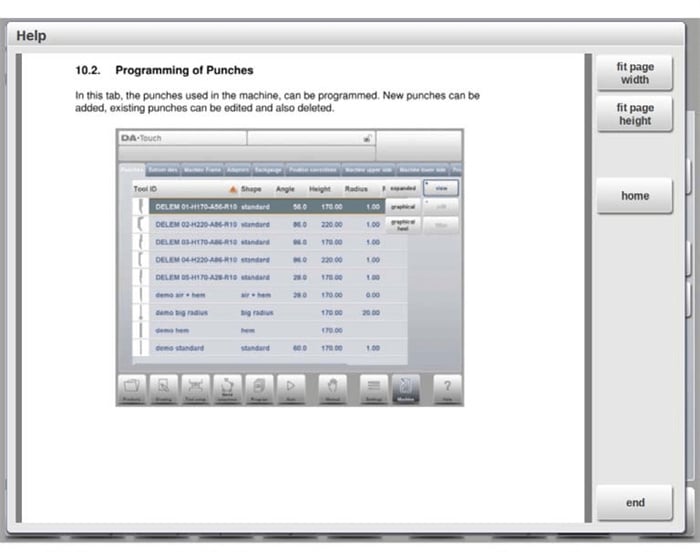
• Způsob prohlížení: Přejíždějte prstem pro posouvání textem; klepnutím na horní/dolní okraj obrazovky přepínáte mezi „Předchozí strana/Další strana“;
• Rychlé funkce: Použijte hypertextové odkazy ve funkci „Obsah“ pro rychlý skok do obsahu; klepnutím na „Ukončit“ zavřete okno nápovědy.
(II) Funkce seznamu
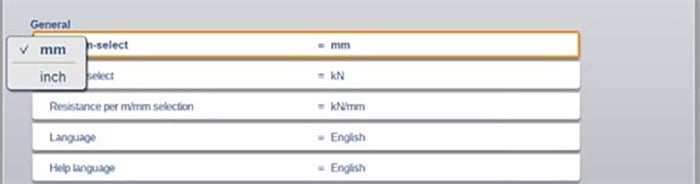
Když potřebujete vybrat přednastavený parametr, klepněte na řádek parametru a objeví se seznam možností; pokud nejsou potřeba žádné úpravy, klepněte mimo seznam a zavřete jej, čímž zajistíte intuitivní a efektivní ovládání.
(III) Filtrování a okamžité vyhledávání
V režimech jako např. 【Výběr produktu】 můžete rychle vyhledat cílové položky pomocí funkce „Filtr“:
1. Klepněte na tlačítko „Filtr“ a zadejte část identifikačního čísla produktu;
2. Systém automaticky vyfiltruje seznam a podporuje oddělení více klíčových slov mezerami pro přesné hledání;
3. Klepněte na tlačítko „Zavřít“ na pravé straně klávesnice pro opuštění rozhraní filtru.
(IV) Navigace
Rozhraní programu v některých režimech je rozděleno do více karet s následující logikou přepínání:
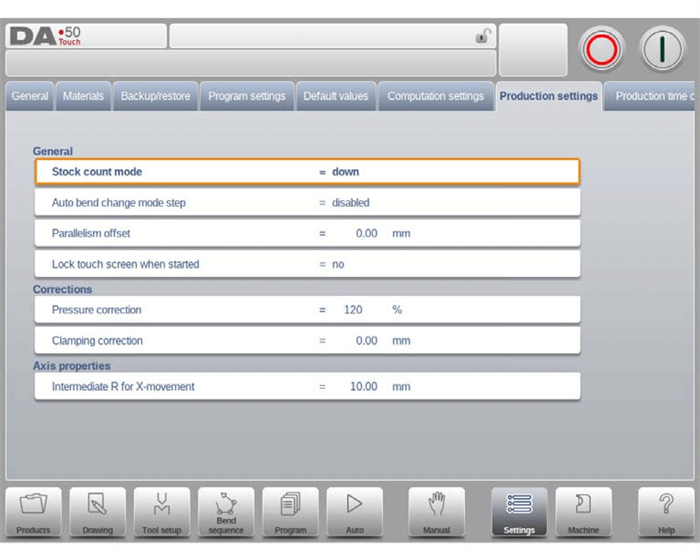
• Přepněte přímo kliknutím na kartu;
• Pokud není karta plně viditelná, posuňte panel karet horizontálně tak, aby cílová karta byla "přetažena do viditelné oblasti", poté kliknutím ji vyberte.
(V) Vstup a úprava textu
Podporován je přesný vstup pomocí umístění kurzoru: klikněte na cílovou pozici ve vstupním poli a kurzor automaticky skočí do této oblasti; následný vstup bude vložen přímo na pozici kurzoru.
(VI) Psaní alfanumerických a speciálních znaků
Systém používá „kontextovou klávesnici“ pro zabránění chybám při zadávání, a to podle následující logiky:
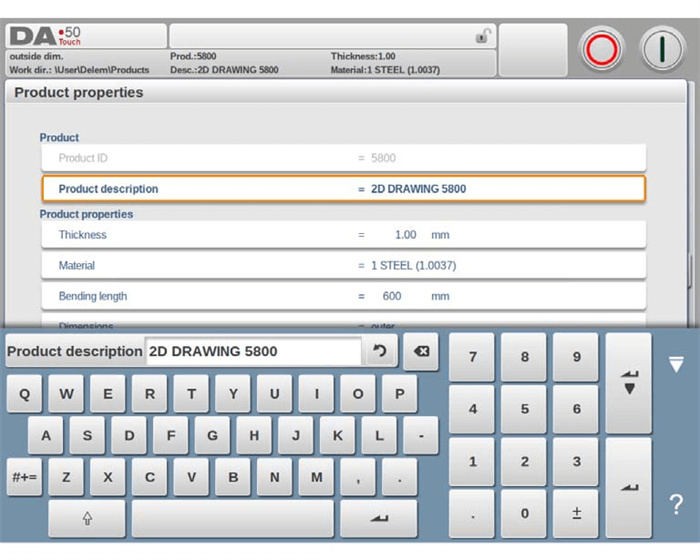
• Alfanumerická klávesnice: Ve výchozím nastavení se objeví plnohodnotná alfanumerická klávesnice podporující zadávání písmen a číslic;
• Čistě číselná pole: Při úpravě čistě číselných parametrů jsou písmenné klávesy na klávesnici automaticky "vyšedivěly" a aktivována je pouze numerická klávesnice, čímž se zabrání nesprávnému zadání;
• Alfanumerická pole: Když je vyžadován smíšený vstup, je aktivována plná funkce klávesnice pro podporu volného zadávání;
• Speciální znaky: Klikněte na tlačítko „Speciální znaky“ v levém dolním rohu klávesnice pro vložení symbolů, jako jsou "?, %, -";
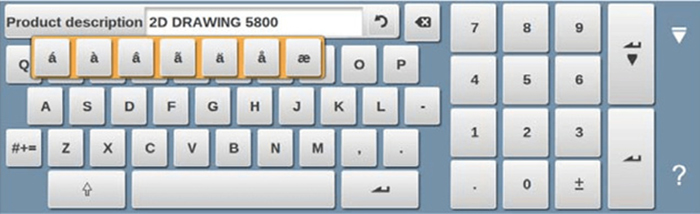
• Znaků s diakritikou: Dlouhým stisknutím základního znaku (např. "a") zobrazíte mezinárodní znaky s diakritikou, jako jsou "á, à, â", čímž se přizpůsobíte potřebám vícejazyčného zadávání;
(VII) Síť
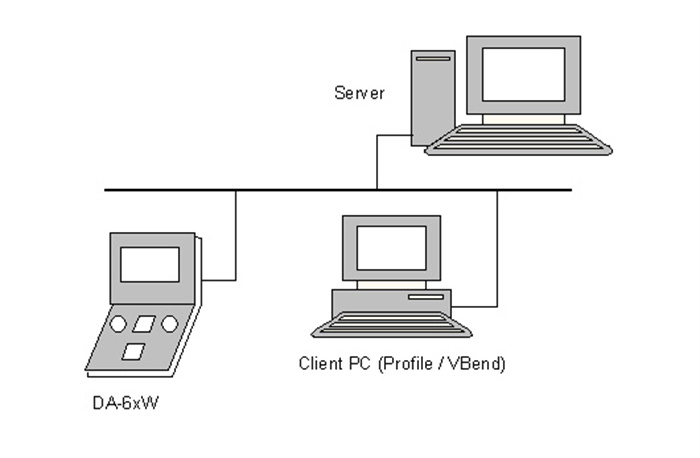
DELEM DA-58T lze volitelně vybavit síťovým rozhraním. Síťové připojení dále zjednodušuje pracovní postupy a správu dat (např. vzdálený přenos programů, centralizovaná správa zařízení).
(IX) Funkce zámku kláves
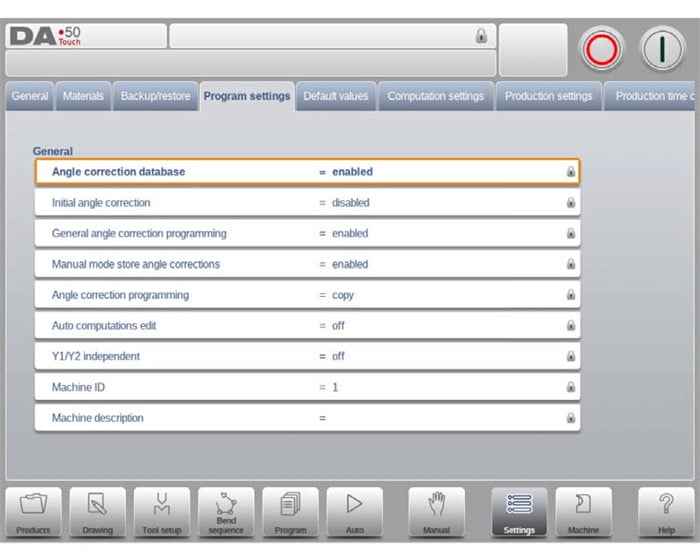
Tato funkce slouží k ochraně bezpečnosti programů a nastavení stroje a zabraňuje neoprávněným úpravám následujícím způsobem:
• Hlavní účel: Uzamkne řídicí systém, aby omezil oprávnění k úpravám produktů a programů;
• Dvě úrovně uzamčení:
a. Uzamčení programu: Umožňuje pouze výběr a spuštění stávajících produktů v režimu Auto; úprava jakýchkoli parametrů je zakázána (ikona zámku je ve šedém uzavřeném stavu);
b. Zámek stroje: Úplně uzamkne stroj, čímž se řídicí systém stane nedostupným (ikona zámku je v červeném uzavřeném stavu);
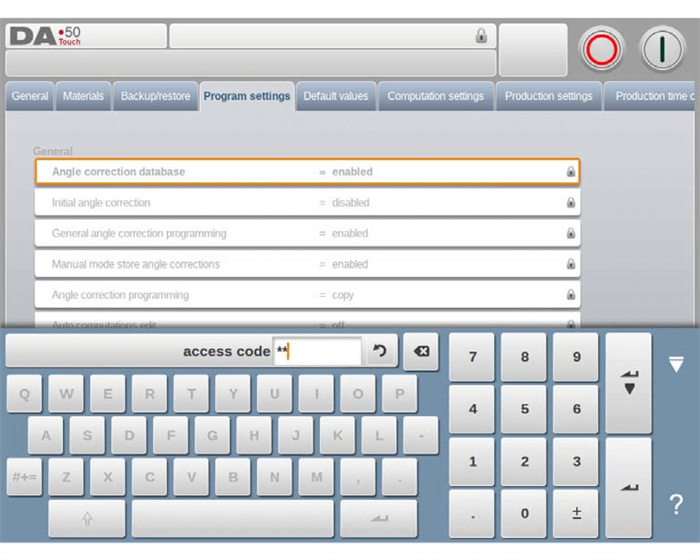
• Způsob aktivace: Klikněte na ikonu zámku v horní části obrazovky a zadejte odpovídající heslo; systém přejde do určené úrovně zamčení;
• Indikace zámku: Když je programový zámek aktivován, vedle parametrů se objeví ikona zámku, která indikuje „zakázáno změnit“;
• Způsob odemčení: Klikněte na ikonu zámku a zadejte správné heslo; ikona zámku přepne do „odemčeného stavu“ a ikony zámku vedle parametrů zmizí;
• Správa hesel: Podporována vlastní hesla; konkrétní metody nastavení naleznete v Návodu k instalaci.
(X) Ruční nastavení pozice
V režimech Ruční i Automatický lze dosáhnout polohování os pomocí „posuvníku“ v dolní části obrazovky:
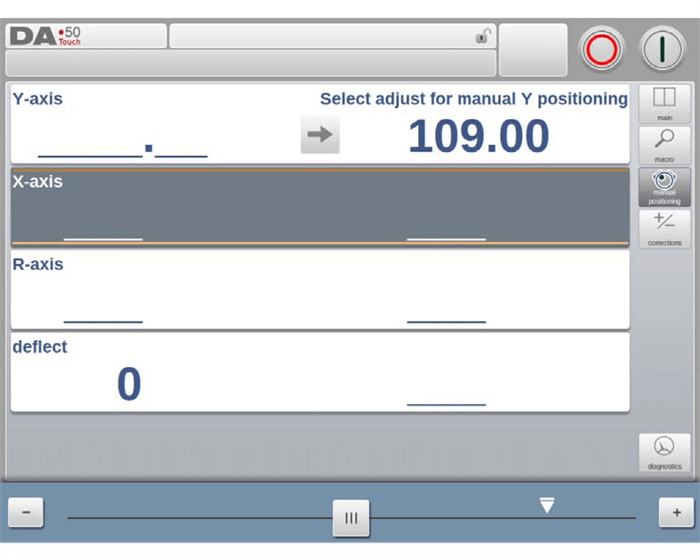
• Vzdálenost pohybu posuvníku určuje rychlost pohybu osy; pohyb osy okamžitě zastaví uvolněním posuvníku;
• Na obou koncích posuvníku jsou k dispozici tlačítka "jemného nastavení" pro přesnou úpravu polohy osy;
• Při pohybu osy se ozve zvuk "pípnutí", který poskytuje okamžitou zpětnou vazbu o provozu.
(X) Popis verze softwaru
Verze softwaru jsou rozděleny do hierarchie "Hlavní verze - Podverze - Aktualizační verze", přičemž různé úrovně reprezentují různé typy aktualizací:
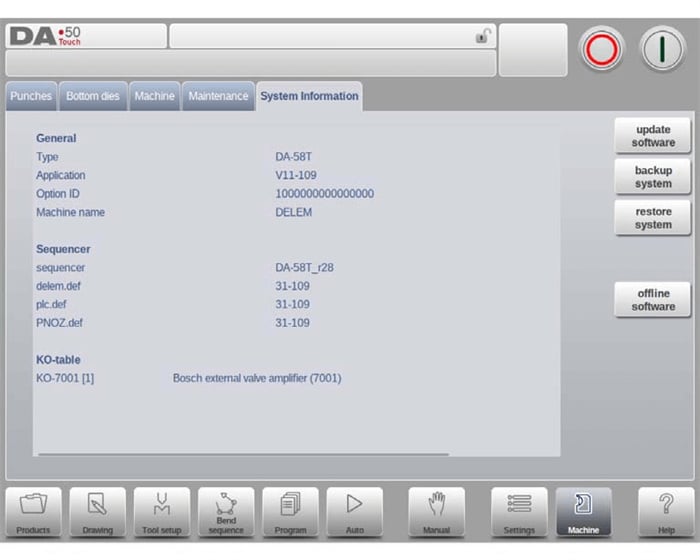
• Hlavní verze (V 1.x.x): Zahrnuje hlavní funkční aktualizace, které mohou změnit logiku ovládání a vyžadují opětovné naučení;
• Podverze (V x.2.x): Přidává nové funkce bez změny původního pracovního postupu, není nutné upravovat návyky při ovládání;
• Aktualizační verze (V x.x.3): Opravuje pouze chyby v existující verzi, neobsahuje žádné nové funkce ani úpravy logiky.
5. Často kladené otázky (FAQ)
1. Jak si aktualizuji software na svém zařízení DELEM DA-58T?
Připojte USB disk obsahující aktualizační soubor softwaru ke řídicí jednotce, přejděte do systémového rozhraní „Aktualizace softwaru“ a postupujte podle pokynů k dokončení aktualizace (konkrétní cestu naleznete v návodu uvnitř systému).
2. Jak mohu zajistit přesnost operací na zařízení DELEM DA-58T?
Přesnost lze zajistit přísným dodržováním „pokynů pro kalibraci“ v systému. Mezi klíčová opatření patří: pravidelné kontroly stavu zařízení, úprava parametrů dle specifikací a použití digitálního měřidla pro přesná měření.
3. Lze zálohovat programy a nastavení na zařízení DELEM DA-58T?
Ano. Programy a nastavení lze snadno zálohovat prostřednictvím USB portu řídicí jednotky. Konkrétní postup najdete v části „Zálohování dat a externí úložiště“ tohoto článku.
6. Závěr
Řídicí systém DELEM DA-58T nabízí efektivní řešení pro provoz a programování CNC ohýbačky díky třem klíčovým výhodám: intuitivnímu rozhraní, flexibilním režimům a přesným funkcím. Plné pochopení a aplikace funkcí a procesů popsaných v tomto článku je klíčem ke zlepšení kvality kovozpracování a snížení výpadků zařízení.
Pro zajištění dlouhodobě stabilního provozu vašeho CNC systému doporučujeme přísně dodržovat provozní předpisy a pravidelně provádět úkoly údržby. Pokud potřebujete další technickou podporu nebo máte dotazy, neváhejte kontaktovat náš tým. Dále vás povzbuzujeme k prozkoumávání dalších oficiálních zdrojů, abyste ještě lépe využili výkonový potenciál systému DELEM DA-58T.

