





Как да овладеете програмирането на CYBELEC CybTouch 12?
Когато става дума за овладяване на програмирането на CYBELEC CybTouch 12, разбирането на начина за създаване на ефективна програма за детайл е от решаващо значение. Ако търсите насоки как да използвате ефективно CybTouch 12 за операциите си с гънкачна преса, попаднали сте на правилното място.
В тази статия ще ви представя основните принципи за създаване на програма за детайл с помощта на CybTouch 12, за да оптимизирате процеса си за обработка на метали. Независимо дали сте новодошъл или опитен потребител, който иска да подобри своите програмни умения, това ръководство предлага ценни наблюдения, които ще повишат както ефективността, така и прецизността ви.
Въведение
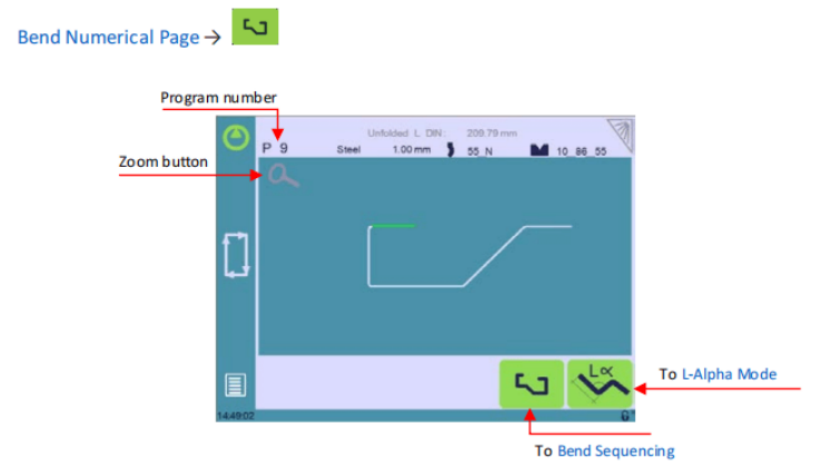
При програмирането в CYBELEC CybTouch 12 има три основни начина за създаване на програма за детайл: режим TouchProfile, числени режим и режим L-Alpha. За ефективно програмиране машината трябва да е напълно функционална, като всички параметри, инструменти и материали вече са конфигурирани. Това гарантира безпроблемен процес на създаване на програмата за детайл и повишава както ефективността, така и точността при металообработките ви.
Режим TouchProfile
В този режим операторът може много интуитивно да начертае профил директно на екрана.
Инструкции за настройка:
1. Докоснете номера на програмата, изберете Нова програма в списъка и докоснете Графичен .
2. Първо изберете материала, дебелината на материала и инструментите, които ще се използват за детайла, като докоснете съответните им икони.
3. Начертайте профила, като докоснете екрана там, където искате да добавите сегмент.
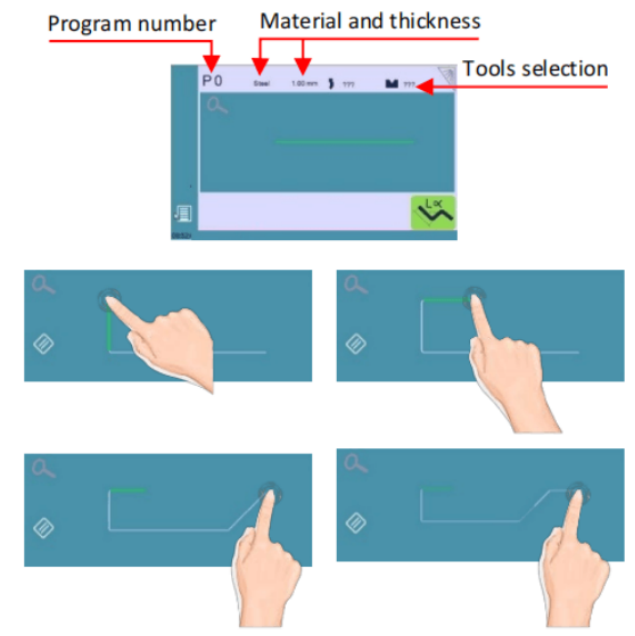
Докосване на тази икона  позволява изтриването на последния добавен сегмент.
4. Докоснете средата на сегмент, за да промените стойността му.
5. Докоснете ъгъл, за да промените стойността му.
Докосването на  иконата ще отвори жълт изскачащ прозорец, в който е възможно:
л Активиране (и деактивиране) на специален инструмент чрез докосване на неговата икона и избор от списък чрез натискане.
л Промяна на стойността на радиуса (вижте също стъпка „Гънене“) и определяне на броя стъпки, които ЧПУ ще извърши за изпълнението му.
6. Ако се окаже трудно да се избере определен сегмент или ъгъл, възможно е да се увеличи областта чрез докосване на този бутон, а след това — на желаната зона.
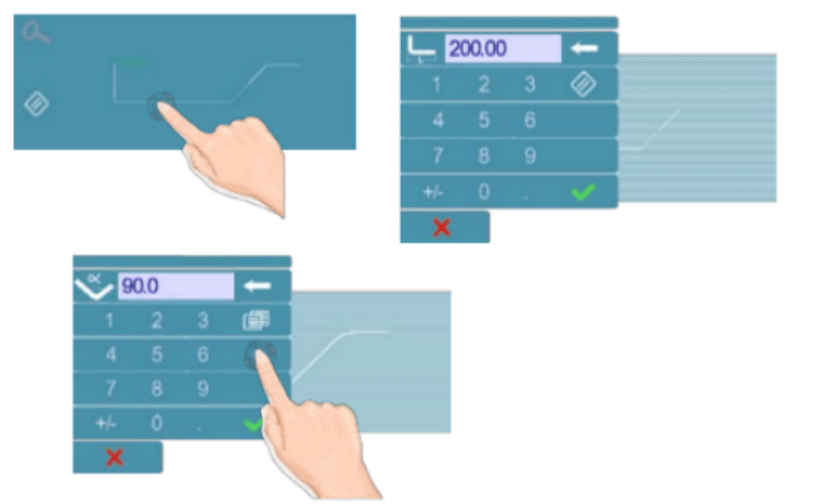
Също така може да се избере въвеждането на стойностите за дължина и ъгъл в страницата на режим L-Alpha, като се натисне това  отказ
отказ
7. След като всички сегменти и ъгли са нагласени, натиснете този бутон  за достъп Последователност на огъването .
Последователност на огъването
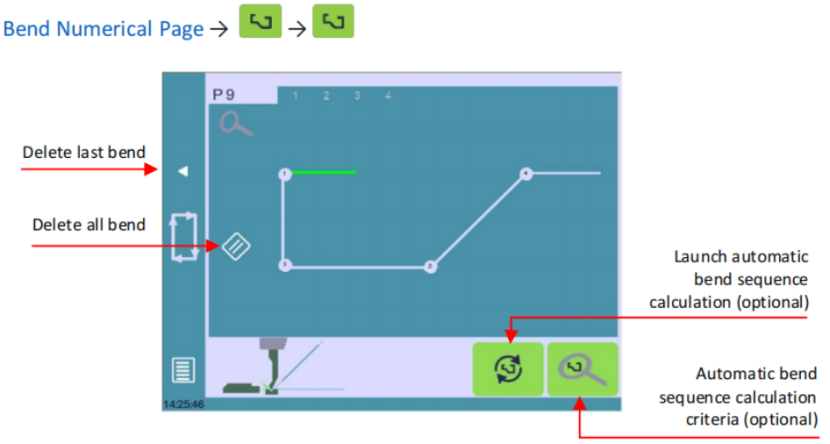
След като формата на детайла е определена, може да се определи последователността на огъването за този детайл.
Инструкции за настройка:
1. Започнете, като докоснете изчисление на последователността на огъването бутон, ако е наличен, за да получите достъп до екрана „Огъване 2D“.
2. За ръчно задаване на последователността докоснете всяко огъване в желания ред. Число ще показва неговата позиция.
Използвайте бутона „Назад“, за да премахнете последното огъване; ако искате да изтриете всички огъвания, просто докоснете  отказ
отказ
3. Екранът „Огъване 2D“ ще се появи след избора на последното огъване.
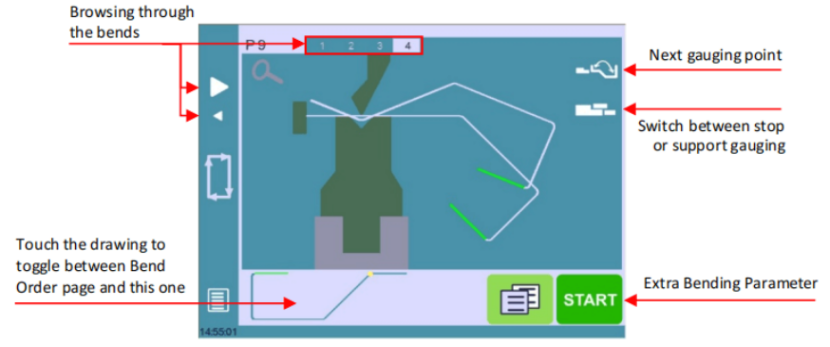
4. Задайте положението на задната упорна линийка и на детайла за всяко огъване и, ако е необходимо, коригирайте допълнителните параметри за огъване.
5. Навигирайте обратно към Числовата страница за огъване .
6. Активирайте хидравличния помпен двигател, като натиснете бутона  , като той става червен.
7. Позиционирайте машината, като използвате Започване отказ
8. А Ok бутона ще се появи, когато машината е готова за огъване.
9. Преминаване към Полуавтоматичен режим за внасяне на корекции.
10. Изпълнете огъването чрез педала за управление.
Тези стъпки ще ви насочат ефективно в овладяването на програмирането на CYBELEC CybTouch 12.
Числов режим
Също така е възможно просто да създадете програма за детайл директно на страницата за числово гънене.
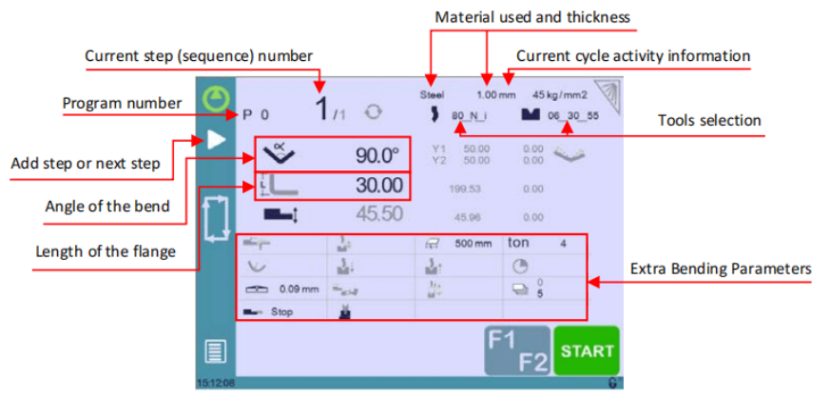
Инструкции за настройка:
1. Изберете Нова програма под Числова .
2. Изберете инструментите си, като натиснете техните икони (вижте Управление на инструменти).
3. Изберете материала (напр. стомана) и въведете дебелината му.
4. В Допълнителни параметри за гънене , задайте дължината на гъненето и подробностите за последователността, като например отваряне (TDC).
5. Въведете ъгъла за първото гънене (напр. 90°).
6. Въведете дължината на първия сегмент (напр. 30,00 мм).
7. Добавете последващи гънки по необходимост.
8. Стартирайте хидравличния двигател на помпата. (чрез натискане на този бутон  ако е наличен.
9. Натиснете бутона START, за да позиционирате машината, използвайки вашите данни.
10. Подгответе машината за гънене и нагласете я в Полуавтоматичен режим ако е необходимо.
11. Изпълнете гъненето с педала за управление.
Режим L-Alpha
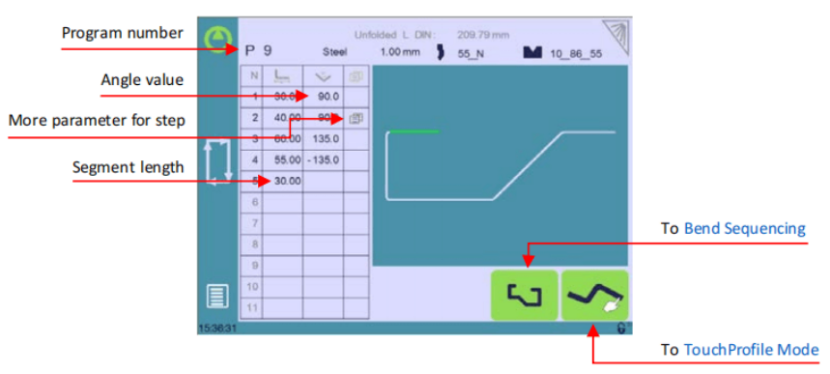
За ефективно програмиране на CYBELEC CybTouch 12 активирайте настройката „Показване на страница L-alpha“. Това ви позволява да дефинирате всеки етап от профила – независимо дали дължина или ъгъл – директно в таблица за прецизна персонализация.
Инструкции за настройка:
1. Създаване на нова програма : Докоснете номера на програмата, изберете „ Нова програма “, и изберете „ Графичен “.
2. Влизане в режим L-Alpha : Натиснете бутона  за влизане в режим L-alpha.
3. Изберете материал и инструменти : Изберете материала, дебелината и необходимите инструменти, като натиснете техните икони.
4. Въведете дължините на сегментите : Докоснете първата стойност в таблицата, въведете дължината на сегмента и добавете стъпки. Натиснете „ОК“, за да потвърдите.
5. Повторете за всички стъпки : Въведете по подобен начин всички стъпки и ъгли на профила.
6. Управление на специални извивки : За специални параметри (голям радиус, уникални инструменти) използвайте полето „ Повече “ и следвайте инструкциите в жълтото изскачащо прозорче.
7. Активиране на специални инструменти : Изберете специални инструменти от списък в жълтото изскачащо прозорче, настройте стойностите за радиуса и задайте етапите на изпълнение.
8. Финализиране и подреждане по последователност : След като всичко е настроено, натиснете бутона  за Последователност на огъването .
Гънене и корекции
В програмирането за CYBELEC CybTouch 12 корекциите се извършват в Числовата страница за огъване . Операторите могат да избират дали да прилагат корекциите стъпка по стъпка или да използват Полуавтоматичен режим за коригиране на етап преди продължаване. Основните области за корекция включват ъгъла (Y1 + Y2, с опции за корекция на ъгъла и извитост) и позицията на задната упорна линийка (оси X и R).
Полуавтоматичен режим
В програмирането за CYBELEC CybTouch 12 полусамостоятелният режим позволява повторение на последователността, докато резултатът не стане перфектен. Операторите могат да правят корекции при гъненето стъпка по стъпка и да повтарят процеса, докато останат доволни.

Активиране или деактивиране чрез задържане на бутона повече от секунда, за да се осигури прецизност и ефективност.
Корекция на ъгъла (Y ос)
При програмирането с CYBELEC CybTouch 12 винаги прилагайте корекциите на определената страница след измерване на ъглите, а не директно в стъпката на програмата, за да гарантирате точност.
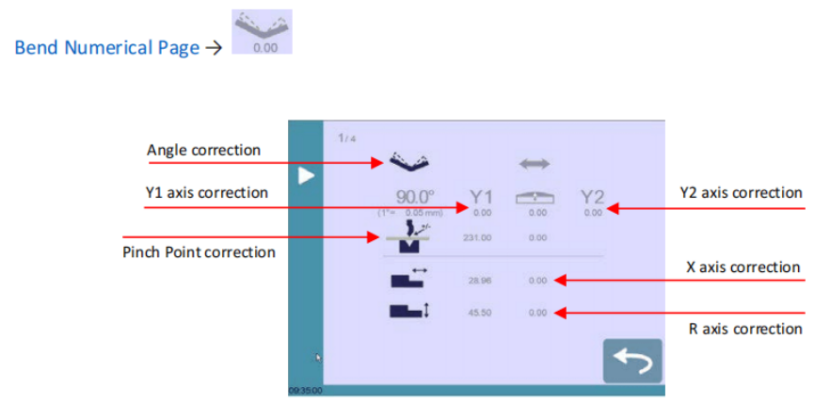
ИНСТРУКЦИИ ЗА НАСТРОЙКА :
1. Регулиране на ъгъла : Въведете измерените ъгли чрез иконата корекция на ъгъла за да позволите на CYBELEC CybTouch 12 да коригира автоматично осите Y1 и Y2. Нулирайте всички корекции с бутон.
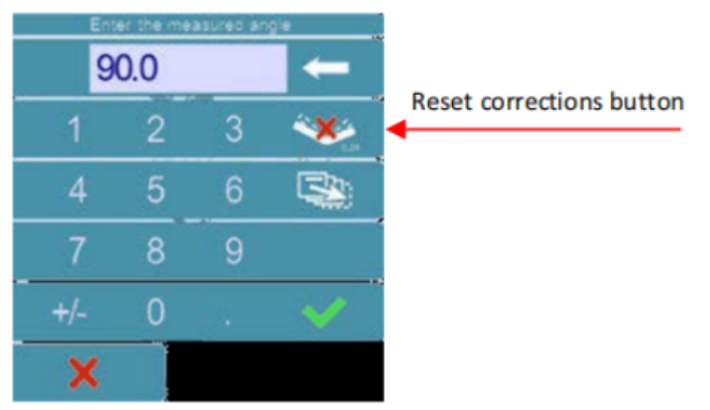
2. Фина настройка на лъча : Коригирайте положението на лъча въз основа на разположението на листовия метал, като използвате иконата за корекция по осите Y1/Y2.
3. Корекция на извитостта (crowning) : Докоснете иконата 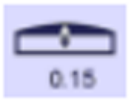 за да промените стойността на извитостта (crowning).
4. Регулиране на точката на притискане : Коригирайте височината на точката на притискане по необходимост, като изберете Корекция на точката на притискане иконата.
5. Задна линийка – X ос : Използвайте Корекция по оста X икона за регулиране на положението на задната линийка по X ос.
6. Задна линийка – R ос : Извършете корекции по R ос, като натиснете Иконата за корекция по R ос иконата.
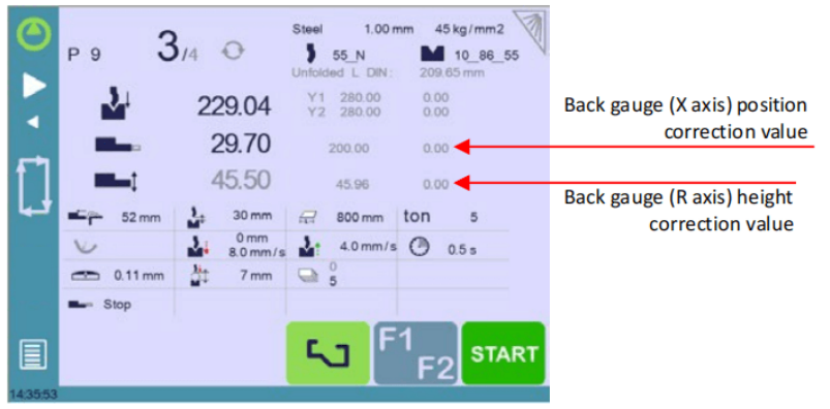
Сивите стойности до иконите за корекция на задната линийка са стойностите, изчислени от числовото управление, и следователно това са стойностите, върху които ще бъдат приложени корекциите. Корекциите на положенията на задната линийка могат да се извършват и директно върху Числовата страница за огъване .
Функция „Следваща част“
Една от най-ценените функции на програмирането с CYBELEC CybTouch 12 е възможността за последователно изпълнение на няколко програми за части. Това е особено полезно при създаването на сложни триизмерни детайли, като например кутия, или при сглобяването на крайния продукт от няколко отделни части.
С CYBELEC CybTouch 12 текущата програма се изпълнява, а след достигане на последната последователност системата автоматично преминава към следващата предварително зададена програма (P+nn), което осигурява безпроблемна непрекъснатост в производствения процес. Тази функционалност опростява операциите и повишава ефективността при създаването на компоненти от няколко части.
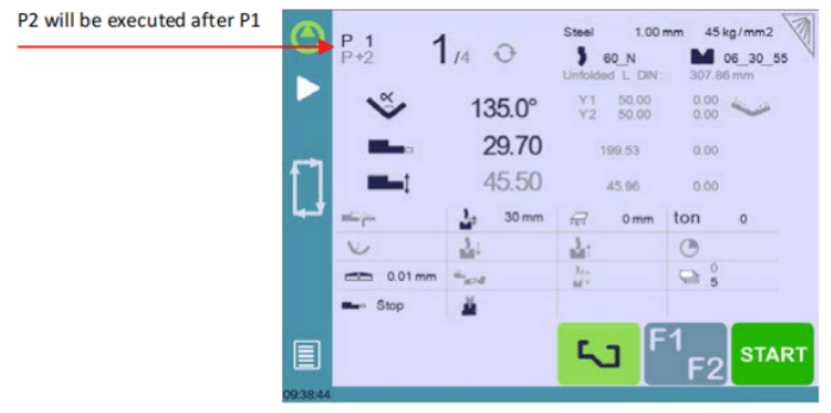
ИНСТРУКЦИИ ЗА НАСТРОЙКА :
1. За активиране на функцията „Следваща част“ докоснете името на програмата и го задръжте, докато се появи следващият списък.
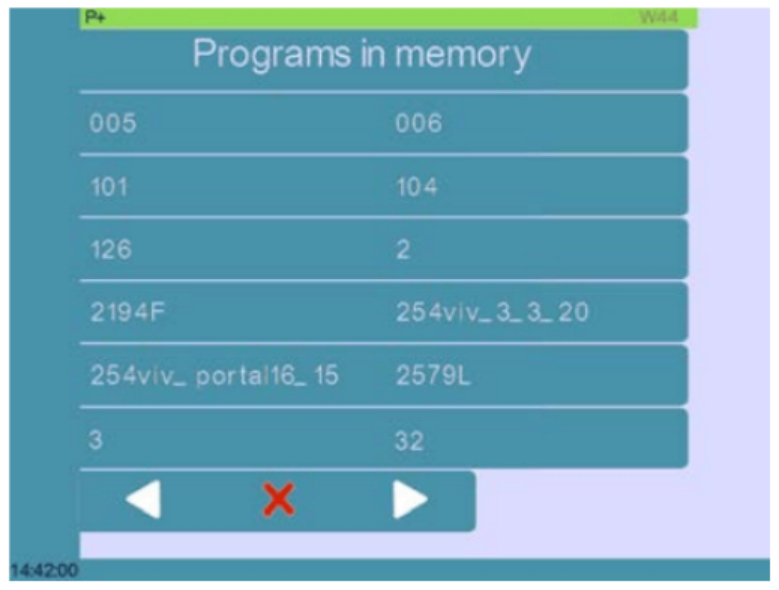
2. Изберете от списъка името на програмата, която трябва да се изпълни в края на текущата.
3. Запазете програмата.
4. За да изтриете P+ програмата, изберете същата програма от списъка P+ (или изтрийте P+ програмата).
Цикли и количества
Програмирането на CYBELEC CybTouch 12 позволява безпроблемно циклиране на програмите, като се връща автоматично към началото. Например, при събиране на три програми програма 1 води до програма 2, след това до програма 3, която отново се връща към програма 1. Тази конфигурация гарантира, че броячът на детайлите се увеличава с едно при преминаването от програма 3 към програма 1, което оптимизира вашия програмен поток.
Експортиране на програма от офлайн софтуера VisiTouch към CybTouch 
След като детайлът е създаден с офлайн софтуера VisiTouch, е възможно да се запази за последваща употреба на CybTouch. Моля, действайте по следния начин.
1. Създайте детайл и го запазете.
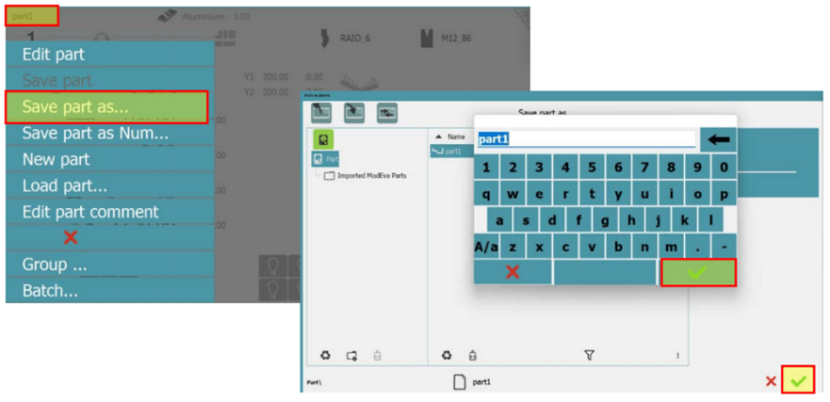
2. Експортирайте своя детайл, като щракнете върху „Детайл / Зареди детайл“.
3. Изберете програмата и маркирайте полето „CybTouch“ за конвертиране на файла.
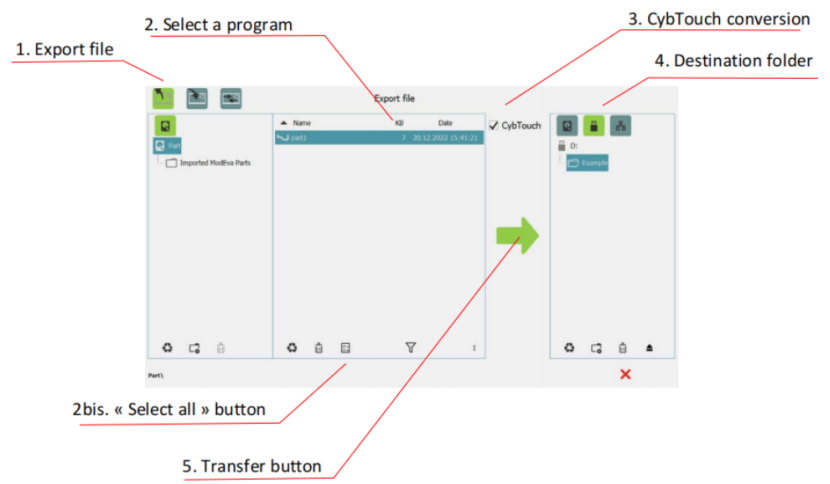
Съвет: Създайте папка „DataCybT“ на USB-флаш паметта си и запазете в нея програмата си за детайли и инструменти. По този начин списъкът с програми ще се появи директно при включване на USB-ключа в контролера.
Заключение
Овладяването на програмирането с CYBELEC CybTouch 12 изисква задълбочено разбиране на ключовите етапи, свързани със създаването на програма за детайл. Следвайки описания процес, вие можете ефективно да проектирате и изпълнявате прецизни операции по гънене. Тези ключови етапи включват настройка на параметрите, въвеждане на необходимите размери и симулация на процеса, за да се гарантира точността.
За да издигнете своите програмни умения на следващото ниво, помислете за изследване на допълнителни ресурси или се обърнете към нашия екип за персонализирана поддръжка. За повече подробности не се колебайте да ни се обадите или да прегледате свързаната документация, за да задълбочите своята експертиза с CYBELEC CybTouch 12.

